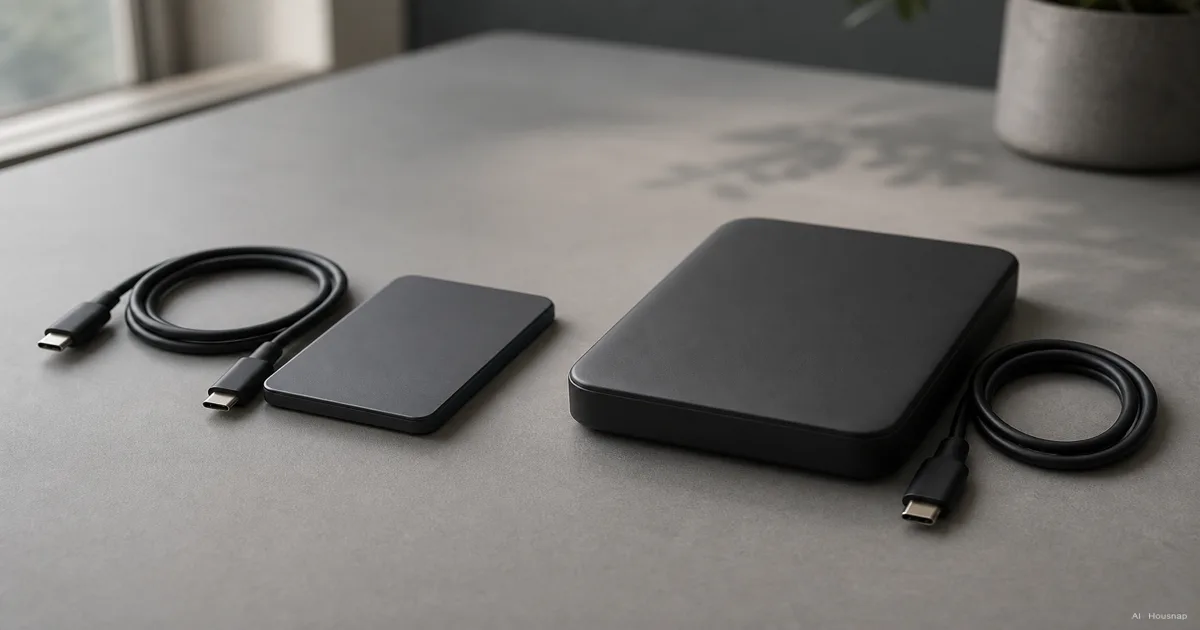
Choose the job before the drive
- Working and travelling. Start with an external SSD if you frequently move large folders or want a drive for active projects.
- Backup at home. Start with an external HDD if capacity takes priority and you can leave transfers running.
These are buying priorities, not exclusive uses: either type can hold working files or backups. SSDs generally transfer data faster and resist knocks better; HDDs usually buy you more capacity for the money. Kingston’s comparison explains those trade-offs.
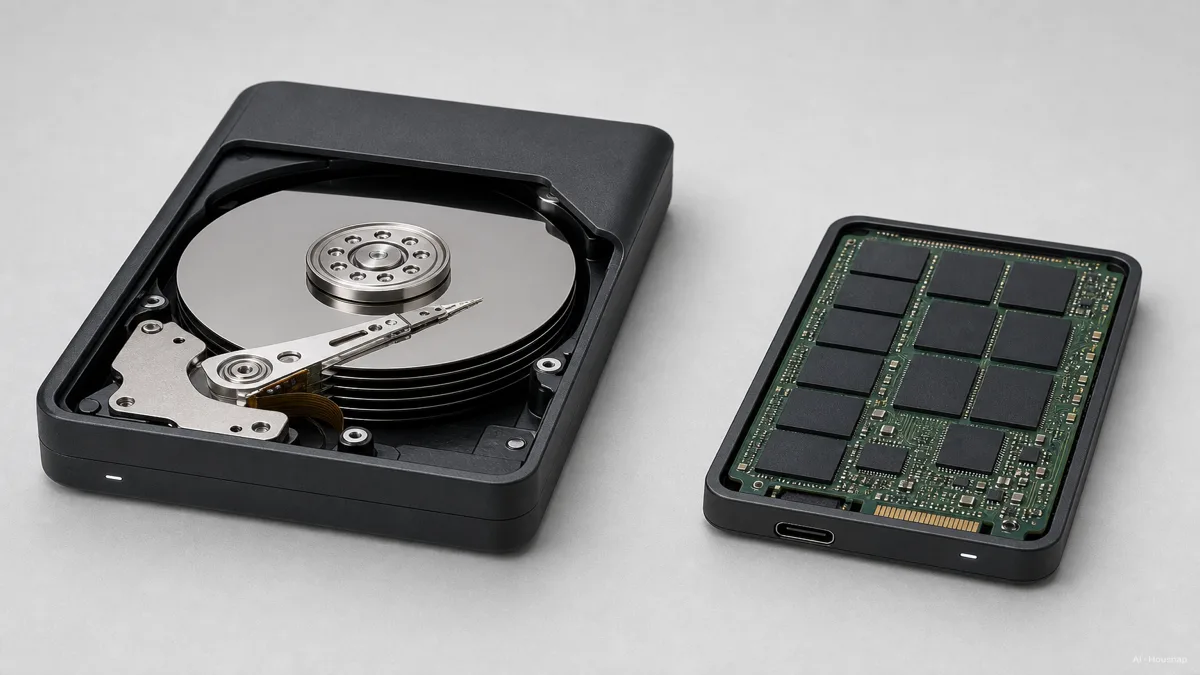
The hardware explains the difference: an HDD uses rotating magnetic disks and a moving head; an SSD stores data in flash without those moving parts. IBM’s explanation covers the two designs.
Check the connection before paying for speed
USB-C tells you the connector shape, not the transfer speed. Look up the supported data protocol on your computer, drive and cable; USB-IF explicitly distinguishes these.
Use the supplied cable where possible. Small files, a slower source drive and a full write cache can all reduce transfer speed, so a headline maximum does not predict your whole copy job. Seagate’s performance guide explains these limits.
For buying, compare sustained transfer results for your kind of files, not just the largest number on the box. If your main task is an unattended backup, prioritise sufficient capacity over a faster connection you may not need.
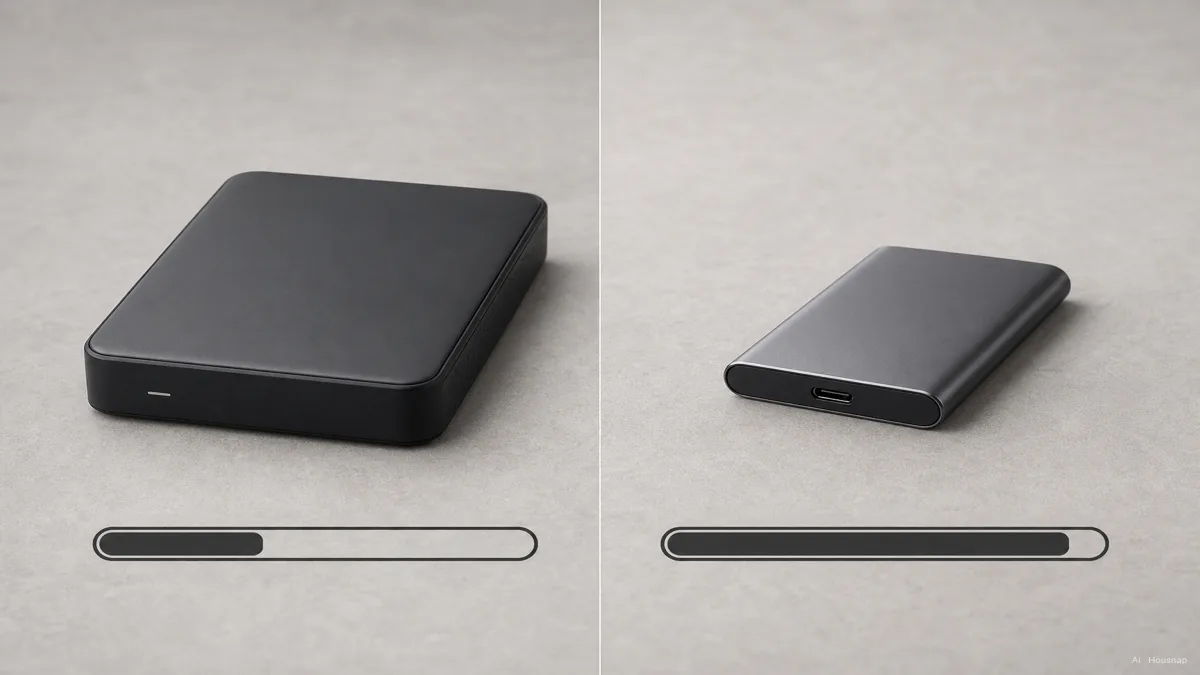
This illustration shows the general speed difference, not a measured transfer time or a guaranteed ratio.
Set capacity and carrying requirements together
Check how much space your intended files already occupy. Add room for the projects and backup versions you want to retain, then compare SSD and HDD options at that capacity. A cheaper drive that cannot hold the required files is not the useful comparison.
For a travel drive, check dimensions, weight and the complete kit, including any power adapter. Read protection claims for the exact model: for example, Kingston specifies the XS2000’s drop protection with its removable sleeve. That is not a promise that every SSD survives a fall. XS2000 specifications.
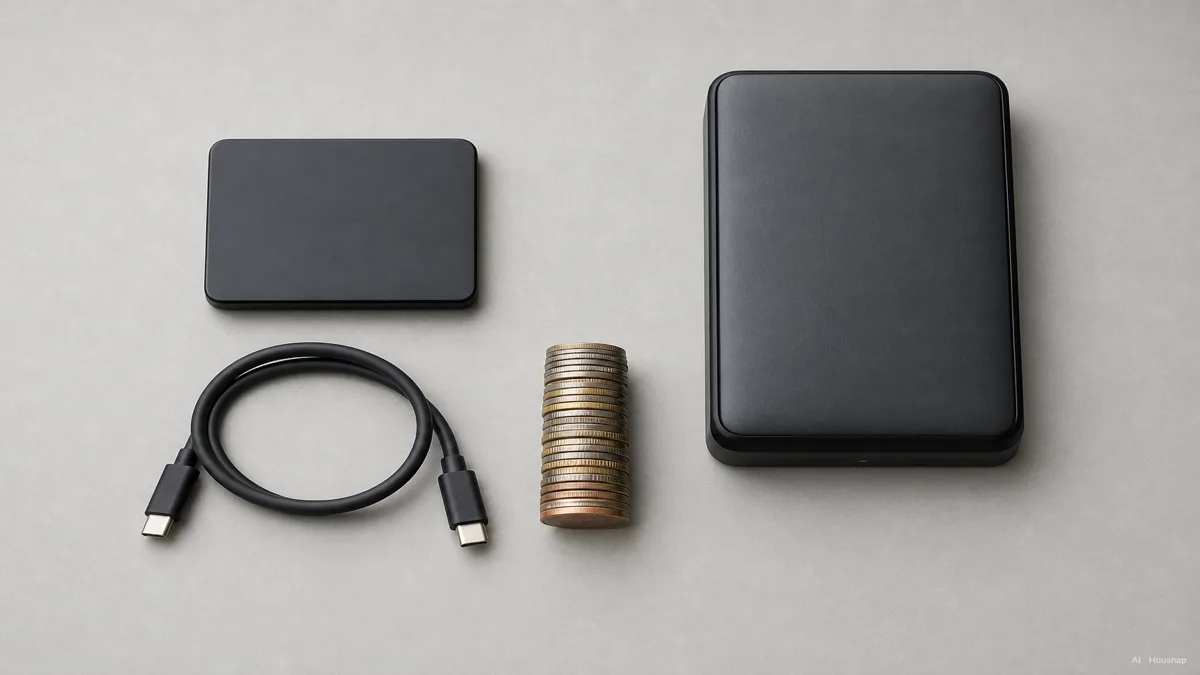
Treat the sizes and coins as an illustration of the trade-off. Compare the actual dimensions and same-capacity prices of your shortlisted drives.
Match the format to the task
A file system is how the drive organises files. Decide on the task before accepting a formatting prompt.
- Ordinary files shared between Mac and Windows. ExFAT is a compatible option. Apple’s format guide.
- Time Machine backups. Apple prefers APFS or APFS Encrypted. Reformatting erases existing data, so copy anything needed elsewhere first. Apple’s Time Machine guidance.
If the drive will also connect to a phone, console or TV, check that device’s storage requirements before choosing a format.
Decide where the other copy will live
Moving files off your computer and deleting the originals leaves a single copy. Seagate’s 3-2-1 guidance calls for three copies, two media types and one copy off-site. Backup basics.
Before checkout, write down the drive’s job, required capacity, compatible connection and backup destination. You do not need both an SSD and an HDD just because they complement each other; you need a plan that preserves your important files.
If the next question is how several people or devices will share the same library, compare NAS and external drives for home storage before committing to another portable drive.
How this guide was built
Written by Housnap’s AI editor using IBM and Kingston hardware explanations, USB-IF connection guidance, and Apple and Seagate support documentation. This guide turns those sources into first-purchase checks; it does not report hands-on product testing or a new human review.