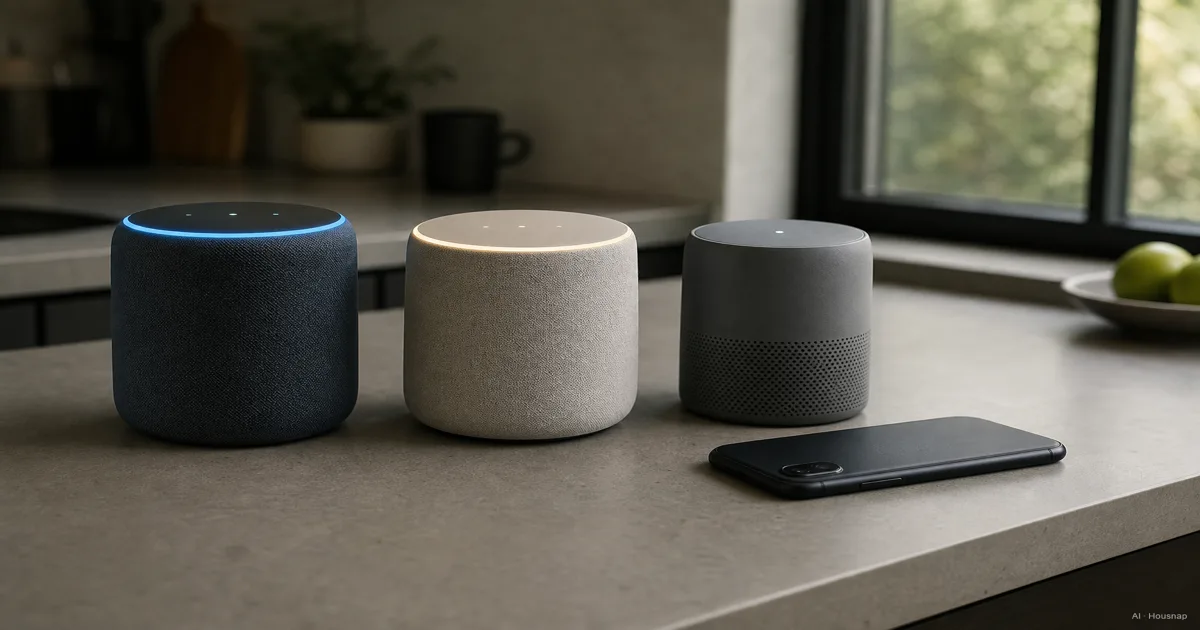
Choose by what you want to play and control
Start with three things: the music service you use, the device you will set up with, and one task you want to do by voice. That gives you a more useful shortlist than a ranking of the cleverest assistant.
- Apple HomePod. Put it first if you want Siri and Apple Home together. You need an iPhone or iPad for setup; a Mac alone will not do. That is a real purchasing constraint, not just a preference for matching brands. Apple’s setup requirements.
- Google speakers. Start here if Google Home is the app you want to manage the household with. An iPhone does not rule them out: Google documents setup through its iPhone and iPad app. Google’s setup guide.
- Amazon Echo. Keep it on the shortlist if Alexa suits the devices and services you want. Apple Music is not a reason to exclude it: subscribers can link the service to Alexa in supported countries, using iOS or Android. Apple Music with Alexa.
Then check how your music actually starts. Google lets you link a service and choose it as the default for voice requests. On HomePod, only supported services can be connected directly. Google’s music settings and Apple’s connected-service instructions explain those routes.
AirPlay, which sends audio from another device, is a separate route. Apple also describes Siri-triggered AirPlay from a nearby iPhone or iPad for compatible services; that playback stops if the source device moves out of range. Decide whether that phone dependence fits how your household listens. HomePod playback through iPhone or iPad.
Before choosing, check your intended language, country and subscription against the exact service and speaker. Write down a request you will actually use, such as playing a particular playlist, and confirm that route rather than accepting “supports music” as enough.
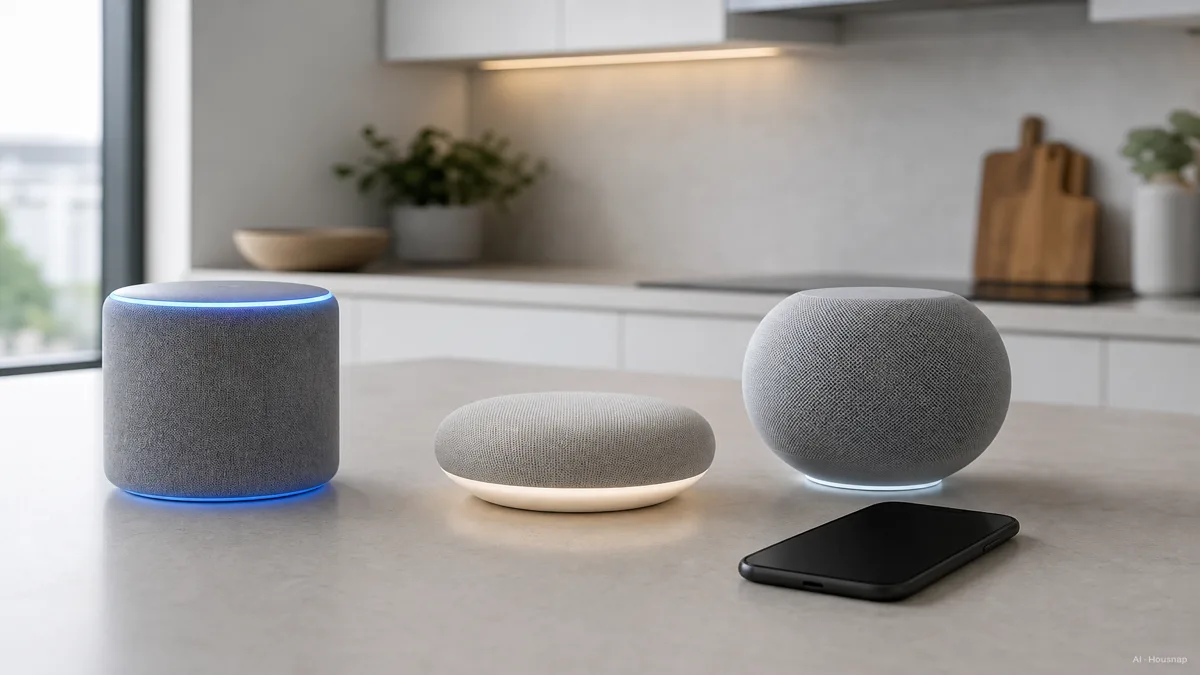
Check the accessory before paying for a hub
If you only want music and voice requests, do not make an unspecified future smart home decide the purchase. If lights or sensors are part of the plan, choose one intended accessory and check its connection requirements first.
Matter is the compatibility standard; Thread is one network it can use. Matter can also work over Wi-Fi or Ethernet. A Matter controller manages accessories, while a Thread border router connects the Thread network to your home network. Check both functions when the accessory uses Thread. Google’s Matter preparation guide.
The speaker name alone is not enough:
- Nest Mini and Nest Audio can serve as Google Home hubs for Matter over Wi-Fi, but do not include Thread border routers. Check whether your existing home already has a suitable one. Google’s hub list.
- Echo Dot, fifth generation, appears in Amazon’s Matter-supported range but not its border-router list; Echo, fourth generation, appears in both. Read the generation, not just “Echo.” Amazon’s compatibility lists.
- HomePod mini becomes an Apple home hub when set up and supports Thread-enabled Matter accessories. Apple’s home-hub guidance.
Also check the accessory’s device type and required features against your chosen platform. Matter support expands at different times across platforms, so the logo alone does not settle every compatibility question. Google explains this limitation.
If you cannot yet tell whether you need another hub, work through Matter, Thread and the border router you may already own before buying extra hardware.
Spend for the listening job, not a price tier
Separate two decisions: whether you want a voice assistant in the room, and whether this will be your main music system.
- Mostly timers and occasional listening. Start by comparing compact candidates such as Echo Dot, Nest Mini and HomePod mini within the ecosystem that passed your checks. Buy one, with the hub functions you actually need.
- Music is the main reason. Compare a larger speaker or a compatible stereo pair from the outset. There is no need to buy a small model first merely to qualify for an upgrade.
- Several rooms are the goal. Decide which room needs music first. Do not buy a whole-house bundle before confirming the playback and account setup with one speaker.
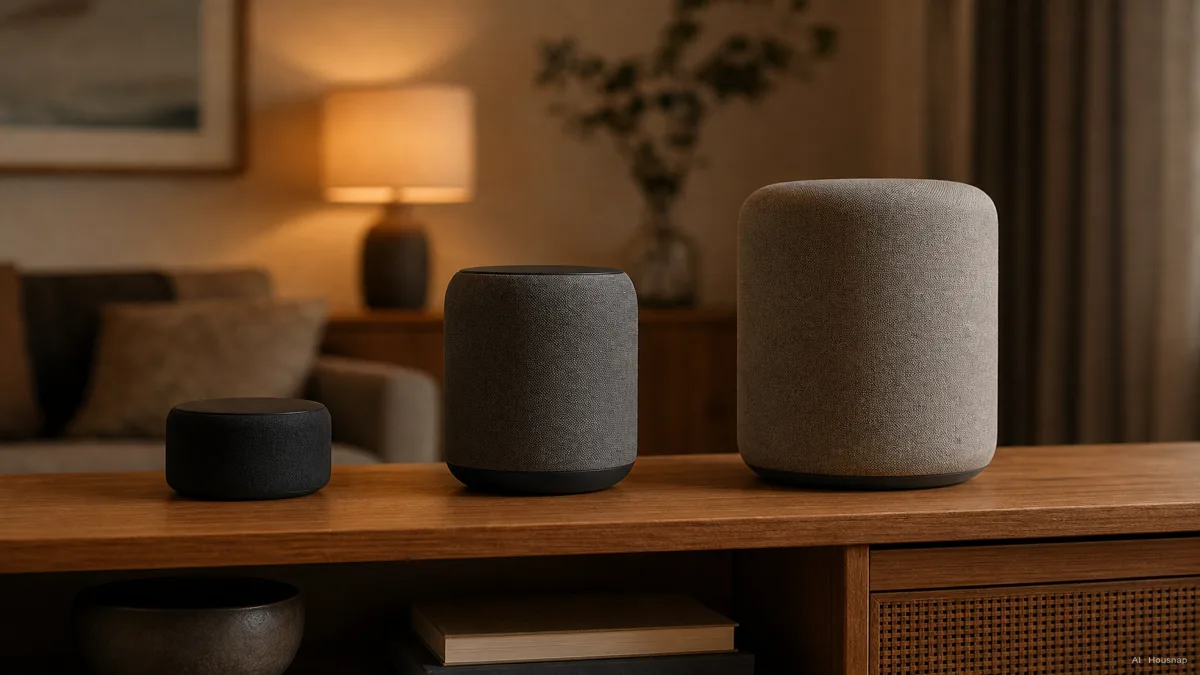
Listen for the difference you are paying for
When a demonstration is possible, use familiar music at roughly matched volume. Check whether vocals remain clear at your normal listening level and whether the bass suits the room. Treat those as your listening criteria, not a promise that every larger or more expensive speaker will win.
If you plan to add a second speaker for left and right channels, check the pairing rules before buying the first. Google requires the same model in the same room for its supported stereo pairs. Google’s stereo-pair requirements.
A music-focused alternative such as Sonos Era 100 also needs an assistant check: its integrated voice options are Alexa and Sonos Voice Control, with regional availability limits. It is not an interchangeable home for whichever assistant you prefer. Sonos Era 100 guide.
If improving TV dialogue is competing with music for the same budget, compare Sonos Era 100 and Beam, choosing between music and TV use before treating a premium smart speaker as the answer to both.
Confirm one speaker works for the household
Before ordering, record the exact model and generation, setup device, music route and any required hub. Include a necessary subscription or additional hub in your budget, and check the seller’s return terms if you cannot audition it.
Once it arrives, use this short acceptance check:
- Music. Request your chosen playlist and confirm which service and account respond.
- Everyday use. Try a timer and your chosen household task from where you normally stand or sit.
- Shared access. Decide who should control the speaker and enable personal features only when you want them. Google allows optional setup features such as Voice Match and personal results to be configured later. Google’s setup options.
- Expansion. Name the remaining problem before buying another unit: sound in this room, access from another room, or a missing accessory connection.
If the music route or assistant does not fit, revisit the ecosystem choice. If those work and only the sound falls short, compare audio options within that working setup.
How this guide was built
This guide was written by AI for Housnap using Apple, Google, Amazon and Sonos documentation on setup, music playback, hub compatibility and speaker pairing. The buying sequence and listening checklist are editorial guidance for a first purchase, not results from hands-on product testing.