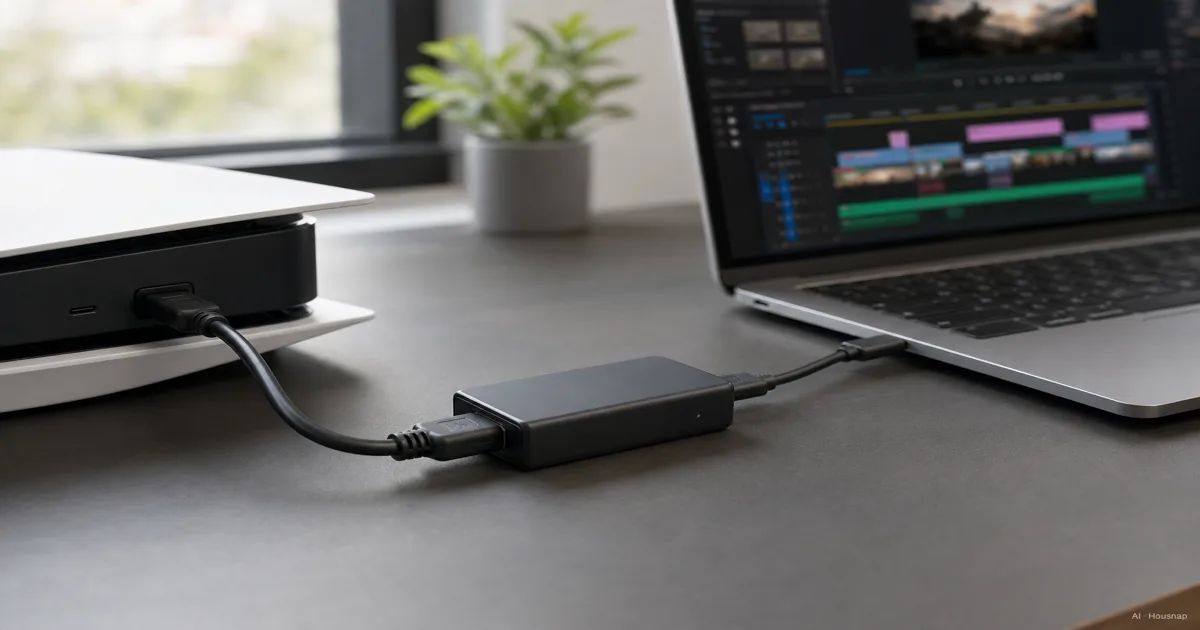
First decide whether a card solves your problem
Playing and streaming on one Windows PC? Try OBS Game Capture first. A capture card should solve an input problem, not be an automatic addition to a streaming setup.
For console footage in OBS, a capture device is one route; OBS also describes Remote Play window capture, which depends on your network. If you only want a straightforward PS5 broadcast, try its built-in broadcast function before buying hardware.
If the missing picture is your face rather than a console feed, start with choosing a 1080p or 4K webcam. That is a different purchase question.
Write down two targets, not one “4K” label
Make a two-line requirement: what you want to record, and how you want to play on the connected display. For example, 1080p60 recording and 4K60 play. Here, 60 means 60 frames per second.
Capture is the video sent to software; passthrough sends the HDMI signal onward to your display. These need to work together. The HD60 X format matrix supports 4K60 input with 1080p60 capture, but not 4K60 capture.
The HD60 X is not limited to 1080p60: its specifications also list 4K30 and 1440p60 capture. Those are alternatives, not permission to combine every maximum.
If preserving 4K120 play matters, make that a separate buying condition even when recording at 1080p. Check HDR, which carries a wider brightness range, and VRR, which varies the display refresh rate, separately too. Ask for the exact input-to-capture combination in the manufacturer's format list; a headline resolution is not enough.
Match USB or PCIe to the computer you already have
For a laptop or a card you plan to move, start with external USB models. Check the port's data speed, the cable and supported operating system before choosing one. The 4K X specifications list a 10Gbps USB interface; its requirements allow a slower Gen 1 connection with reduced capture resolution.
For a fixed desktop setup, an internal PCIe card is worth comparing if you have the required slot and lanes. Lanes are the data connections available to the card. A long slot does not guarantee enough of them, and other installed hardware can affect availability; consult the motherboard manual alongside Elgato's PCIe guidance.
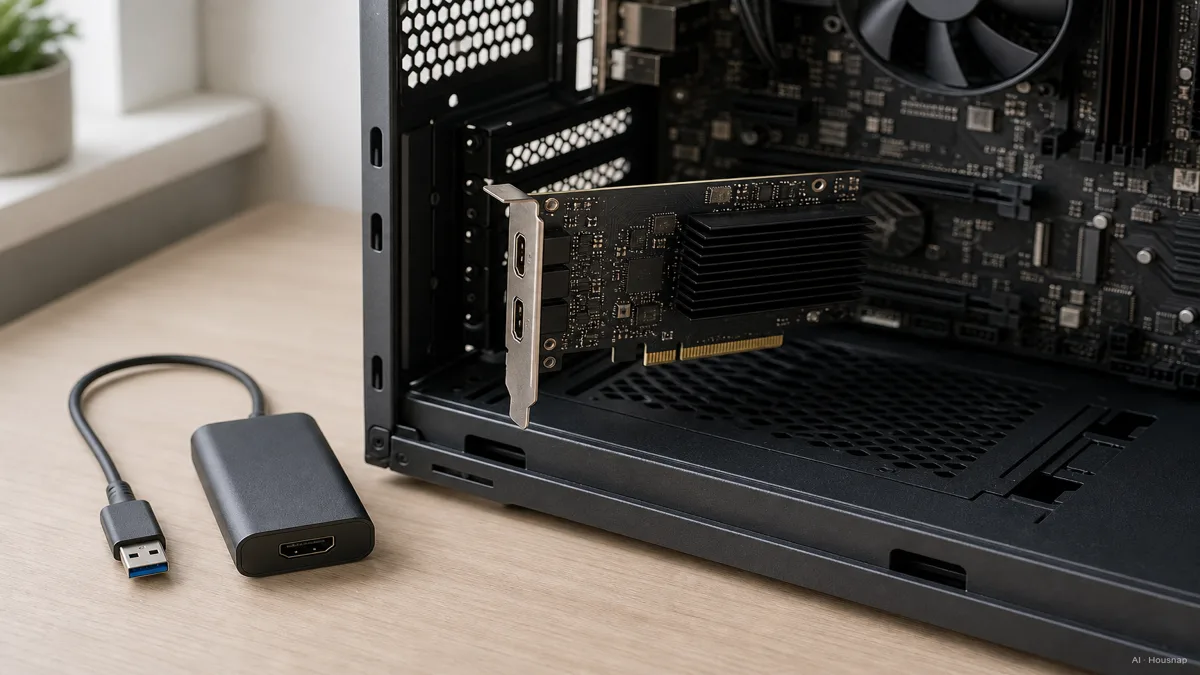
Choose the form that fits your computer and workspace. Do not pay extra merely because an internal card sounds more professional.
Compare only cards that pass your requirements
Use the targets you wrote down to reject unsuitable candidates before comparing prices.
- 1080p60 recording with 4K60 play. Check that exact pairing, then USB speed and software support. The HD60 X example above shows why a card's name alone tells you little.
- 4K120 play or higher-resolution recording. Require explicit support for your input and capture combination. The 4K X lists passthrough up to 2160p144 and VRR, but your desired recording mode still needs its own check.
- HDR recording. Verify the operating system and software restrictions. HD60 X documentation distinguishes macOS HDR passthrough from HDR capture, which is unavailable there.
Before ordering, save the model's format matrix and system requirements beside your two targets. Check the package contents and budget only for missing cables. If a listing never identifies the capture frame rate or computer requirements, leave that candidate unresolved rather than guessing from “4K.”
Plan the connection and the first recording
For an external card with HDMI output, the route is console → HDMI In, HDMI Out → playing display, and USB → computer. Elgato's PS5 setup illustrates this arrangement.
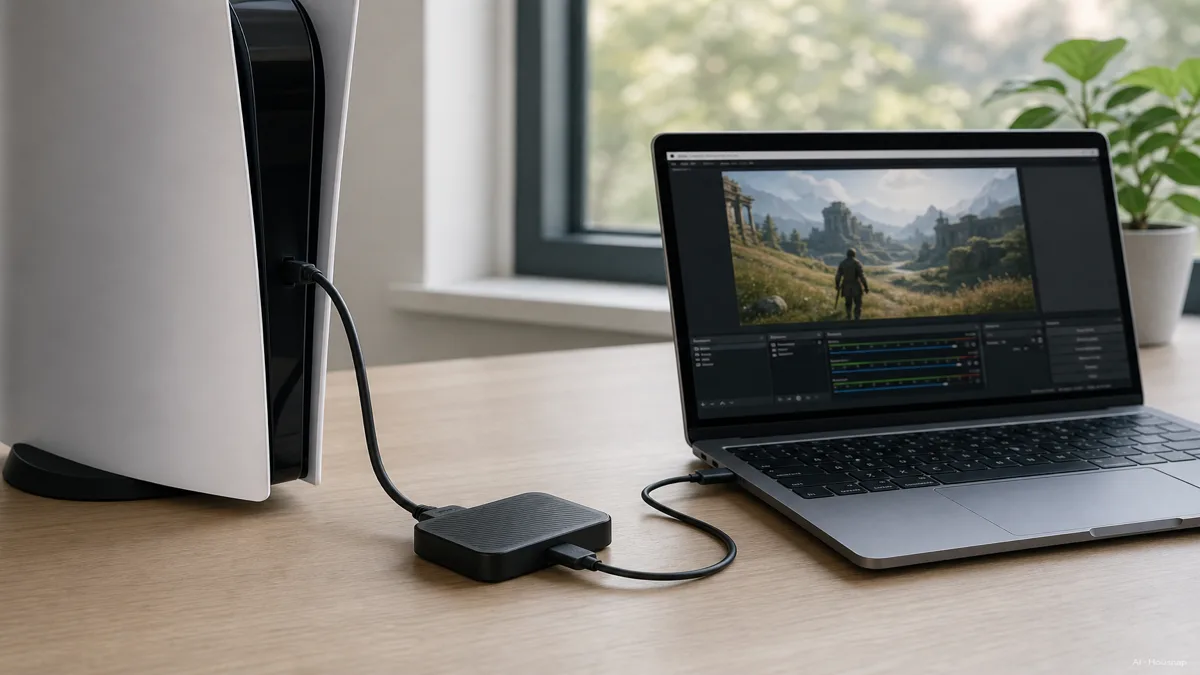
For PS5 gameplay, connect directly to a display first and turn off Enable HDCP under Settings → System → HDMI. HDCP is copy protection; Elgato cannot capture protected HDMI signals. Do not treat that limitation as a reason to buy a more expensive card.
In OBS, add a Video Capture Source and make a short recording with game sound and your voice before going live, following the OBS setup guidance. Watch the saved clip as well as the preview.
If you still need a microphone for commentary, compare USB and XLR microphone setups next. Check the card's audio socket before assuming it accepts a mic: the 4K X has line-in, not a microphone input.
How this guide was built
Written by Housnap's AI editor using official OBS, PlayStation and Elgato documentation. The guide turns documented connection and format limits into first-purchase checks; the ordering of those checks is editorial guidance, not a hands-on product test.