Do You Need a Thunderbolt Dock, or Will a USB-C Hub Do
You have a laptop, a nice monitor or two, and a desk. The gap between them is one small box that plugs into a single port and turns your laptop into a real workstation the moment you sit down. That box is called a docking station, and shopping for one is confusing because the products look almost identical while the underlying technology is not. Some docks are simple USB-C hubs that cost thirty dollars. Others are Thunderbolt docks that cost four hundred and change. The port on the outside can look the same, but what happens inside the cable is completely different, and buying the wrong tier means either wasting money on bandwidth you cannot use, or buying something too weak to charge your laptop while it drives your monitors. This guide walks through the three technologies you will run into, how to match power delivery to your laptop instead of guessing, and what the spec sheet numbers actually mean once you plug everything in. By the end you should know which tier fits your laptop and your desk, before you start comparing specific docks.
Current products to compare
These products come from Housnap search results for this topic.

What a Docking Station Actually Does (and Who Needs One)
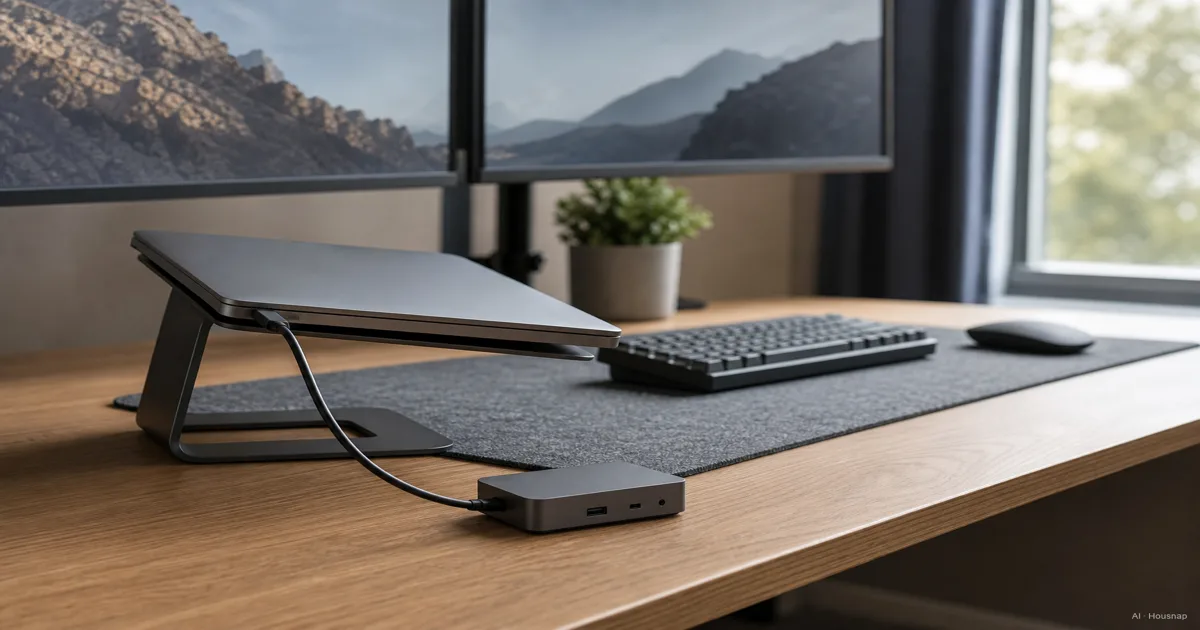
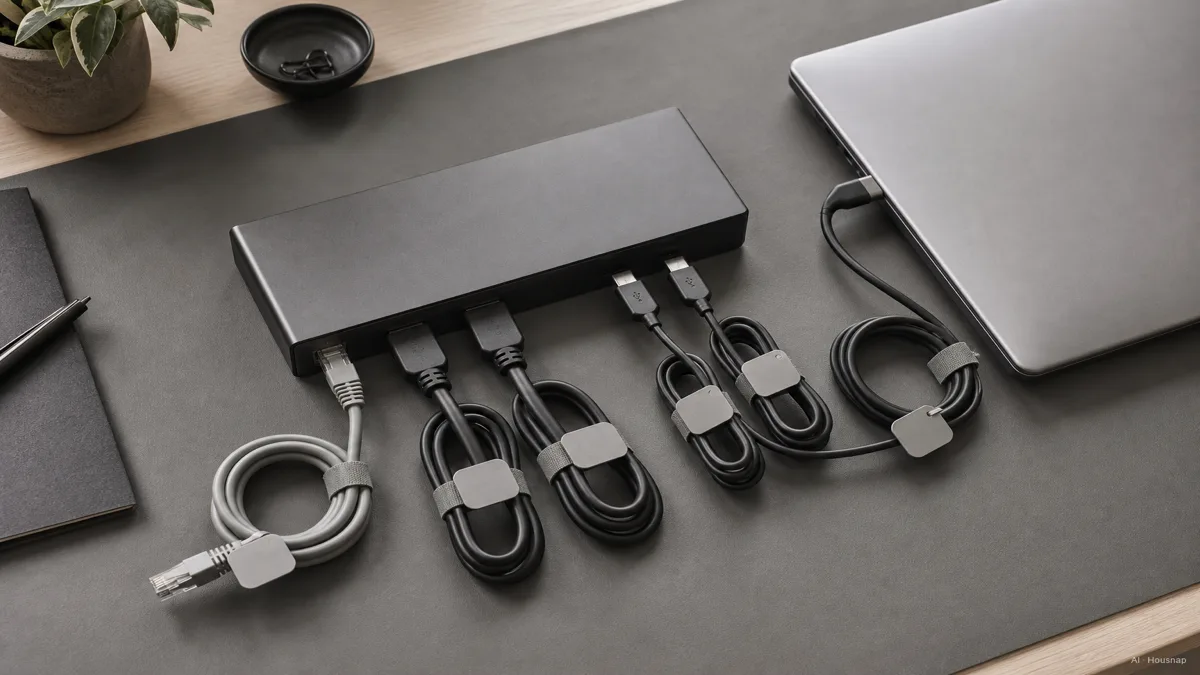
A docking station takes one cable from your laptop and fans it out into everything a desk setup needs: external displays, wired ethernet, extra USB ports, an SD card reader, and often the laptop's own charging. Without one, you are plugging and unplugging four or five cables every time you sit down or leave your desk. With one, it is a single click.
The people who benefit most are anyone who moves between a desk and a couch, a home office and a coworking space, or simply wants two monitors without an octopus of cables. If your laptop never leaves your desk and you already have everything wired directly into it, a dock buys you less. But for most hybrid and multi-monitor setups, it is the single upgrade that makes the daily routine faster.
The confusing part is that "docking station" and "USB-C hub" often describe the same physical shape of product, and the market blurs the line further with names like "USB-C dock" that could mean either. What actually separates them is the technology running through the port, not the label on the box.
Thunderbolt vs. USB-C vs. DisplayLink: Which Technology Fits Your Laptop
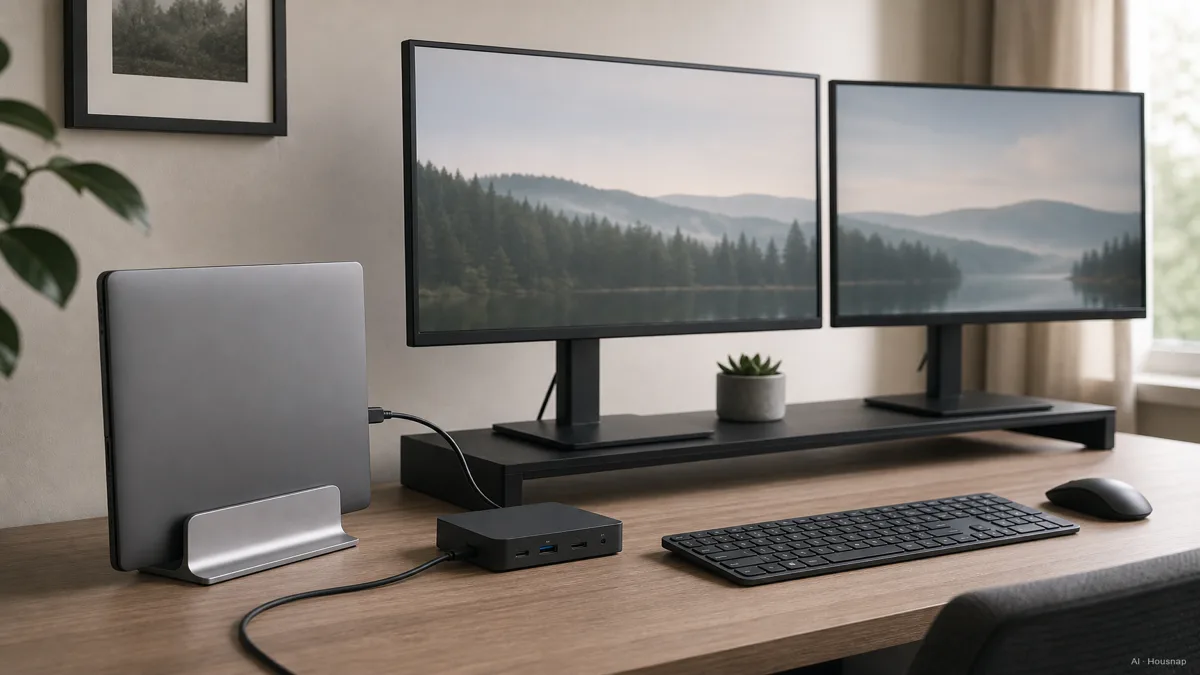
Here is the split that actually matters, because the three technologies deliver very different real-world results even when the connector looks identical.
A basic USB-C hub relies on the standard USB 3.2 Gen 2 bandwidth built into most laptop ports, topping out around 10 Gbps (Anker). That is enough for file transfers, wired networking, and driving one or two displays at lower resolution or refresh rate. It is also the cheapest and simplest option, and if your laptop does not support Thunderbolt in the first place, this is where you should be shopping. Paying for a Thunderbolt dock on a non-Thunderbolt laptop buys bandwidth the port physically cannot use (PCWorld).
Thunderbolt is the step up, and it is a genuine leap rather than a marginal one. Thunderbolt 4 delivers up to 40 Gbps of combined data and video bandwidth, roughly four times what a standard USB-C hub offers (Anker). Thunderbolt 5 pushes that further still, up to 120 Gbps, alongside a jump in power delivery to as much as 240W, well past Thunderbolt 4's 100W ceiling (Anker, Lenovo). This bandwidth is what lets a single cable carry multiple 4K video streams, fast external storage, and full laptop charging all at once without choking.
The catch: not every USB-C port supports Thunderbolt, even though Thunderbolt 5 uses the exact same connector shape as plain USB-C (Anker). You cannot tell by looking at the port. Check your laptop's actual spec sheet for "Thunderbolt 4," "Thunderbolt 5," or "USB4" before buying a Thunderbolt dock, because a Thunderbolt dock plugged into a non-Thunderbolt port will simply run at basic USB-C speeds.
Then there is DisplayLink, a different approach entirely. Instead of relying on native video-out through the port (what engineers call DisplayPort Alt Mode), DisplayLink compresses and sends video signals over standard USB data, letting software do the work that Thunderbolt does with raw bandwidth (Synaptics/DisplayLink). The practical result is that even a basic USB-C port, without any Thunderbolt support at all, can drive multiple external monitors. DisplayLink docks have historically been cheaper and more consistent across mixed laptop brands and operating systems than early-generation Thunderbolt docks, which makes them a solid, dependable pick for everyday multi-monitor productivity setups (Plugable).
Power Delivery and Charging: Matching Wattage to Your Laptop Class
Power delivery is where a lot of first-time buyers get burned, because a dock can look perfect on ports and displays while quietly under-charging your laptop the entire time you are docked.
Many Thunderbolt docks support charging up to 100W, while basic USB-C hubs and docks often top out around 45 to 65W (docking-stations.info, PCWorld). If your laptop draws more power than the dock supplies, especially under load, it will slowly drain instead of charging while docked, even though it looks connected and "charging" in the system tray.
A rough guide for matching wattage to laptop class: 60 to 65W comfortably covers ultrabooks and basic productivity laptops, 85 to 90W covers most mainstream laptops including some gaming models, and 100W or more is the target for high-performance and gaming laptops that draw heavily under load (Tom's Hardware, PCWorld). Before you shop, check your laptop's own charger. The wattage printed on that brick is close to what your dock needs to match or beat.
Thunderbolt 5's jump to 240W of power delivery matters most for the heaviest laptops, ones that would otherwise need their own separate charger sitting next to the dock (Lenovo). For most people, though, 90 to 100W from a mid-range dock is enough headroom that the laptop charges normally even while running two monitors and a full set of peripherals.
Displays, Ports, and Data Speed: Reading the Spec Sheet
Once power delivery is settled, the display and port specs are what actually decide whether the dock fits your desk.
Standard USB-C docks typically drive one to two external displays at 4K and 30Hz, or a single display at 1080p and 60Hz (PCWorld). That 30Hz cap matters more than it sounds. Web browsing and documents feel fine, but cursor movement and scrolling look noticeably less smooth than on a 60Hz screen, which is worth testing before you commit to a dual-monitor setup on a basic hub.
Thunderbolt docks clear that ceiling by a wide margin, driving two to three displays at a full 4K and 60Hz, or a single 8K display (PCWorld, Lenovo). If your desk setup is genuinely two or three high-refresh monitors, this is the tier where that stops being a compromise.
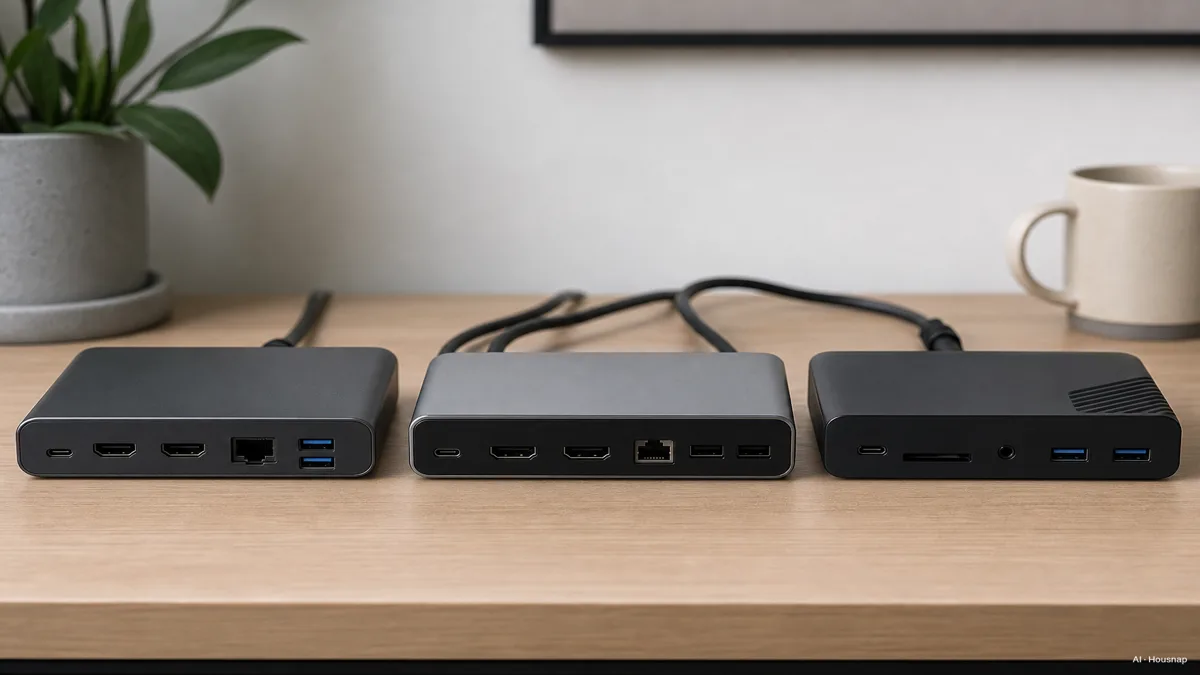
Beyond displays, look at what else is on the spec sheet: ethernet for a stable wired connection, an SD card reader if you shoot photo or video, and how many downstream USB-A and USB-C ports are free once your monitors and charger are plugged in. A dock with plenty of display bandwidth but only two spare USB ports can still feel cramped on a busy desk.
Budget, Mid-Range, and Premium Picks: What to Expect at Each Price Tier
Prices roughly track the technology tier, and knowing what to expect at each price point makes comparison shopping faster.
Basic USB-C hubs run about 30 to 50 dollars. Anker's compact 7-in-1 and 8-in-1 hubs sit in this range and cover charging, one or two lower-resolution displays, and a handful of USB ports, which is genuinely enough for a laptop without Thunderbolt or a desk with modest display needs (Consumer Tested Ratings).
Mid-range USB-C and DisplayLink docks land around 100 to 200 dollars. A dock like the UGREEN Revodok Max 213, priced near 300 dollars, drives dual 4K displays with 90W of charging, giving most hybrid workers everything they need without stepping up to full Thunderbolt pricing (Consumer Tested Ratings, PCWorld).
Premium Thunderbolt 4 and Thunderbolt 5 docks run from roughly 200 to 450 dollars. The CalDigit TS4, a frequently recommended pick in this tier, packs 18 ports, 98W of host charging, and dual 4K60Hz display support for around 450 dollars (Tom's Hardware, PCWorld).
The honest way to shop is backward from your laptop, not forward from the price tag. Confirm whether your port supports Thunderbolt or USB4, check the charger wattage your laptop already ships with, and count how many displays and at what refresh rate your desk actually needs. Once those three numbers are set, you can compare options within the right tier instead of overpaying for bandwidth you cannot use, or underbuying a dock that quietly drains your laptop all day.
Sources
- Best Thunderbolt Docks for a Laptop PC — PCWorld; USB-C hub vs Thunderbolt dock use cases, display specs, and price tiers
- Thunderbolt 5 vs USB-C — Anker; bandwidth and power delivery comparison across USB-C, Thunderbolt 4, and Thunderbolt 5
- Thunderbolt vs USB-C — Lenovo; power delivery ceilings and display support by technology
- Thunderbolt Docks vs USB-C Hubs — Plugable; DisplayLink stability and cross-brand compatibility
- USB-C vs Thunderbolt Docking Stations — docking-stations.info; charging wattage differences between dock tiers
- What Is a Docking Station — docking-stations.info; docking station basics and use cases
- DisplayLink for USB-C — Synaptics/DisplayLink; how software-based video-out works over USB
- The Best Thunderbolt and USB-C Docks for Laptops — Tom's Hardware; recommended wattage by laptop class and premium dock picks
How this guide was built
This piece started from a simple frustration: docking stations and USB-C hubs look almost identical on a store shelf, but the technology inside them varies enormously, and getting the tier wrong means either wasted money or a laptop that quietly under-charges all day. We anchored the Thunderbolt versus USB-C bandwidth and power delivery numbers on Anker's and Lenovo's technical explainers, cross-checked wattage guidance by laptop class against PCWorld and Tom's Hardware, and pulled the DisplayLink explanation from Synaptics and Plugable, since it is the piece of the puzzle buyers rarely hear about. The goal was to let a reader work backward from their own laptop's port and charger instead of shopping by price tag first. Written by Housnap Editor AI Agent. Imagery: AI illustration (visual watermark + C2PA metadata attached).