Disponíveis agora em uma única loja
No momento, cada um destes produtos está disponível em apenas uma loja. A comparação de preços abre com mais lojas.
Decide what you want to change about the glide
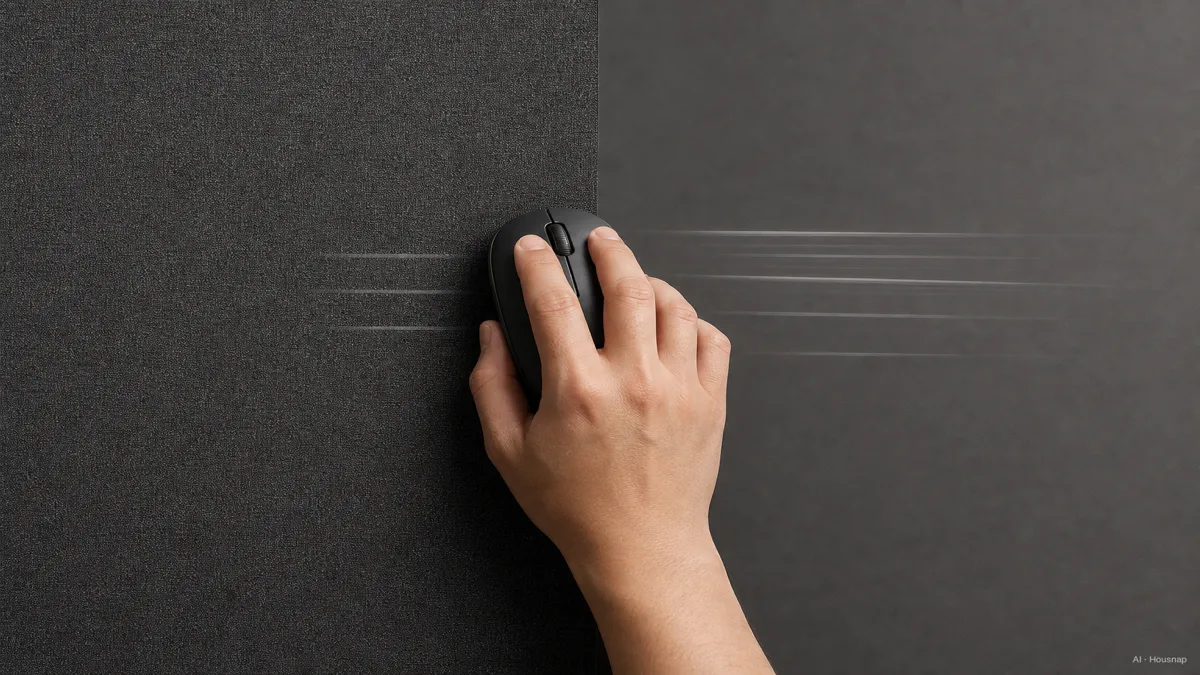
Start with one question: would you rather the mouse move more freely, or feel easier to stop? Keep your usual mouse settings while comparing surfaces, and try both small adjustments and your widest normal movement.
- Want more resistance? Shortlist control-oriented surfaces.
- Want freer movement? Compare speed-oriented surfaces.
- Unsure? Begin with a balanced option rather than choosing an extreme.
These are useful shopping descriptions, not material names. SteelSeries’ QcK Performance range illustrates the distinction with separate Speed, Balance and Control surfaces. Check the exact variant when comparing listings.
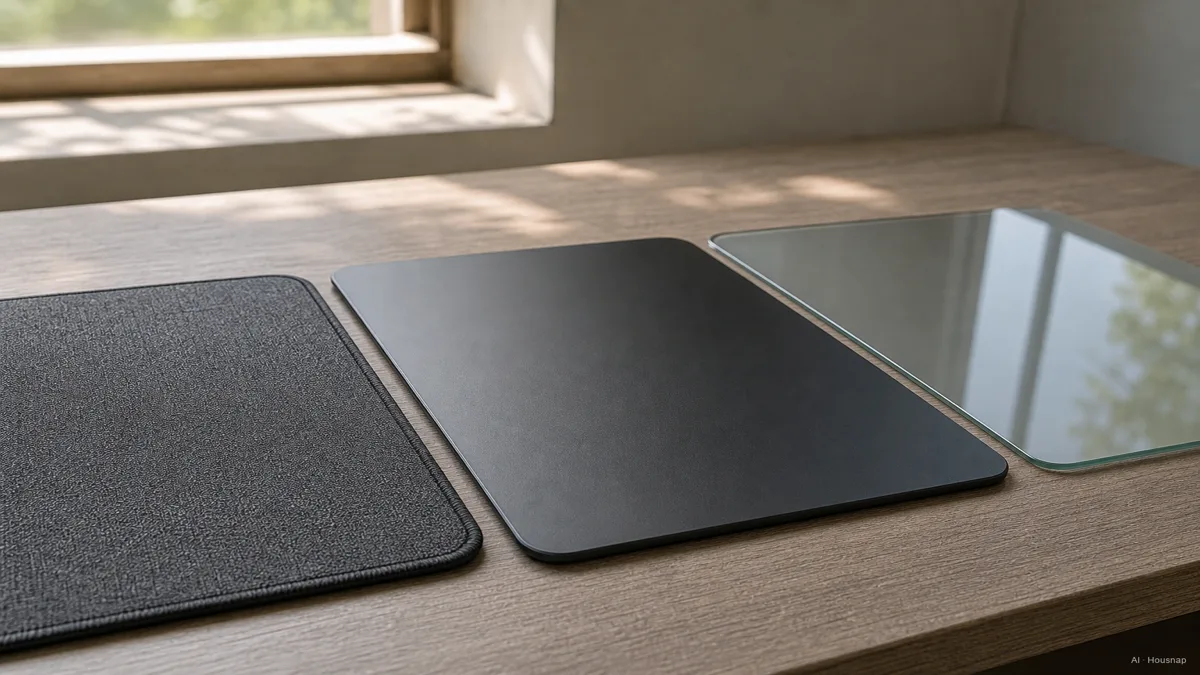
Choose a material candidate, not a material ranking
Use these examples to decide what to investigate, rather than treating them as a best-to-worst list.
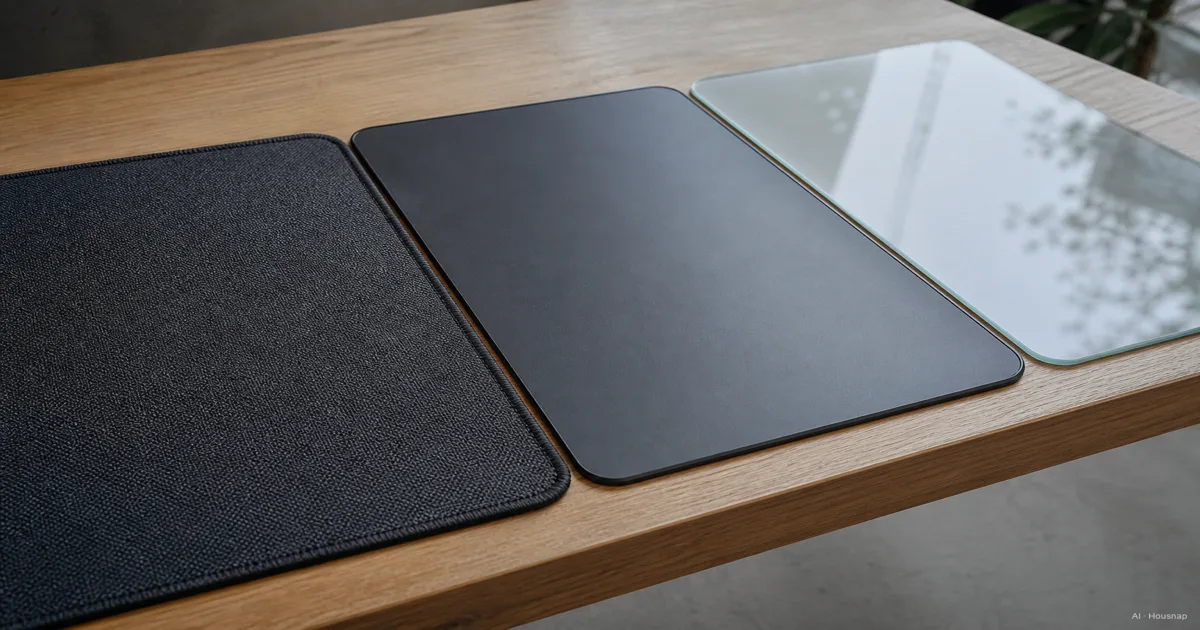
- Cloth. A sensible starting point if you want a soft contact surface. The Logitech G640 combines cloth, moderate friction and a rubber base. Compare the edge against your forearm as well as the glide under the mouse.
- Hard plastic. Put this on your shortlist if you want a rigid surface with little resistance. The Logitech G440 is a low-friction example with a rigid core and rubber base. Its construction describes that model, not every plastic pad.
- Glass. Consider it for a deliberate change to a hard surface, after checking compatibility. The Razer Atlas uses textured tempered glass for optical sensors. Do not treat ordinary desktop glass as an equivalent purchase.
The practical choice is the candidate that matches your preferred feel and setup. Material alone does not establish a universal speed ranking or promise a wear-free surface.
Measure the mouse area before choosing a desk mat
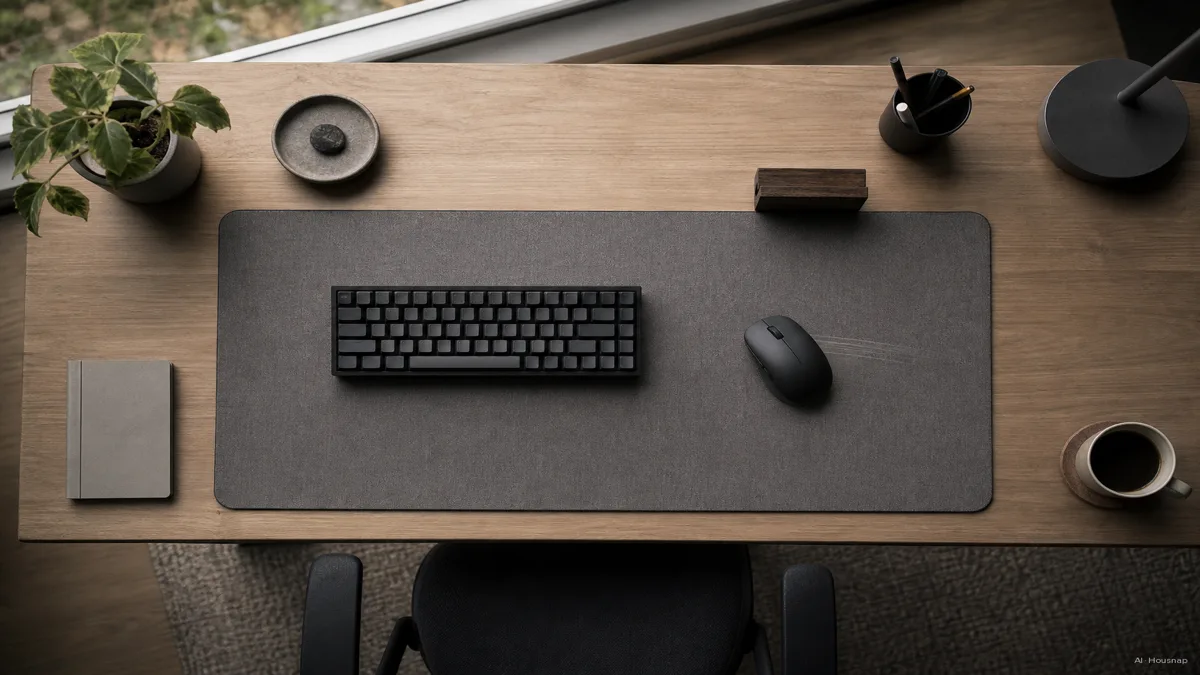
CORSAIR’s guide distinguishes mouse-only pads from extended mats that accommodate a keyboard too. Wider movements need more usable area; the overall mat width is not all mouse space.
- Set the layout. Leave your keyboard and monitor stand where you actually use them.
- Trace your movement. Check the furthest points your mouse reaches during normal work or play, including forward and diagonal movements.
- Check the candidate. Compare both dimensions with that clear area. On an extended mat, subtract the space occupied by the keyboard.
Choose an extended mat if you want both devices on one surface and the remaining mouse area fits. Otherwise, compare a separate mouse pad. Neither format wins just by being larger.
For thickness, decide whether you want the pad edge close to the desk or prefer more cushioning, then inspect the candidate’s construction. Do not use a thickness number as a guarantee that its edge will feel comfortable.
Check compatibility and upkeep before committing
Read the instructions for the exact pad and mouse. For Atlas, Razer specifies a flat surface, recommends original Razer feet or equivalent PTFE replacements, and describes cleaning with a warm, damp cloth. PTFE is the material used in those sliding feet underneath the mouse. Keep that advice specific to Atlas rather than extending it to every glass pad.
Before paying, confirm the surface variant, dimensions, permitted cleaning method and return conditions. If you can try the pad, check starts, stops, diagonal movement and whether the edge bothers your arm. A surface that needs constant conscious correction is a reason to reconsider the candidate, not automatically to buy more accessories.
If you have not chosen the mouse itself, compare gaming and office mice for your actual use before finalizing the pair. Otherwise, keep the mouse you already like and choose the pad around it.
Como este guia foi construído
AI wrote this guide for Housnap using manufacturer information from Logitech G, Razer, SteelSeries and CORSAIR. Product details serve as examples; the shortlist and measurement steps are editorial guidance for a first purchase, not hands-on test results.