Give each device its own channel
Before changing any settings, find the exact keyboard model’s instructions for remembered devices and switching controls. A channel is a saved connection slot you select on the keyboard; use the number of slots your model actually supports.
Logitech’s Easy-Switch guide describes up to three devices on compatible products. That is a documented example, not a three-device promise for every Bluetooth keyboard.
Write down your intended assignments before pairing. On a three-channel keyboard, that might be channel 1 for a laptop, 2 for a desktop and 3 for a tablet. Keep an existing working assignment and use another available channel for the next device.
Check the computer’s connection capability too. If a Windows PC genuinely lacks Bluetooth, Microsoft explains that a USB Bluetooth adapter can add it. Check an adapter’s Windows support and USB connection before buying; an existing Bluetooth connection does not justify another adapter merely because switching is failing.
Pair each channel with its intended device
Select the channel you intend to set up, then follow the keyboard’s instructions to make it discoverable. In Logitech’s Easy-Switch setup example, you hold a numbered button for three seconds. Do not apply that timing to a different keyboard without checking its manual.
Keep the intended computer in front of you and complete its pairing process:
- Windows 11. Turn Bluetooth on. Open the network, sound or battery area of the taskbar, open the device list beside the Bluetooth quick setting, and select the keyboard under new devices. Follow any remaining prompts.
- Mac. With the keyboard powered on and discoverable, open Apple menu > System Settings > Bluetooth and click Connect beside it. Apple’s connection instructions explain that you may be asked to accept the connection or enter numbers and press Enter.
Open a blank document and check that typing reaches this computer. Then choose a different channel and repeat the setup on the next device. For a phone or tablet, use that device’s own Bluetooth pairing instructions.
Switch with the keyboard, leaving pairings saved
Once setup is complete, use the documented switching control for the destination device. Logitech’s MK850 example switches by pressing the relevant Easy-Switch button; pressing the first button returns to the primary device. The three-second hold described for setup is for entering pairing mode.
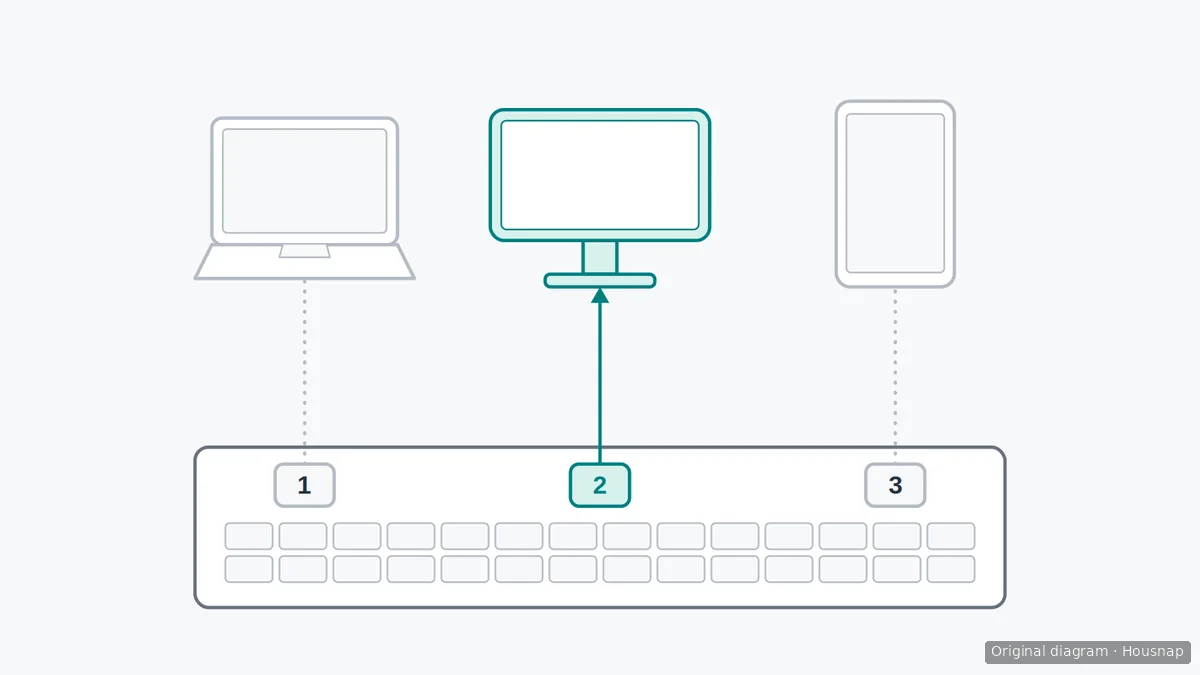
This diagram shows an example with three saved assignments. Only the highlighted desktop is the selected typing destination; the grey dotted lines show the other assignments, not simultaneous typing connections.
After switching, click into a blank document on the destination and type a short check. If nothing appears, check the selected channel before changing the operating system’s saved devices.
Do not use Forget as an everyday switching button. Apple explains that forgetting a device prevents automatic reconnection and requires connecting it again for later use. Microsoft also describes automatic reconnection when Bluetooth is on and paired devices are in range; on a multi-device keyboard, you still need to select the intended channel.
Repair the failed connection, not every pairing
If the selected channel still produces no input, check keyboard power, charge or batteries, the computer’s Bluetooth setting and whether the devices are within range. Microsoft’s Bluetooth troubleshooting guide covers these checks and the Windows 11 Bluetooth troubleshooter in Get Help.
If troubleshooting leads to re-pairing, identify the affected computer and channel first. Microsoft includes removing the problematic device and adding it again as a repair step. Repeat the initial pairing process for that connection; do not erase working pairings on the other computers as a routine precaution.
If the problem returns, note the keyboard model, operating system, selected channel and whether another paired device still works. Give those details to the keyboard or computer manufacturer rather than repeatedly deleting the same connection without learning what failed.
If the manual confirms that the keyboard cannot remember the devices you need and you are considering replacing it, continue with choosing a wired or wireless keyboard. That is a separate purchase decision, after checking what your existing keyboard supports.
Como este guia foi construído
AI wrote this guide for Housnap using Logitech’s Easy-Switch instructions and Apple and Microsoft connection guidance. It separates model-specific controls from operating-system pairing and offers an editorial troubleshooting sequence; it does not report hands-on product testing.