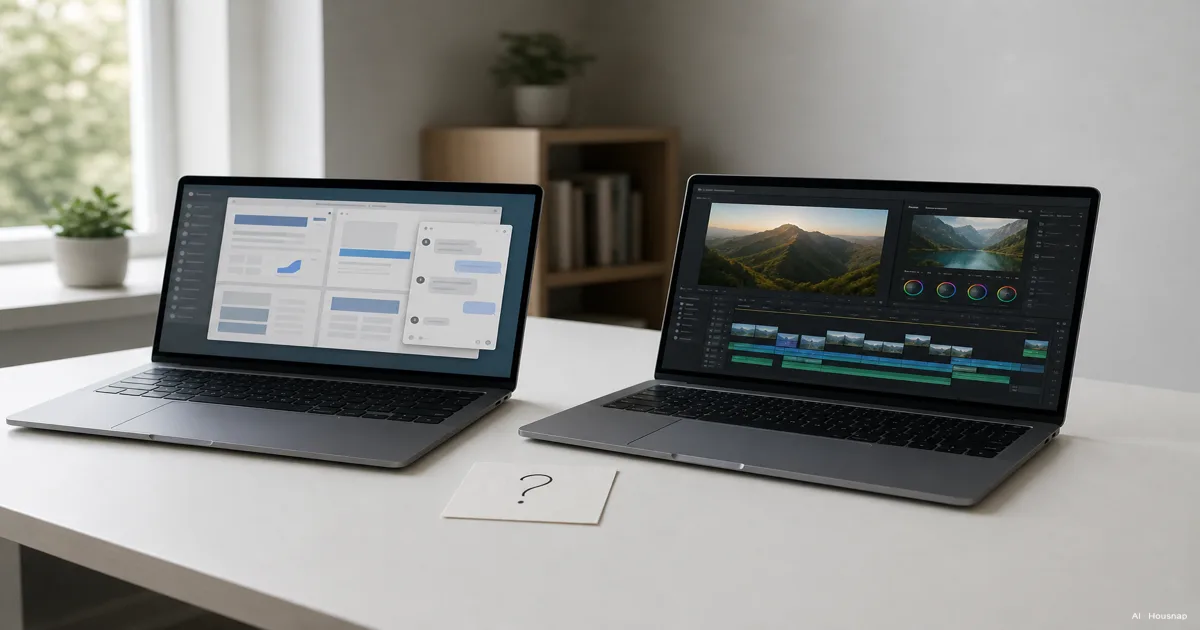
Choose a starting capacity, then check the exceptions
Use these as shopping starting points, not promises about how every laptop will perform:
- 8 GB: Consider it for a tightly limited workload and budget, after checking the apps you need. Avoid choosing it on price alone if this will be your main work machine.
- 16 GB: Start here for documents, browser research and meetings. Spend more only when you can name the workload that needs it.
- 32 GB or more: Compare this tier for substantial editing projects or demanding work alongside other apps. “Creator” on the product page is not enough to decide the capacity.
This distinction broadly follows Lenovo’s workload guidance: basic tasks, heavier multitasking and larger projects have different needs. The starting points above are editorial buying guidance, not universal minimum requirements.
RAM holds active work; an SSD stores files. A larger SSD does not mean more RAM. HP explains the distinction.
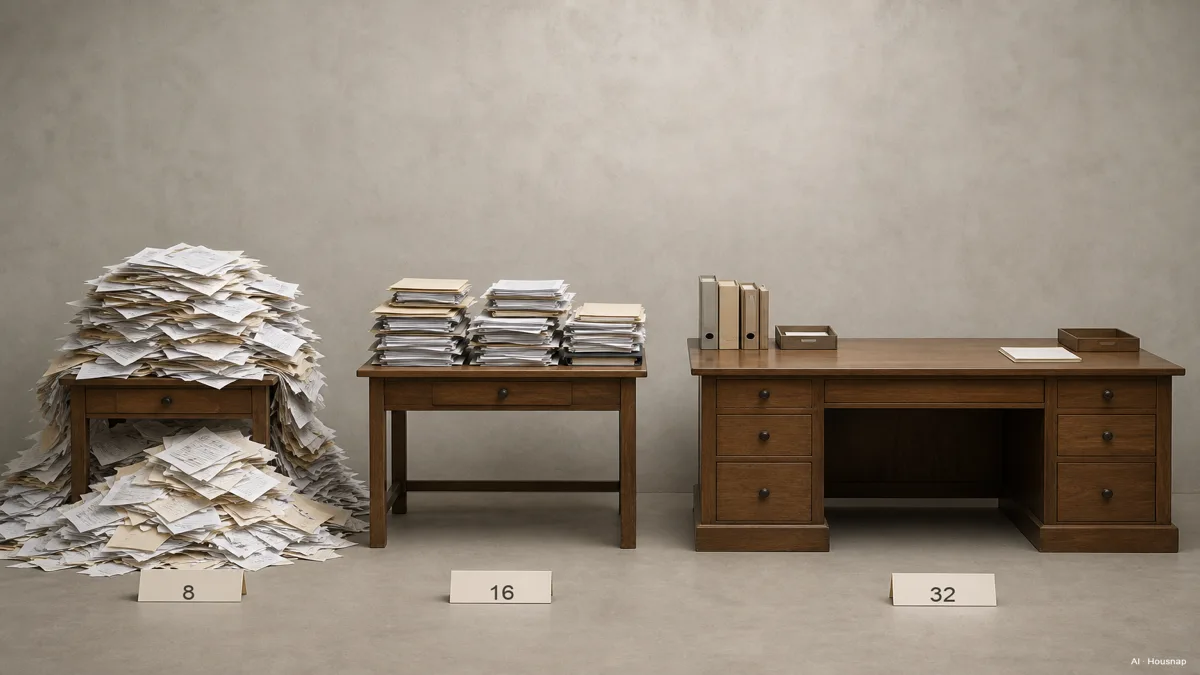
Read the desk illustration as a capacity metaphor. It does not show a measured speed difference or prove that every 8 GB laptop struggles.
Check the busiest session you actually expect
Write down what needs to stay open together. “A spreadsheet, research tabs and a meeting” is a useful brief; “business laptop” is too vague. Include any specialist work software before settling on the office-oriented options.
If you can use an existing computer, open a representative workload. Windows Task Manager shows memory use under Performance > Memory, as HP describes. On a Mac, check memory pressure (how efficiently RAM meets demand) and swap (disk space used to move data to and from RAM) in Activity Monitor. Note when slowdowns occur rather than treating one usage percentage as a verdict.
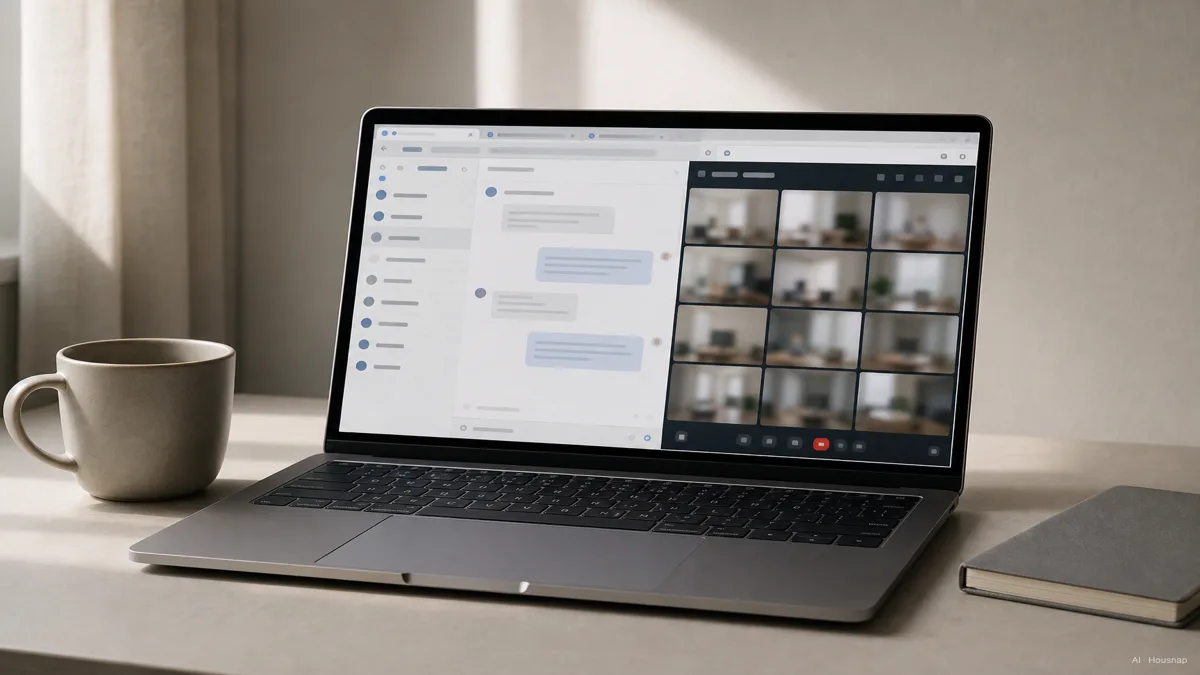
For creative work, record the app, operating system and typical project. Photoshop recommends 16 GB or more; that is a starting reference, not a guarantee for every layered document.
Premiere’s requirements recommend 16 GB for HD and 32 GB or more for 4K on Windows, with a separate 16 GB unified-memory recommendation for Apple silicon. Use the requirements for your app version and platform.
If editing is occasional, compare a 16 GB candidate against your actual project before paying for more. If regular 4K editing is already planned, put higher-memory creator configurations on the shortlist. For large compositing jobs, seek a representative project demonstration before deciding whether 32 GB, 64 GB or more is appropriate.
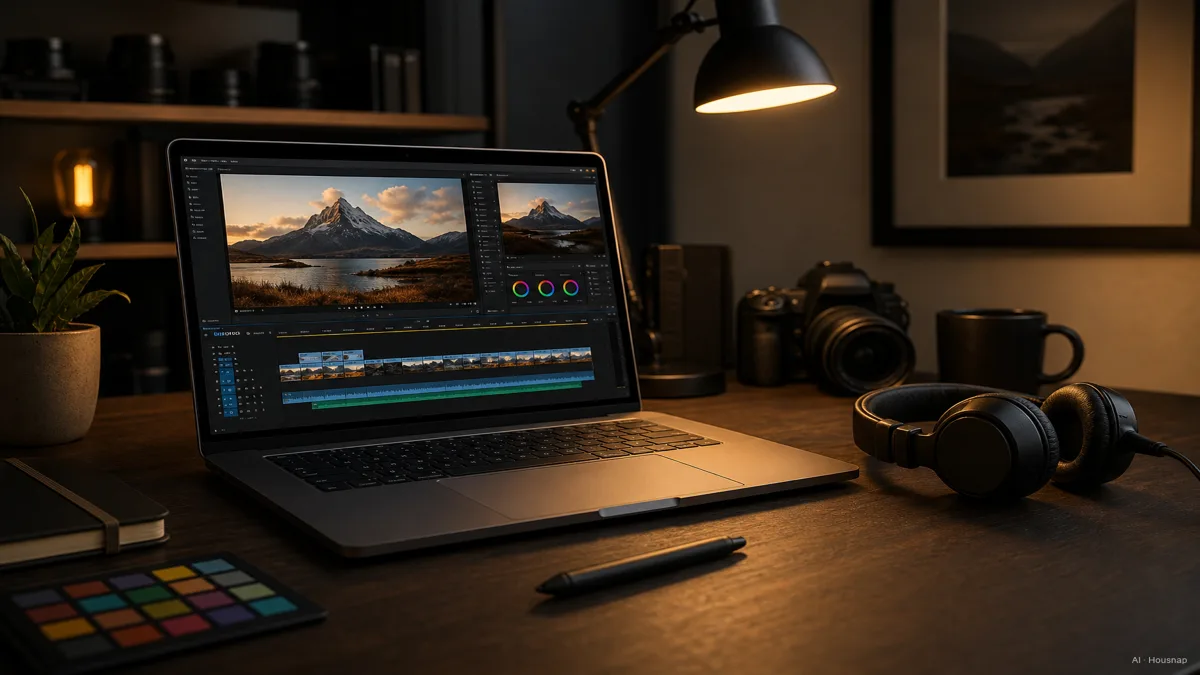
Check what the memory specification really means
Apple’s M1 architecture explanation describes a shared memory pool accessible to the chip’s components. Shared graphics memory is not exclusive to Macs: Lenovo’s ThinkPad T14 Gen 5 AMD specification also lists integrated graphics with shared memory.
Do not turn architecture into a “16 GB Mac equals 32 GB Windows” conversion. Compare the same application and project, and check graphics requirements separately. A higher memory-bandwidth figure alone is not a reason to lower your capacity target.
Next, find the exact model number and its memory specification or maintenance manual. HP advises checking the model’s maintenance guide; soldered memory cannot be expanded through a module upgrade.
- Fixed memory: Choose for the work you can reasonably foresee. If heavier editing is a firm plan, include it now; do not automatically double capacity just because upgrades are unavailable.
- Slotted memory: Confirm the supported capacity, module type and occupied slots. The T14 Gen 5 AMD example documents two DDR5 SODIMM slots and up to 64 GB; that does not establish the specification of another generation or configuration.
- Unclear listing: Ask for the exact model’s documentation before relying on “upgradeable.” A configurable order page does not by itself demonstrate a later upgrade path.
Turn the decision into a shortlist
Compare two or three exact configurations, with a short note beside each: required apps, chosen RAM, graphics requirements and confirmed upgrade route. Reject a listing that leaves a must-have requirement unanswered.
For office work, once a candidate meets your workload needs, compare its keyboard, screen, carrying weight and battery information. For editing, ask to see a similar project play and export; extra RAM alone is not evidence that the whole machine suits the job.
Then check the setup you intend to connect. If you want a desk with several peripherals, use the dock-versus-hub guide to work through the connection and charging questions before choosing accessories.
If the real problem is fitting reference material beside your work while travelling, consider the portable-monitor buying guide. Decide whether you need more screen space separately from how much memory your apps need.
Your final choice should have a reason you can state plainly: “16 GB for my documented office workload,” or “a higher-memory configuration for these editing projects.” Keep that reason attached to the exact configuration you order.
Hoe deze gids is opgebouwd
Written by Housnap’s AI editor using Adobe’s application requirements, Apple’s memory documentation, and Lenovo and HP guidance. The article turns those sources into a first-laptop selection process; its buying judgments are not manufacturer guarantees or results from hands-on product testing.