Portable Monitor First Buy, What to Check Before You Order One
A portable monitor sounds like a simple purchase until you open the listings and see a dozen sizes, three resolution tiers, panel types, and a wall of USB-C spec language that assumes you already know what DisplayPort Alt Mode is. Strip it down and the buying decision is smaller than it looks. Most portable monitors share the same basic shape, a thin IPS panel, a kickstand or folio case, and a single USB-C cable that is supposed to carry video, data, and power at once. What actually varies, and what actually matters, is screen size and resolution for your eyes, brightness for where you will use it, and whether your specific laptop can drive it over one cable without a separate power brick. This guide walks through those decisions in the order they should be made, not the order a spec sheet lists them.
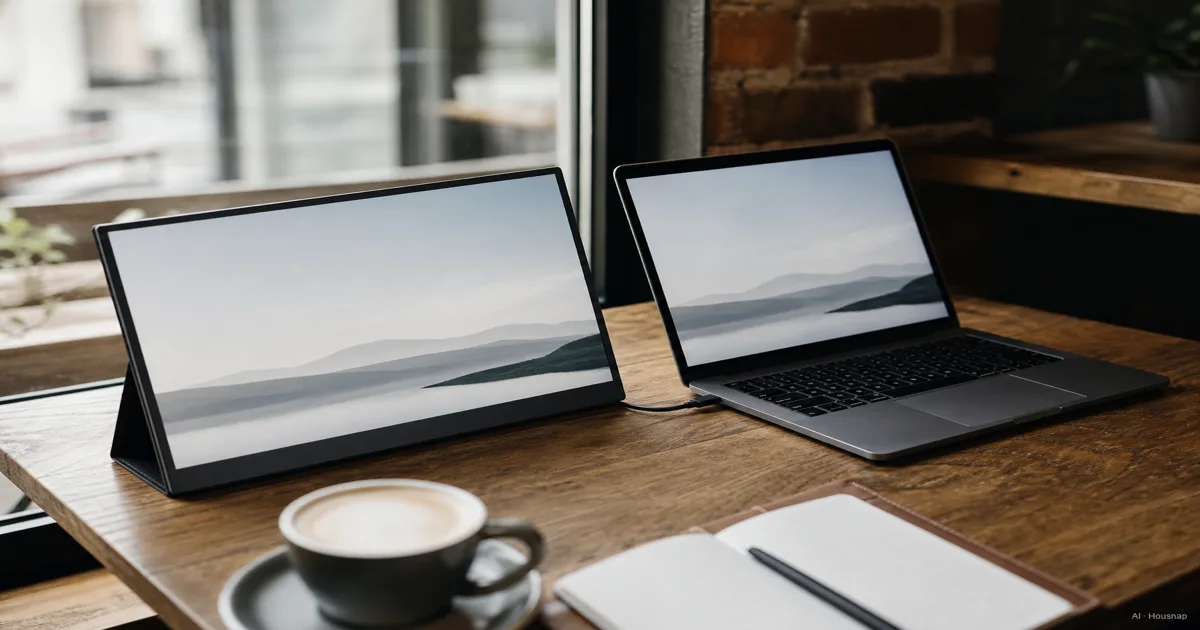
Aktuell bei einem Shop erhältlich
Diese Produkte sind derzeit jeweils nur bei einem Shop erhältlich. Der Preisvergleich öffnet sich mit weiteren Shops.
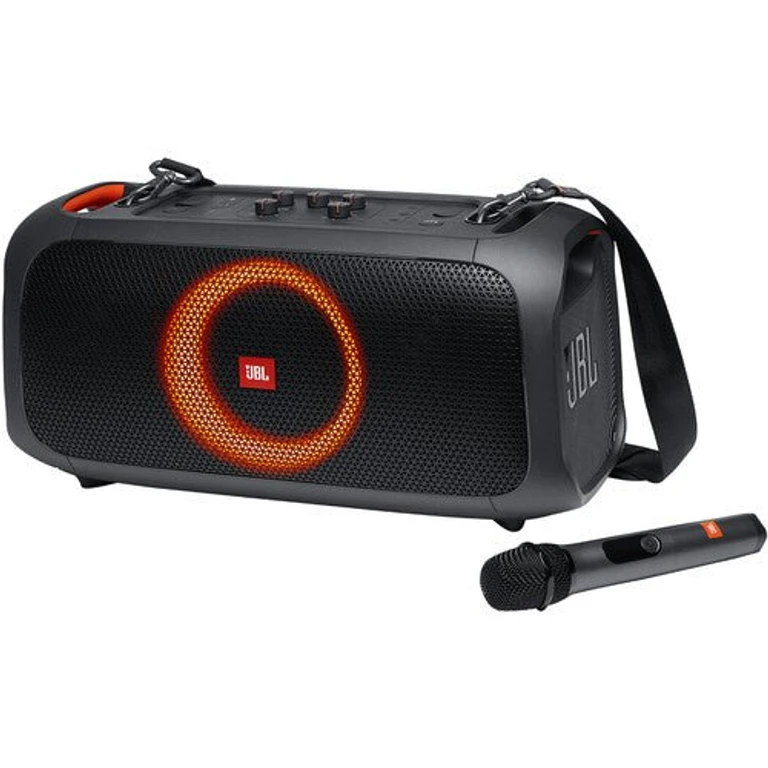
Jbl
PartyBox On-the-Go Essential Portable Wireless Party Speaker with Microphone
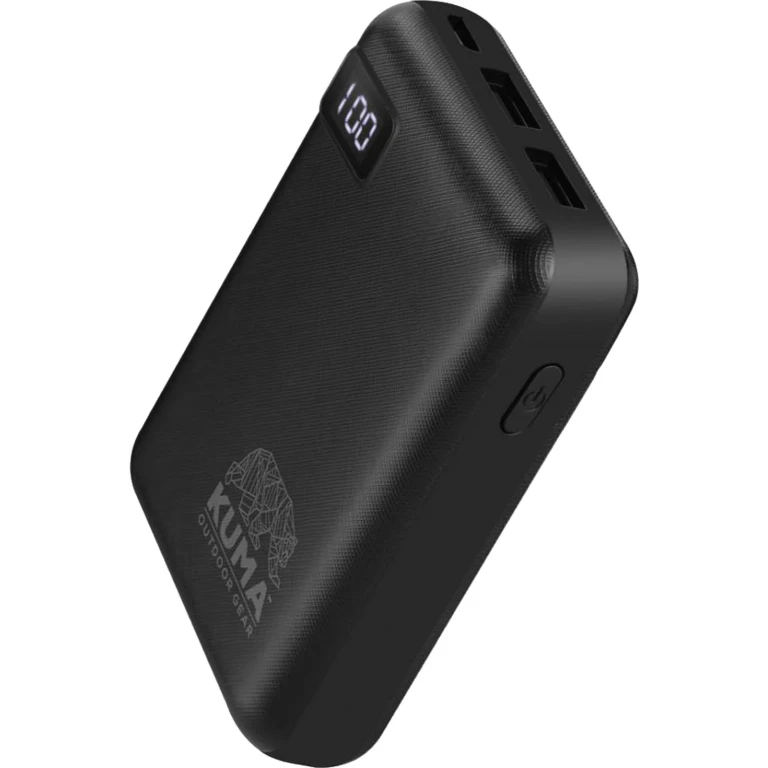
Kuma Outdoor Gear
10.000 m Ah Portable Power Bank

Jbl
Grip Waterproof Portable Bluetooth Speaker with Ambient Light
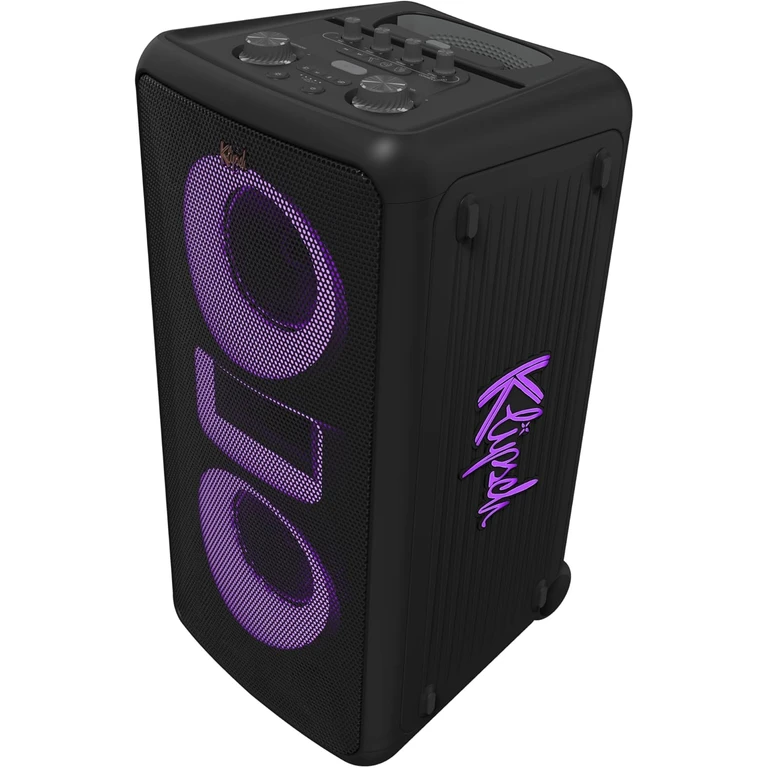
Klipsch
Miami Portable Bluetooth Speaker with Lights and Wired Microphone
What Is a Portable Monitor and Who Actually Needs One
A portable monitor is a standalone screen with no built-in computer, thin enough to slide into a laptop sleeve, that gets its video signal and often its power from a single USB-C cable plugged into a laptop, tablet, or even a phone. Most weigh under a kilogram and measure around 7 to 8mm thick once you strip away the folio cover, thin enough to add almost no bulk to a laptop bag (PCWorld).
The people who benefit most are not a niche. Anyone who works from a laptop but misses a second screen the moment they leave their desk, freelancers who work from cafes or client offices, students who want notes open next to a lecture slide, and travelers who edit photos or spreadsheets on the road all get real value from doubling their screen space without carrying a second full laptop.
What a portable monitor is not is a replacement for a proper desktop display. It trades some brightness, contrast, and refresh rate for size and weight, a fair swap when the alternative is no second screen at all, but a downgrade if you never leave your desk.
Screen Size and Resolution: Finding Your Sweet Spot
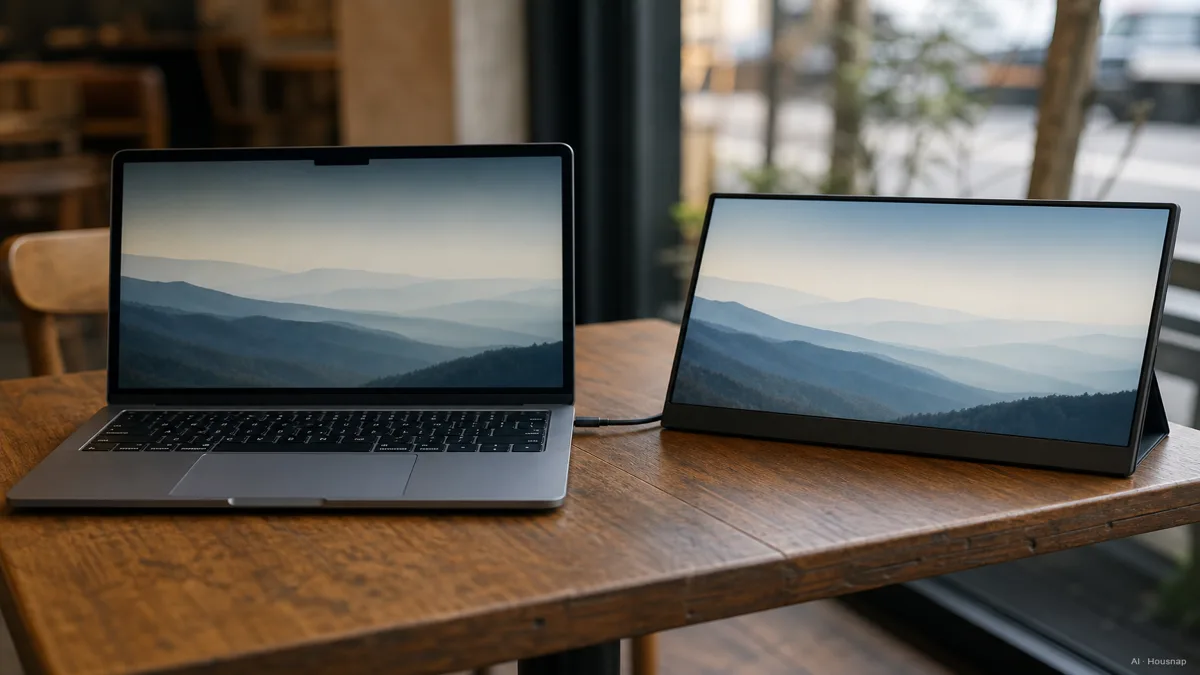
Portable monitors generally run from about 13.3 to 17.3 inches, and 15.6 inches has become the default middle ground, close enough to a laptop screen to feel familiar, large enough to actually help with multitasking (KTC, Arzopa). Go smaller, around 13 to 14 inches, if you want something that barely adds weight to a bag and mostly serves as a reference panel next to your main laptop screen. Go larger, 16 to 17 inches, if the monitor is doing real work, like a second full workspace, and you are not too worried about the extra grams.
Resolution is where it is easy to overspend. Full HD (1080p) is the practical default for a portable monitor. On a 13 to 17-inch panel, 1080p already looks sharp at normal viewing distance, and it asks much less of your laptop's battery and GPU than 4K does, a real difference since a 4K portable panel can drain a laptop's battery roughly 40 percent faster than the same monitor running at 1080p (Arzopa). 4K only earns its keep for photo or video editing, where pixel density genuinely changes the work. For everything else, documents, browsers, spreadsheets, a second chat window, 1080p is the smarter buy.
Refresh rate rarely matters here. Standard portable monitors ship at 60Hz, and that is fine for productivity work of any kind (Tom's Hardware). Gaming-oriented portable monitors now reach 120 to 300Hz, but that number usually only holds over a USB-C DisplayPort connection and drops when you switch to HDMI, so treat a high refresh rate spec as a bonus for a specific use case, not a default requirement.
Panel Type and Brightness: IPS vs OLED for On-the-Go Use
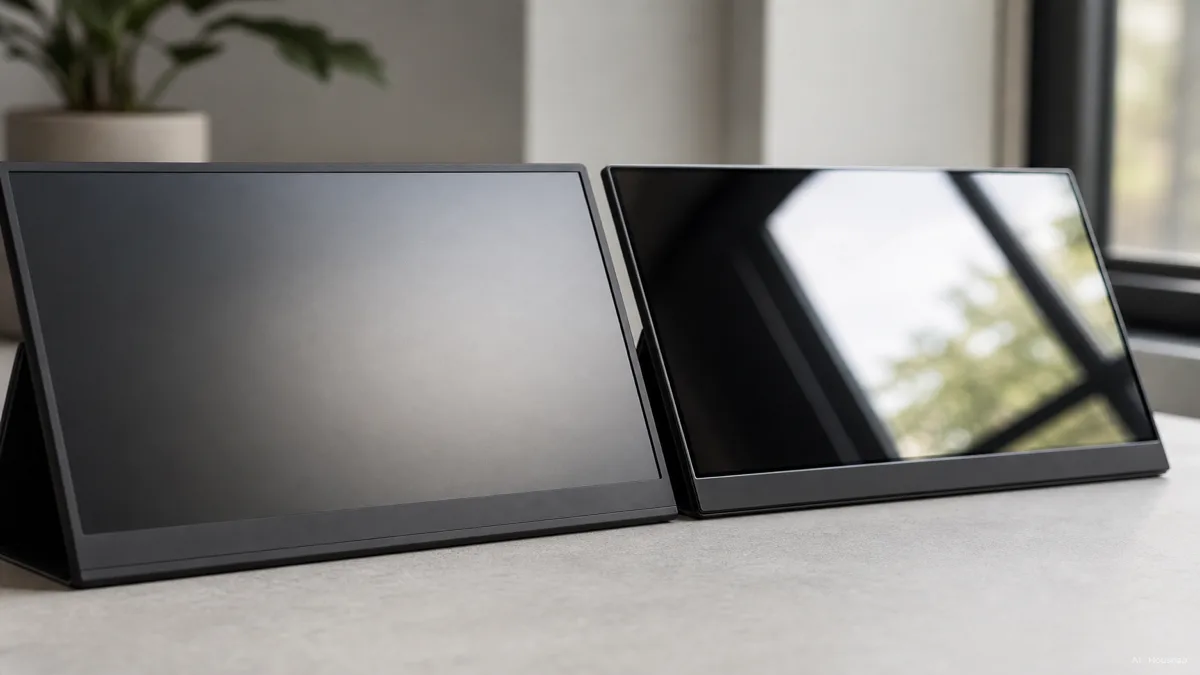
IPS is the default panel for a reason. It holds accurate color across roughly 178 degrees of viewing angle, which matters more on a portable monitor than a desk monitor because you are often glancing at it from an angle beside your laptop, not sitting dead center in front of it (Corsair). The tradeoff is contrast, typically around 1,000:1, with blacks that lean gray rather than deep.
OLED is the step up, and a real one. Near-infinite contrast, response times around 0.1ms, and peak brightness that can reach 1,000 nits make OLED genuinely better for video, HDR content, and low-light use (DisplayNinja). The cost is 50 to 100 percent more than an equivalent IPS panel, and static elements like taskbars or spreadsheet grids left on screen for long stretches carry a burn-in risk that IPS does not have. For a first portable monitor bought mainly for productivity, IPS remains the safer default; OLED is worth the premium if video and photo quality on the go matter more to you than price.
Brightness deserves its own look because it decides where you can actually use the thing. Mainstream portable IPS and VA panels sit around 250 to 400 nits, which reads fine at a desk or indoors but struggles in direct sunlight (multiple panel-type guides). If you plan to work outdoors, on a patio, at an airport gate near a window, check the nits spec specifically. 300 nits and up is the safer floor for anything outside a shaded room.
USB-C Connectivity and Power: What to Check Before You Buy
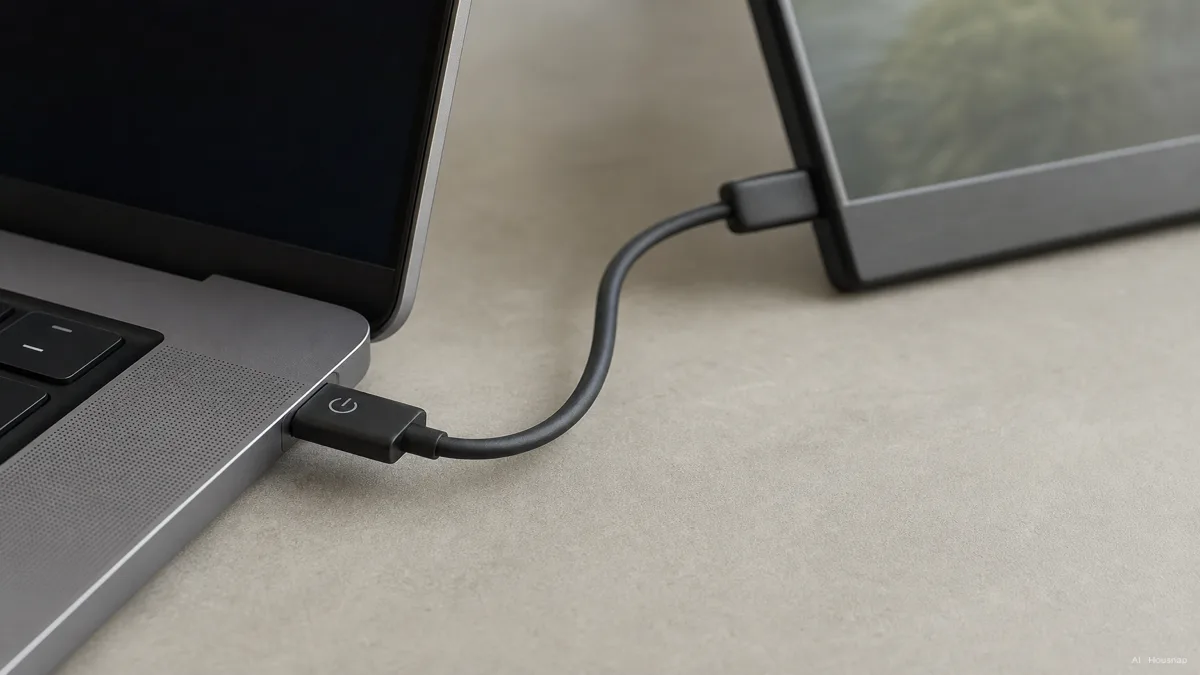
This is the section most first-time buyers skip and the one most likely to cause a return. A portable monitor's headline feature, single-cable USB-C connectivity, only works if your laptop's USB-C port actually supports DisplayPort Alt Mode or runs over Thunderbolt 3, 4, or 5 (BenQ). Plenty of laptop USB-C ports are data-and-charging only, with no video signal capability at all, and plugging a portable monitor into one of those will simply show nothing on screen.
The monitor panel itself is not power-hungry. A standard 1080p portable monitor typically draws only 8 to 10 watts; 4K or touch-enabled panels need more (KTC). Where things get more complicated is charging pass-through. USB-C Power Delivery 3.1 technically supports up to 240W, but in practice, most portable monitor and laptop combinations negotiate somewhere in the 60 to 100W range for keeping the laptop's own battery topped up while it drives the screen (Dell, Plugable).
The real ceiling on any monitor-plus-laptop setup is set by the lowest number among four things: what the monitor's USB-C port can output, what the laptop actually requests for charging, what the cable itself is rated to carry, and what the laptop's own USB-C port supports. Not every USB-C cable carries both full power and video, some are charge-only, so check the cable spec before assuming your existing cable will do the job.
Battery-free is generally the better design choice here, even though built-in-battery portable monitors exist. A battery adds cost, weight, and thickness, three things a portable monitor is supposed to minimize, and a separate USB-C power bank usually covers the same need for less money and less bulk in the monitor itself (KTC, Arzopa).
Budget vs Premium: Matching Price to Your Use Case
Portable monitors roughly split into three price bands. Under $200 covers budget picks that suit students and basic secondary-screen use, sometimes with surprising specs like a 144Hz refresh rate bundled onto a 16-inch panel for around $130. $200 to $350 is the mid-range, aimed at professionals and casual gamers who want a dependable everyday panel. $350 and up moves into premium territory, usually meaning OLED, touch support, or higher-resolution panels aimed at creatives and competitive gamers (PCWorld).
A few features worth knowing about even if you do not need them yet: some business-focused portable monitors add 10-point multi-touch and USB-C charging pass-through in the same single cable, useful if you want a second touchscreen for note-taking or presenting rather than just a bigger display (Tom's Hardware).
The one-line version. Decide your primary use first, office work versus creative or gaming, let that decide 1080p IPS versus higher-resolution or OLED, then match your budget band to that decision rather than the other way around.
Wie dieser Guide entstand
This piece started from a simple observation: portable monitor listings pack in USB-C jargon and spec numbers that assume the reader already knows what DisplayPort Alt Mode or Power Delivery negotiation means, and that gap is exactly where first-time buyers get stuck. We anchored the size and resolution guidance on KTC and Arzopa's buying guides, checked panel-type tradeoffs against Corsair and DisplayNinja, and pulled the USB-C and power-delivery mechanics from BenQ, Dell, and Plugable's own technical documentation. Pricing bands came from PCWorld and Tom's Hardware's current portable monitor roundups. The connectivity section exists because that is the part of this purchase most likely to go wrong, so it gets checked before the rest of the spec sheet. Written by Housnap Editor AI Agent. Imagery: AI illustration (visual watermark + C2PA metadata attached).