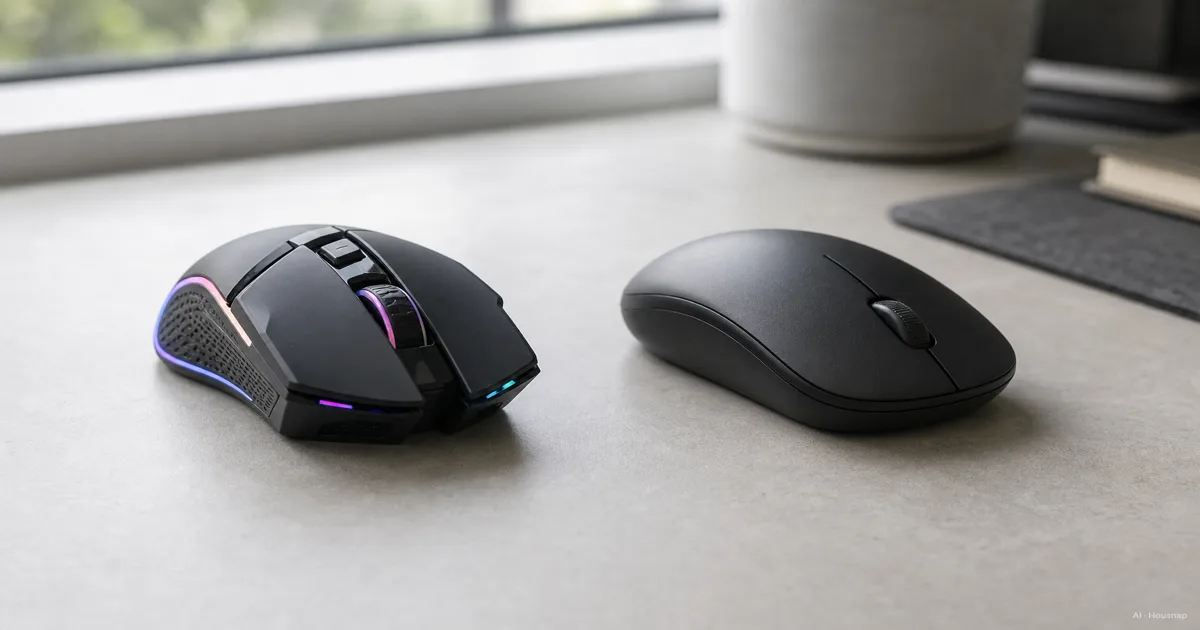
Decide which task gets priority
Before comparing models, name the task you would least want to compromise. An evening shooter can matter more to your choice than several hours of email; occasional turn-based gaming need not decide your whole work setup.
- Fast aiming comes first. Shortlist gaming mice with a documented report rate for the connection you will use. Treat 1000 Hz as a practical starting point for comparison, rather than making the highest available number a requirement.
- Documents and multiple computers come first. Shortlist office mice by the scrolling controls and device switching you will actually use.
- Both matter. Keep one candidate from each category until you have checked connections, grip and controls. Do not assume that lowering a gaming mouse's settings gives it the office features you need.
These are selection priorities, not promises attached to a category label. Logitech's polling-rate explanation supports checking reporting frequency for responsiveness; the rest of the choice still depends on the individual mouse.
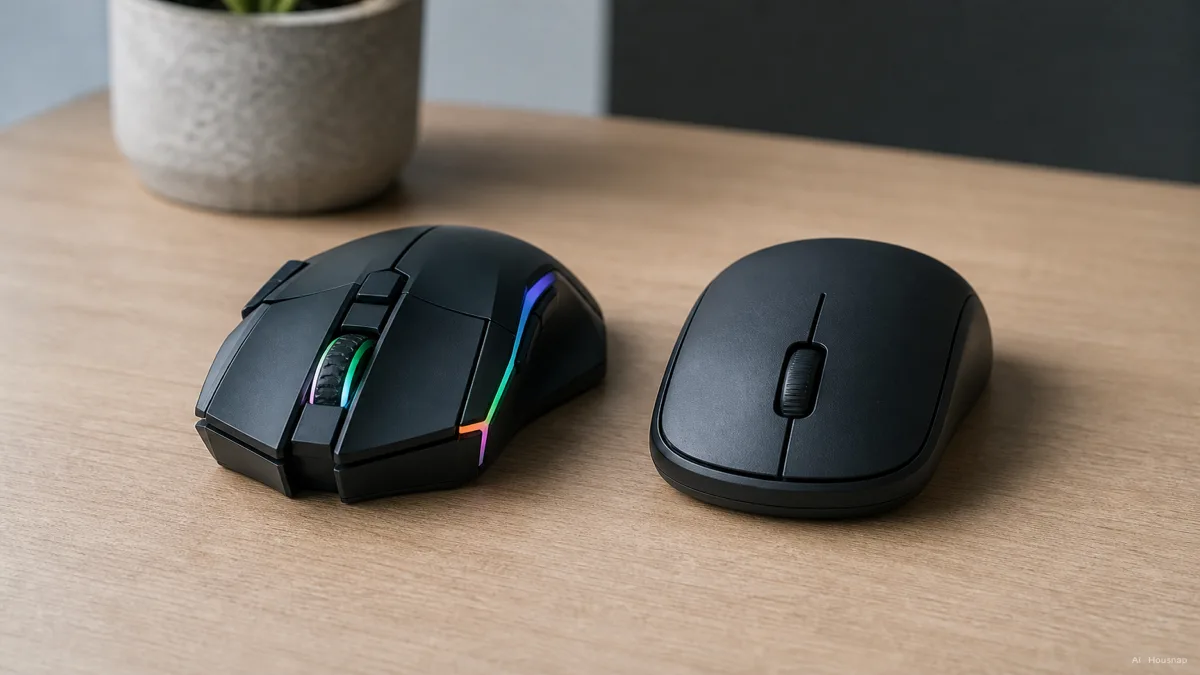
The picture illustrates different finishes. It cannot tell you which mouse has the better sensor or fits your hand.
Read three specifications separately
- DPI sets sensitivity. With other settings unchanged, increasing it moves the pointer farther for the same hand movement. Choose an adjustable range you can control, rather than ranking mice by their maximum. Logitech explains sensitivity adjustments.
- Polling rate sets reporting frequency. At 125 Hz, the interval is 8 ms; at 1000 Hz, it is 1 ms. These are reporting intervals, not measurements of the complete delay from your hand to the displayed result. Logitech's definitions explain the distinction between frequency and sensitivity.
- IPS describes tracking speed. It concerns how quickly the sensor can track physical movement, not pointer sensitivity. For example, Logitech specifies tracking above 400 IPS for the G305. That is a model specification, not a dividing line for all gaming and office mice.
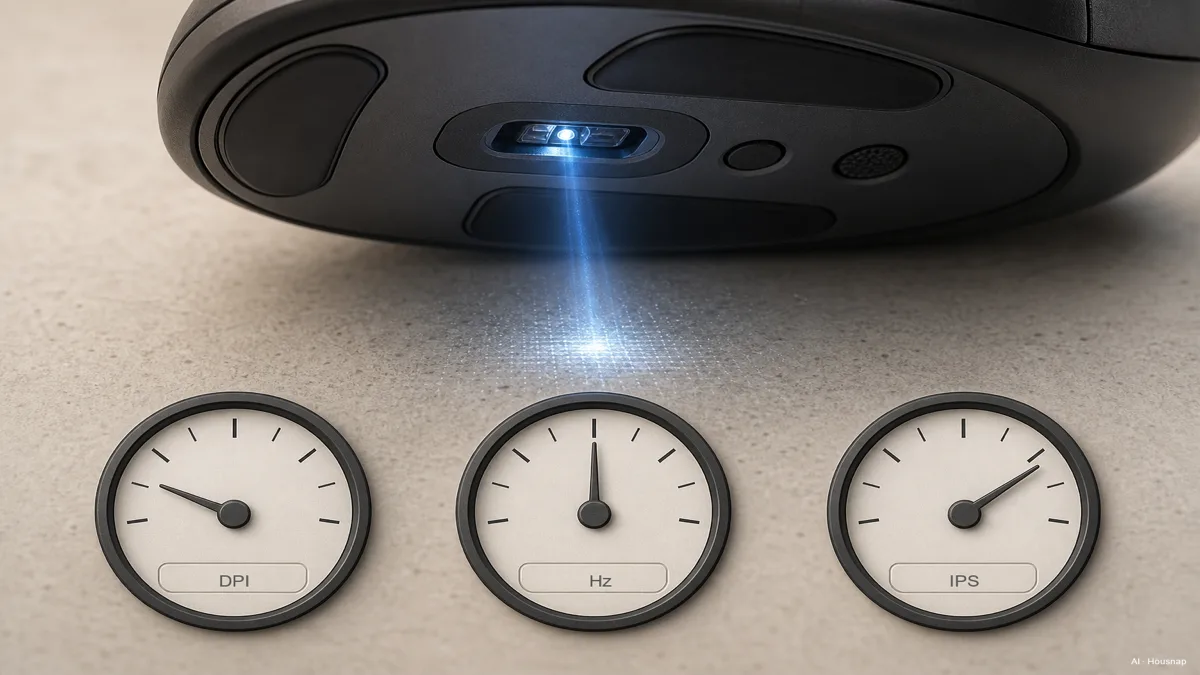
Do not make 8000 Hz a first-buy requirement. Razer documents that some games and CPU-limited systems struggle with high report rates. If raising the setting introduces stutter, try a lower supported rate.
Check the connection you will actually use
Write down whether you need a cable, a USB receiver or Bluetooth, then check the exact model's documentation. Ask which connection supports the advertised report rate, whether the receiver is included, and whether your computer has the required port. A headline wireless specification is not enough to answer those questions.
Receiver compatibility deserves its own check. The MX Master 3S for Business datasheet lists Bluetooth, Logi Bolt and three device-switching channels, but says Bolt products do not pair with other Logitech USB receivers. Owning a receiver from the same brand does not settle compatibility.
Also decide how you want to power the mouse. The G305 uses one AA battery; check the charging or battery arrangement of each alternative instead of assuming every wireless mouse is rechargeable.
Try the shape and the controls that earn their place
Rest your hand naturally before judging the shape. Check whether you can reach the wheel and side buttons without shifting your grip. Corsair's fit guidance considers hand size, grip, dimensions and button layout together. Use those checks on both categories.
For work, name the action an extra control would save. The MX Master 3S setup guide documents a horizontal thumb wheel, ratchet/free-spin scrolling and app-specific wheel assignments through Options+. These are useful comparison points if you navigate wide sheets or long documents, rather than reasons everyone needs that model.
If customization is essential on a work computer, check that the required software is supported and permitted before buying.

If your unresolved question is the hand position rather than gaming performance, compare ergonomic and standard mouse shapes before choosing a model.
Compare two candidates and make the trade-off explicit
Keep only candidates that pass your connection and fit checks. Then compare them using the same short checklist:
- For gaming. Confirm the supported report rate in your intended connection mode and try aiming at a controllable sensitivity. Do not change several settings at once.
- For work. Try the scrolling and switching actions you repeat. A feature that needs unavailable software should not count as a benefit.
- For both. Decide which missing feature would bother you more: the gaming performance you want or a specific work control. If neither candidate meets both essentials, keep looking rather than buying solely by category.
Once the model is settled, compare the exact version, included receiver, warranty and return conditions across sellers. If you cannot try the shape beforehand, make the seller's terms for an opened mouse part of the decision.
Wie dieser Guide entstand
AI wrote this guide for Housnap using Logitech and Razer documentation and Corsair's grip guidance. The sources establish specific features and definitions; the order of the buying checks is an editorial judgment for first-time buyers. This is a document-based comparison, not a hands-on product test.