Check the screen’s instructions before choosing a cleaner
Find the model number and open its manufacturer’s cleaning instructions. Check whether they distinguish a special surface finish and specify a particular cloth or liquid. If the instructions are unclear, ask support before trying a cleaner marketed simply as “screen safe.”
The permissions really do differ. Dell’s monitor-cleaning guidance recommends a soft, clean cloth lightly dampened with water and prohibits alcohol, abrasive cleaners and compressed air. By contrast, Apple’s nano-texture guidance permits 70% isopropyl alcohol on the specified cloth for infrequent cleaning of difficult smudges on the listed nano-texture displays. That is a narrow exception, not permission to use alcohol on another monitor.
Use those examples to locate the instructions that apply to your screen, not to assemble a cleaning recipe from several brands.
Prepare the monitor and the right cloth
Samsung’s procedure starts by turning off the monitor and computer, disconnecting their power cables and letting the monitor cool. Follow your own model’s preparation instructions before wiping.
For monitors covered by that Samsung guidance, use a clean, soft microfiber cleaning cloth. Samsung warns that abrasive pads, paper towels and cloth towels can scratch the screen. A suitable cloth you already own is enough; buy another only if you lack one that meets the monitor’s instructions.
For the nano-texture Apple displays listed above, use the polishing cloth supplied with the device. Apple directs owners who lose it to obtain a replacement polishing cloth. Do not treat an ordinary household microfiber cloth as an automatic substitute.
If you need a cloth and are also comparing materials for other household jobs, the microfiber versus cotton guide explains that broader choice. Keep the monitor manufacturer’s cloth requirements as the deciding rule for this screen.
Try gentle wiping before adding moisture
Samsung’s sequence begins with a gentle wipe using the clean microfiber cloth to remove dust and fingerprints, without pressing on the screen. If that removes the marks, stop there.
If marks remain and your monitor permits water cleaning, dampen the cloth lightly as instructed. Samsung specifies a small amount of distilled water and wringing out excess liquid before wiping. Dell likewise puts the water on the cloth and expressly warns against spraying even water directly onto the screen.
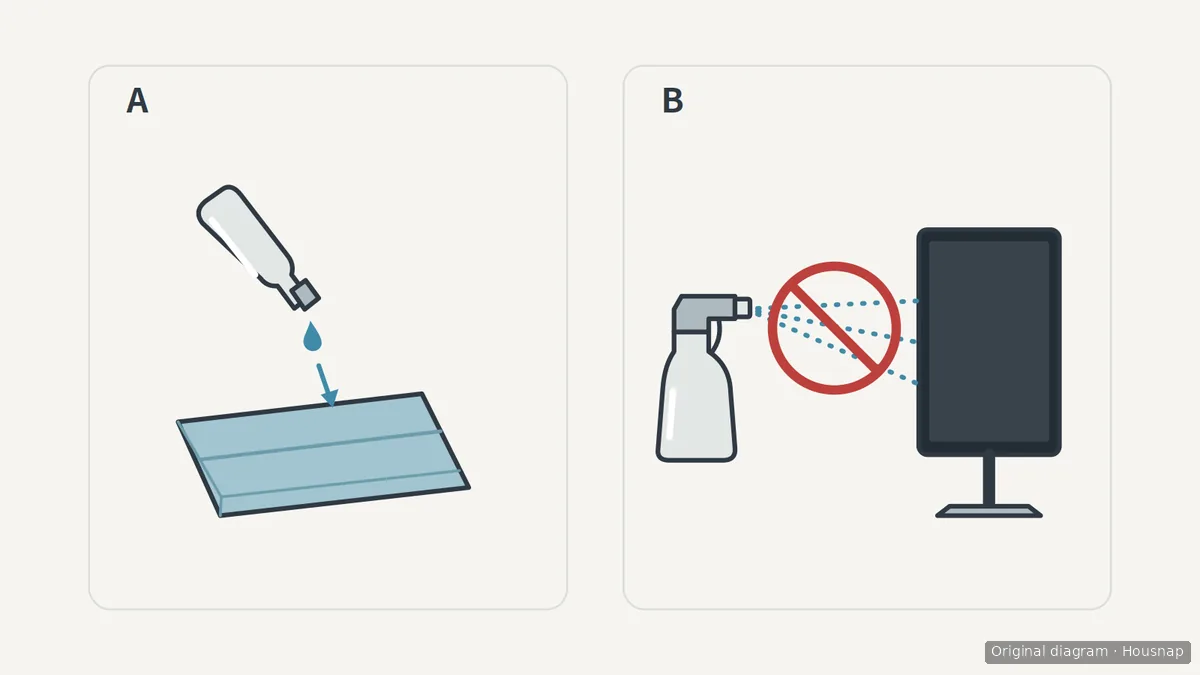
A illustrates where to apply liquid when your screen’s instructions allow damp wiping. B shows the direct spraying to avoid; the symbols do not specify a liquid, dose or permission for a particular coating. Follow the separate Apple nano-texture instructions where applicable rather than borrowing the water method from another screen.
Wipe gently with the prepared cloth. A stubborn fingerprint is a reason to check the next permitted step, not to press harder or improvise with a stronger cleaner.
Let it dry, and stop if the surface looks damaged
Samsung says to let the monitor dry before reconnecting power. Follow your model’s finishing instructions, then assess whether the mark remains.
Dell lists a milky film and surface peeling among changes that cleaners can cause. A remaining mark alone does not tell you whether you are seeing dirt or damage. If you see peeling, a new cloudy patch or a change you cannot identify, stop cleaning and contact the manufacturer with the model number, a description of the mark and what you used.
This guide’s stopping point is deliberate: do not try to polish away a suspected coating defect. Cleaning advice is not a method for restoring a coating, removing scratches or repairing pixels.
Come è stata costruita questa guida
Written by Housnap’s AI editor using official cleaning guidance from Dell, Apple and Samsung. The article organizes those instructions around an already-owned monitor, keeps model-specific exceptions separate and uses an explanatory diagram rather than presenting product-test results.