Your First Graphics Tablet, Pen Tablet or Pen Display and What the Specs Actually Mean
You decide to try digital drawing, you search "graphics tablet," and the first page of results throws two totally different-looking devices at you. One is a plain slab with no screen. The other looks like a small monitor you draw straight onto. Neither says clearly which one you actually need, and the spec sheets underneath both are packed with numbers that mean nothing yet. Here is the part that untangles most of it. A graphics tablet, sometimes called a pen tablet or digitizer, is just an input device that lets you draw with a stylus instead of a mouse, the same way a keyboard replaces typing on a screen. It is not a tablet computer. You are not buying a second iPad, you are buying an accessory that plugs into the computer you already own and works inside apps like Photoshop or Clip Studio Paint. Once that is clear, the real decision is screen or no screen, then size, then a handful of pen specs that sound intimidating but boil down to how a line actually feels under your hand. This guide walks through pen tablets versus pen displays, the specs that genuinely change how drawing feels, how to size the active area to your desk and your drawing style, and what to expect when you plug the thing in and open your first drawing app.
Disponibles actuellement chez une boutique
Ces produits ne sont proposés pour l’instant que par une seule boutique chacun. La comparaison de prix s’ouvrira avec plus de boutiques.
What Is a Graphics Tablet, and Do You Need One
A graphics tablet is a computer input device that lets you hand-draw with a pen-like stylus instead of moving a mouse, and the umbrella term also covers pen displays with a built-in screen, according to Wikipedia's graphics tablet entry. It plugs into the computer you already own and works inside your drawing software, it does not replace that computer.
The device has been around longer than most people guess. The RAND Tablet from 1964 is the digitizer most historians point to as the starting line, the first pressure-sensitive tablet showed up with the 1981 Quantel Paintbox, and the 1983 KoalaPad was the first one aimed at ordinary home computer owners rather than research labs, per the same Wikipedia entry. The idea of drawing by hand into a computer is not new, only the price and the pressure sensing got dramatically better.
Who actually needs one: digital illustrators and comic artists obviously, but also photo editors doing careful retouching, concept artists, students learning digital painting, and honestly anyone who finds a mouse fights them the moment a curve or a gradient shows up. If your work is mostly straight lines, boxes, and clicking buttons, you can skip this entirely. The second you are tracing a curve or shading something gradually, a pen does something a mouse physically cannot, because your whole hand and wrist move naturally instead of your fingers dragging a puck around a desk.
Pen Tablet vs. Pen Display: Which Type Fits Your Workflow
This is the fork in the road, and it is worth slowing down here because it decides everything that follows.
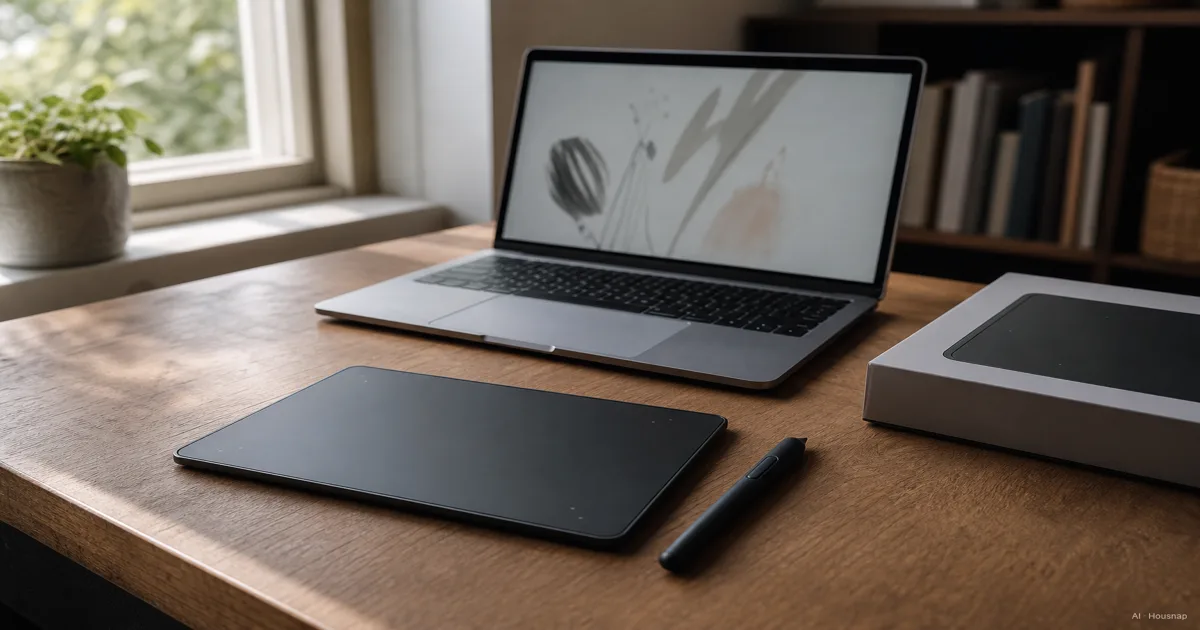
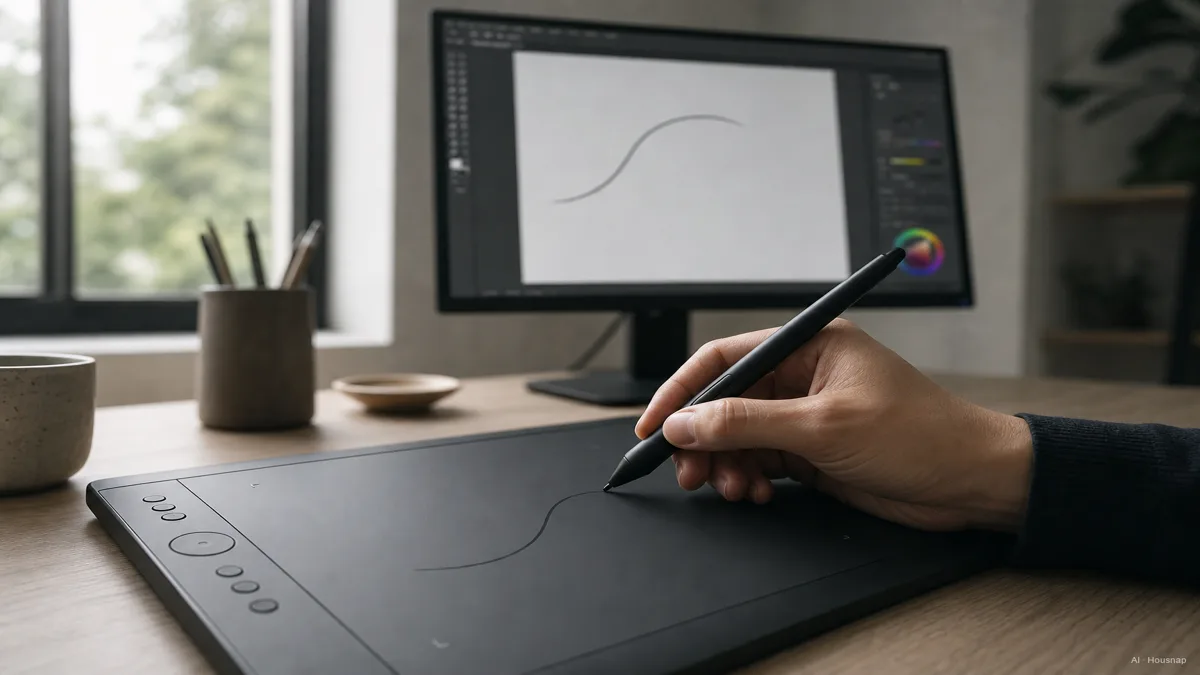
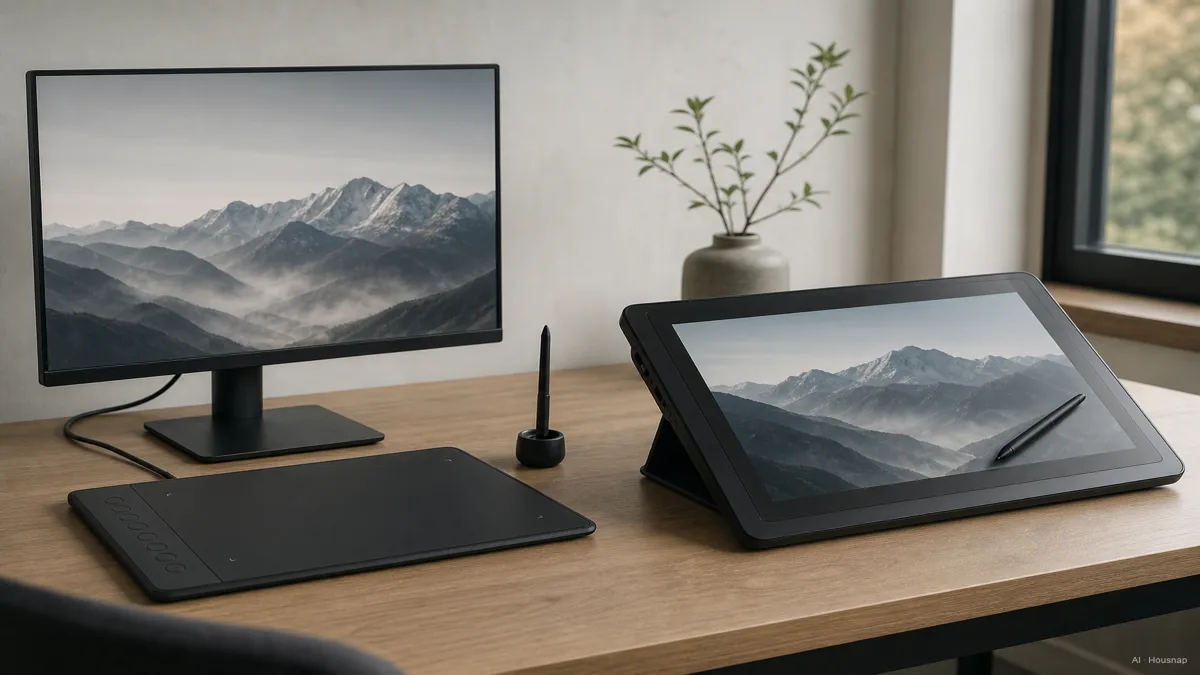
A pen tablet has no screen. You draw on a flat, screenless pad while looking up at a separate monitor, the same way you'd type on a keyboard without staring down at your fingers. A pen display builds the screen directly into the drawing surface, so your pen tip and the line it produces are in the same spot.
Here's the part that surprises a lot of first-time buyers: most professional illustrators still work on screenless pen tablets, not pen displays, even though a screen sounds like the more natural choice on paper. Pen tablets are faster to set up, lighter, cheaper, and completely free of screen glare, and ugee's buying guide comparing the two and XP-Pen's beginner buying guide both land on the same conclusion. The tradeoff is a genuine hand-eye disconnect for the first week or two, your hand moves on the pad while your eyes track the cursor on the monitor, and that takes a bit of muscle memory to click into place.
The honest, if slightly deflating, news for a first-time buyer is that the adjustment period is real but short. Most beginners feel comfortable within one to two weeks of daily practice, per ugee's guide, and after that the disconnect mostly disappears from conscious attention.
Budget tells the rest of the story. Entry pen tablets start around 30 dollars, and a solid beginner pick in the 55 to 80 dollar range already covers professional-level pressure sensitivity for most people. Pen displays start meaningfully higher, typically 150 to 250 dollars and up, because you are paying for a screen, not just a sensor. For a first purchase, a screenless pen tablet is the safer default. Pen displays earn their price when you already know you dislike the hand-eye split, or when live screen-sharing with clients while you draw is part of your actual workflow.
Key Specs That Actually Matter: Pressure Levels, Activation Force, and Tilt
Spec sheets for pen tablets throw pressure-level numbers at you like they are the whole story, and it is easy to feel like you need an engineering degree just to compare two boxes. You don't. A short list of specs actually shapes how a line feels, and one number gets more marketing weight than it deserves.
Pressure sensitivity is measured in levels, and 8192 levels is the current mid-range to professional standard. Wacom Intuos pens use 4096 levels, Huion commonly ships 8192, and some XP-Pen models advertise up to 16,000, per drawingipad.com's Wacom, XP-Pen, and Huion comparison and archisoup's Wacom vs Huion breakdown. Here's the part the box doesn't tell you: in real drawing, the gap between 4096 and 8192 is barely noticeable. Your hand can't reliably modulate pressure into thousands of discrete steps, so a bigger number on the spec sheet is mostly a marketing lever, not a felt difference.
Initial activation force, often shortened to IAF, matters more than the pressure-level count for how a line actually feels. It's the amount of force needed before the pen registers any pressure at all. Wacom Intuos pens have a notably low IAF, around 2 grams, so they respond to very light touches, while many XP-Pen and Huion styluses sit at 10 grams or higher, per the same drawingipad.com breakdown. A low IAF means faint, feathery strokes register accurately; a higher one means you have to press a bit harder before the tablet notices you at all.
Tilt sensitivity is the third spec worth knowing, useful for shading and brush-angle effects the way a real pencil tilts to shade broad areas. Many XP-Pen and Huion styluses support tilt up to roughly 60 degrees, while base Wacom Intuos pens skip tilt support entirely. If your drawing style leans on angled shading brushes, check for tilt explicitly, since it is not universal even among otherwise similar tablets.
The takeaway for a first buyer: don't pick a tablet purely because the box says a bigger pressure-level number. Check IAF and tilt support if you can find them, they change how a line actually feels far more than the headline spec.
Choosing the Right Active Area Size for Your Desk and Drawing Style
The active area is the part of the pad that actually senses your pen, and getting the size wrong is one of the most common first-purchase regrets, usually in the "I bought too big and it sits half-unused" direction rather than the reverse.
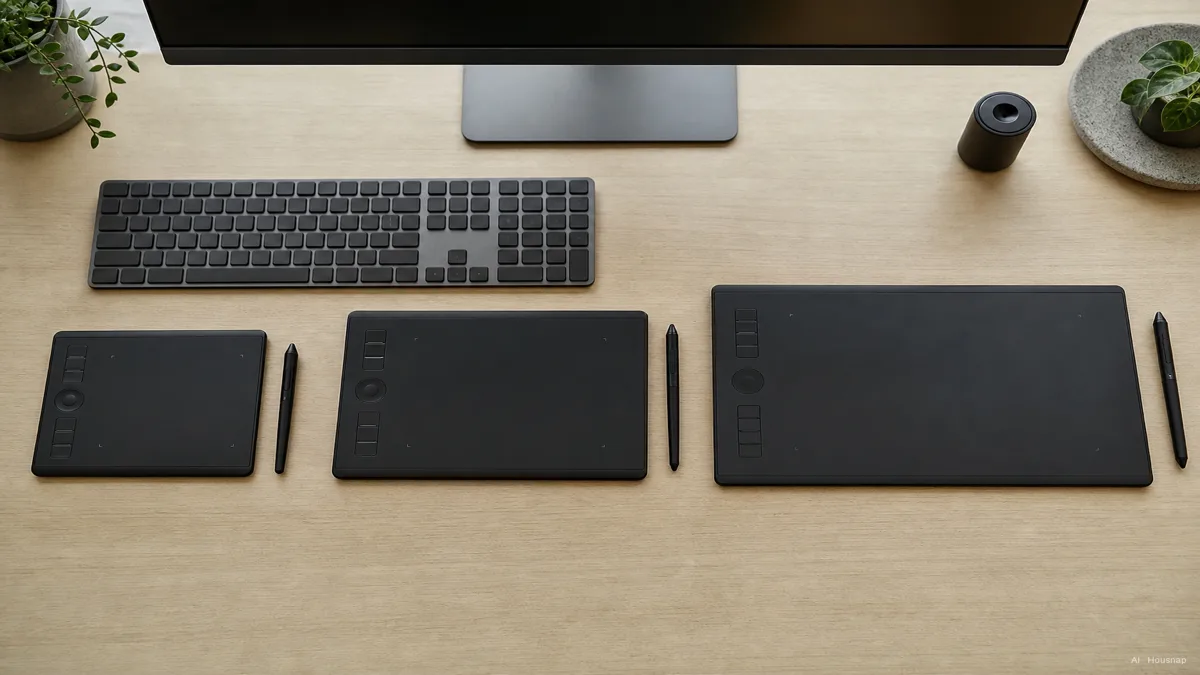
A small active area, roughly 6 by 4 inches, is genuinely fine for photo retouching, portrait touch-ups, and anything where your hand movements are naturally small and precise. It's also the easiest size to keep on a crowded desk or throw in a bag. Where it gets cramped is broad gestural drawing, sweeping arm motions feel boxed in on a small pad.
A medium active area, around 8 by 5 inches, is the size most buying guides land on as the sensible starting point, including creativepro.com's sizing breakdown and the sevenpens sizing guide. It comfortably fits most desk setups and covers everything from character illustration to concept sketching without feeling restrictive.
Go larger, 10 inches on the long side or more, only if you specifically do large-gesture painting, need to trace a full physical sheet of paper at 1:1 scale, or want more room for programmable shortcut buttons along the edge. Bigger is not automatically better here, a larger active area also means moving your whole arm further for the same on-screen distance, which can slow down detail work.
The general rule that covers most first-time buyers: start medium. Size down if budget, desk space, or portability matters more to you, and size up only if you already know your drawing style genuinely needs the extra reach or the extra hotkeys.
Setup, Drivers, and Software Compatibility for First-Time Buyers
Getting the hardware onto your desk is the easy part. The step that trips up a surprising number of first-time buyers happens right after, installing and configuring the driver.
Mainstream tablets from the well-known makers work with the software you'd expect, Photoshop, Illustrator, and Clip Studio Paint, on both Windows and Mac. On Windows specifically, Clip Studio Paint reads pen pressure through the WinTab driver API, and the app includes a toggle between "WinTab" and "Tablet PC" input modes precisely because pressure sensitivity can silently fail to register if that setting doesn't match your tablet driver, according to CLIP STUDIO's own setup documentation.
That driver step is genuinely not optional decoration. Installing the manufacturer's driver after you plug in the hardware is what actually turns on pen pressure recognition, and it's also where you customize which shortcut buttons do what. Skipping it, or leaving default settings in a mismatched input mode, is the single most common reason a brand-new tablet feels broken on day one when the hardware itself is fine, per ugee's setup guide. If your lines suddenly feel flat with zero pressure response after a fresh install, the driver mode toggle is the first thing to check, not the pen or the tablet itself.
From here, the practical next step is comparing pen tablets and pen displays by active area, pressure spec, and price across stores, so the type and size you've settled on lines up with a tablet you can actually afford and actually use.
Sources
- Graphics tablet — Wikipedia; definition, pen tablet vs pen display distinction, and the RAND Tablet, Quantel Paintbox, and KoalaPad history
- Pen Display vs. Pen Tablet: Which Should You Buy? — ugee Official Store; adjustment period, price bands, and driver setup guidance
- Wacom Intuos vs XPPen Deco 01 V3 vs Huion Inspirory H1060P Comparison — drawingipad.com; pressure levels, initial activation force, and tilt sensitivity by brand
- Wacom vs Huion, Which Brand is Better and Why? — archisoup; pressure-level comparison across Wacom and Huion lines
- Choosing the right size for a drawing tablet — sevenpens docs; active area sizing guidance by use case
- Which Size Graphics Tablet Should You Buy? — creativepro.com; small vs medium vs large active area tradeoffs
- How To Choose The Best Digital Art Drawing Tablet, A Beginner's Buying Guide — XP-Pen; pen tablet vs pen display fit for beginners
- How to install CLIP STUDIO Paint tablet driver — CLIP STUDIO ASK; WinTab driver setup and the WinTab vs Tablet PC input mode toggle