Identify what actually changed
Open the saved map for the correct floor, if your robot supports several maps. Take a screenshot before editing, and record the robot model, app and any recent dock move. Compare the outside walls and doorways with your home, rather than judging by room colours alone.
- The outline looks right, but rooms are merged or misnamed. Start with room editing.
- A room is missing. Check whether its door was shut or the new furniture blocks the route. Record whether the robot actually entered it.
- Walls overlap or the whole plan is skewed. Treat this as a map-shape problem before correcting labels.
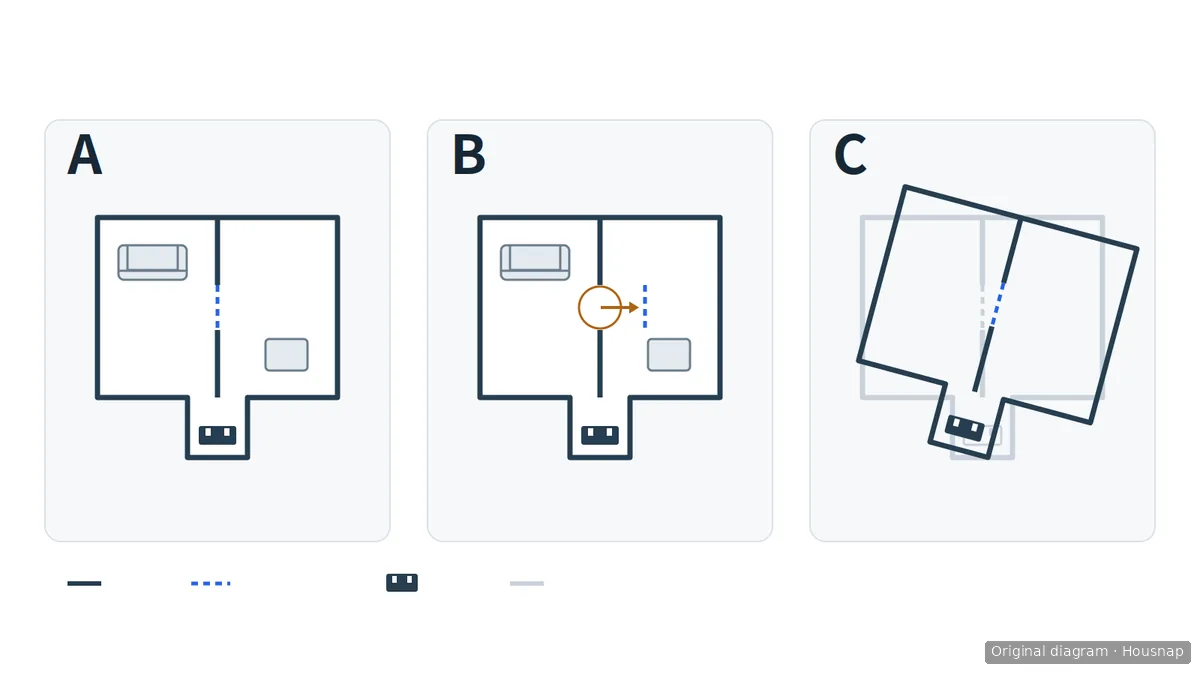
In these schematics, solid lines are walls, dashed lines are room dividers, and the small rectangle with two light marks represents the dock. A is the reference layout; B keeps its walls, doorway and dock fixed while the ring and short arrow highlight the displaced divider, so check room divisions and names. In C, the drawn walls, divider and dock marker rotate and shift together over the pale reference plan: check room access and actual dock placement, but a shifted dock marker does not prove the physical dock moved. The diagrams are not to scale and are inspection aids, not a fault diagnosis.
The diagram separates two editing decisions; it does not diagnose the cause. Roborock says an angled map can be related to dock placement in its angled-map guidance. If that matches your symptom, check your own dock's installation instructions before relocating it. Furniture moving and map trouble happening together do not establish a sensor fault.
Correct divisions before room names
When the floor plan is recognisable, check which areas each room selection actually highlights. A familiar name on the wrong area is not a useful repair.
Roborock documents merging and dividing rooms through map editing. If your model and app provide these controls, correct the divisions first, then use the available naming control to label each resulting room. Follow the current instructions for your app; the linked FAQ does not establish one menu sequence for every model.
Select each edited room again and inspect the highlighted area before sending the robot there. If the walls themselves remain wrong, changing the name will not answer the map-shape problem. If no naming or division control is available, ask support what your exact model permits rather than following another model's screenshots.
Create a new map only when that is the chosen remedy
Before resetting anything, check whether your model offers a documented saved-map recovery option. If it does, inspect the recovered layout before relying on its room selections. Do not assume that every robot has a backup or that old room labels will return.
Roborock's saved-map reset FAQ describes obtaining a new map. Its angled-map guidance also describes switching Map Saving off and back on for a new map on the next cleanup. These are new-map routes, not promises to restore the old labels. Do not substitute a factory reset for a map command.
If a new map is needed, prepare the route before starting. The Roborock multi-floor guide uses the S7 as its example and explicitly notes model and firmware differences. For that example's first map, it requires:
- Map saving enabled.
- A start from the dock.
- Cleaning throughout the area the robot detects, with doors open for rooms you want mapped.
- Successful automatic return to the dock, without moving the dock.
Use those conditions for the documented example, and your own model's procedure elsewhere. Check whether rearranged furniture leaves a usable entrance to the missing room. Once mapping finishes, inspect the outline before spending time dividing and naming rooms again.
Verify room commands before restoring the routine
As a final check, select one intended room and supervise a run. Compare the highlighted area, the room actually visited and the resulting map. Then inspect any room-based schedules and exclusion areas before letting unattended cleaning resume; do not assume the settings still refer to the places you intended.
If the map becomes distorted again, keep the before-and-after screenshots and note whether the dock moved, doors were open and automatic return completed. Send that record, the model and app version to manufacturer support. Stop user troubleshooting at visible damage rather than dismantling the navigation hardware.
Only if troubleshooting leads to a separate replacement decision should you compare LiDAR and camera navigation for a robot vacuum. A shifted map alone does not establish that you need a different sensor system or a new machine.
Cómo se elaboró esta guía
This guide was written by AI for Housnap using Roborock's official map-editing, reset and mapping guidance. It distinguishes documented instructions, including the S7 example, from editorial checks for an already-owned robot. It does not report hands-on testing or guarantee recovery of a previous map.