Mechanical Keyboard Switch Types, How to Pick Your First One
You decide to buy your first mechanical keyboard, and within five minutes you are drowning in color names. Red, brown, blue, yellow, and dozens more. It feels like you need a chart and a degree to get started. Here is the part nobody tells you up front. All those colors map back to just three ways a switch can feel when you press it. Smooth all the way down. A little bump partway. Or a bump plus an audible click. Pick the feel first, and the colors stop being noise and start being options. None of this requires memorizing actuation curves. It requires knowing what each feel is good at, where it gets annoying, and one feature that quietly matters more than the switch itself for a first board. This guide walks through the three switch families, the specs that actually change how a key feels, which feel fits gaming versus typing versus a shared office, and why your first keyboard should let you swap switches without a soldering iron.
Aktuell bei einem Shop erhältlich
Diese Produkte sind derzeit jeweils nur bei einem Shop erhältlich. Der Preisvergleich öffnet sich mit weiteren Shops.
What Makes a Mechanical Switch: The Three Core Types Explained
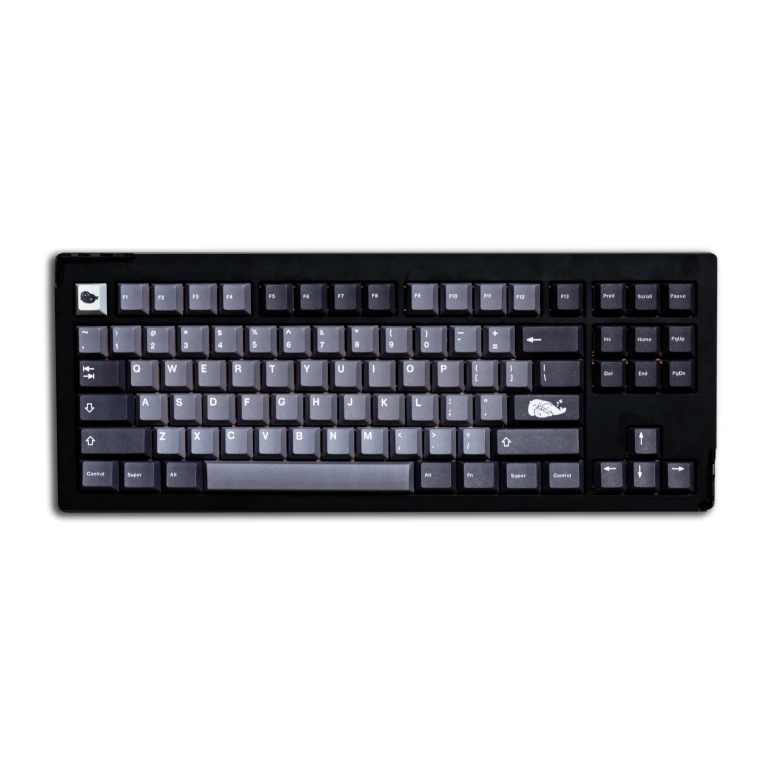
Under every keycap on a mechanical keyboard sits an individual spring-loaded switch, one per key. How that switch feels when you press it is the single thing that defines the whole experience, and there are only three families to learn, as Corsair's Key Switch Types 101 lays out.
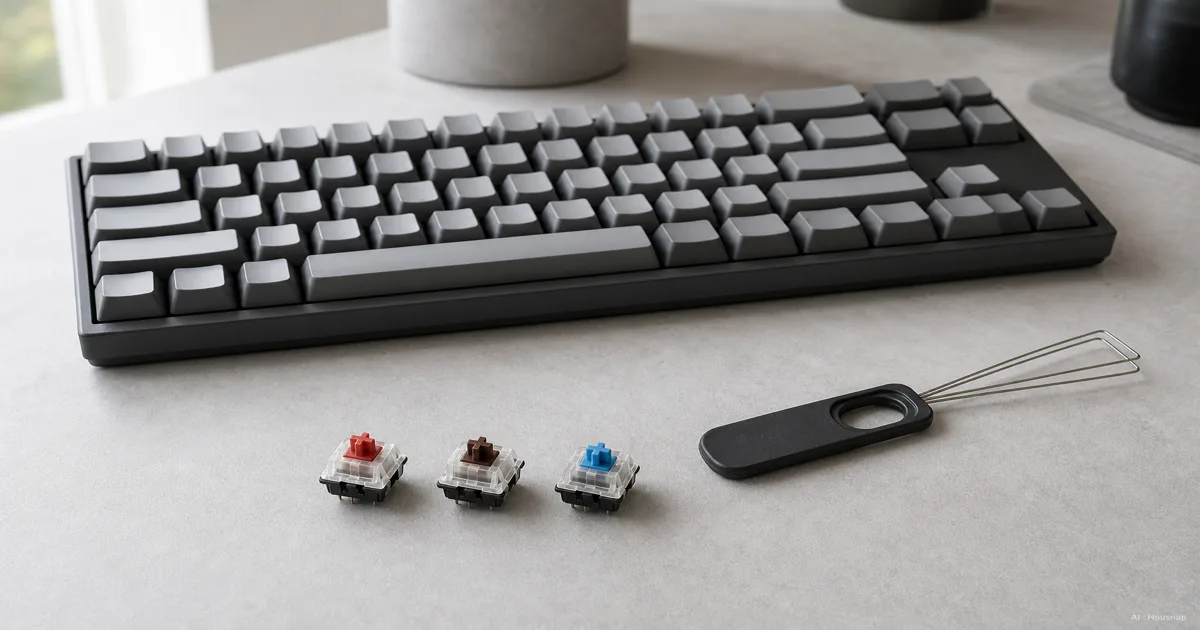
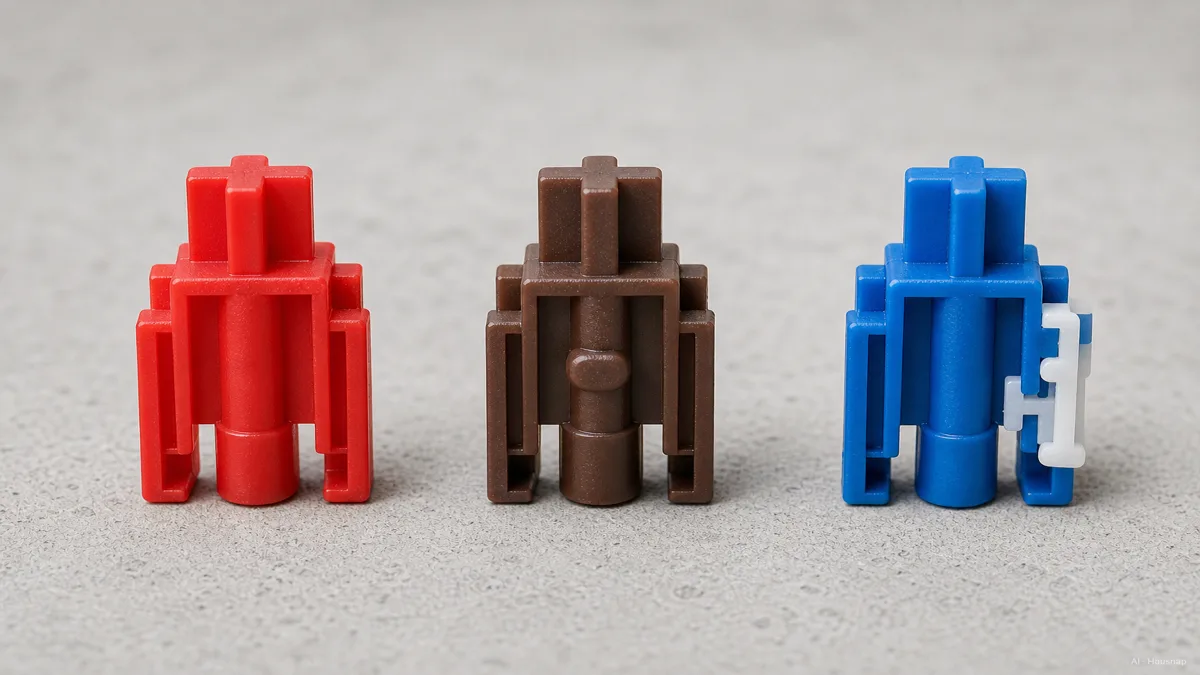
Linear. The keypress glides straight down with no interruption, smooth from top to bottom. Nothing tells your finger the key has registered except the keystroke landing. Cherry MX Red is the reference linear switch, and most gaming-leaning boards default to this family.
Tactile. Partway down the travel you feel a small bump. That bump is a physical cue that the key has actuated, so you can ease off without slamming every key to the bottom. There is no click, just the feel. Cherry MX Brown is the classic example here, and it happens to be one of the most popular switches in the world precisely because it is quiet enough for shared spaces.
Clicky. Same tactile bump, but now it comes with a loud, distinct click each time the key registers. Cherry MX Blue is the archetype. The click is genuinely satisfying to type on, and genuinely annoying to everyone within earshot, which is why Keychron's guide flags clicky switches as a poor fit for open offices.
One bit of history makes the whole landscape click into place. The Cherry MX switch was invented in Germany in the 1980s and became the industry standard, and its physical footprint has since been cloned by Gateron, Kailh, Outemu and others. That is why a switch from one brand drops into a board built for another, and why the color names repeat across makers.
Key Specs to Compare: Actuation Force, Pre-Travel, and Total Travel
Once you know the three feels, a handful of numbers separate switches within each family. They sound intimidating and they are not.
Actuation force is how hard you have to press before the key registers, measured in grams-force (gf) or centinewtons (cN), which are close enough to read as the same scale. Cherry MX Red sits at 45 gf, MX Brown around 55 cN, MX Blue around 60 cN, per the Das Keyboard breakdown of Cherry MX specs. Most first-time buyers land comfortably in the 45 to 60 range. Go heavier, into 70 cN and up, and you get fewer accidental keypresses, which heavy-handed typists tend to like.
Total travel is how far the key moves from rest to fully pressed. On nearly all MX-style switches that is 4mm, the bottom of the keystroke.
Pre-travel, or actuation point, is the more useful number. It is how far down the key registers your press, and on standard MX switches that happens at around 2mm, halfway down. The practical takeaway is that you do not need to bottom out a key for it to count. Once you trust the actuation point, your typing gets lighter and your hands get less tired, because you stop slamming every key into the base.
So a switch is really just three numbers plus a feel. How hard (force), how soon it counts (pre-travel), and how far it can go (total travel). Cherry's own overview of the MX range is a clean reference if you want to compare specific colors side by side.
Which Switch Type Is Right for You: Gaming vs Typing vs Office
Here is where the three families sort themselves by what you actually do at the keyboard. The consensus across Tom's Guide's switch guide, Keychron, and Corsair lands in roughly the same place.
Go linear (reds) if you mostly game. The smooth, uninterrupted press lets you tap fast and repeatedly without a bump fighting your finger on every keystroke, which is why competitive players gravitate to this family. It also doubles fine for quiet typing once you adjust to the lack of feedback.
Go tactile (browns) if your days are mixed, which describes most people. You get a real cue that the key registered, helpful for accuracy when you type a lot, without the noise of a click. The quiet bump is exactly why tactile browns became the world's best-selling switch type and the safe default for anyone sharing a room.
Go clicky (blues) if you mostly type, you love the feedback, and you work alone. The click is a joy and the tactile bump is pronounced, which a lot of writers swear by. Just be honest about your space, because a roommate, a partner on a call, or an open-plan desk will not share your enthusiasm.
The Lenovo switch guide frames it the same way: match the switch to the dominant activity and the room you are in, not to a leaderboard of which switch is best. There is no best. There is the one that fits your hands and your space.

Hot-Swap vs Soldered: Why Your First Keyboard Should Let You Experiment
This is the most important section for a first buyer, and it has nothing to do with choosing the perfect color.
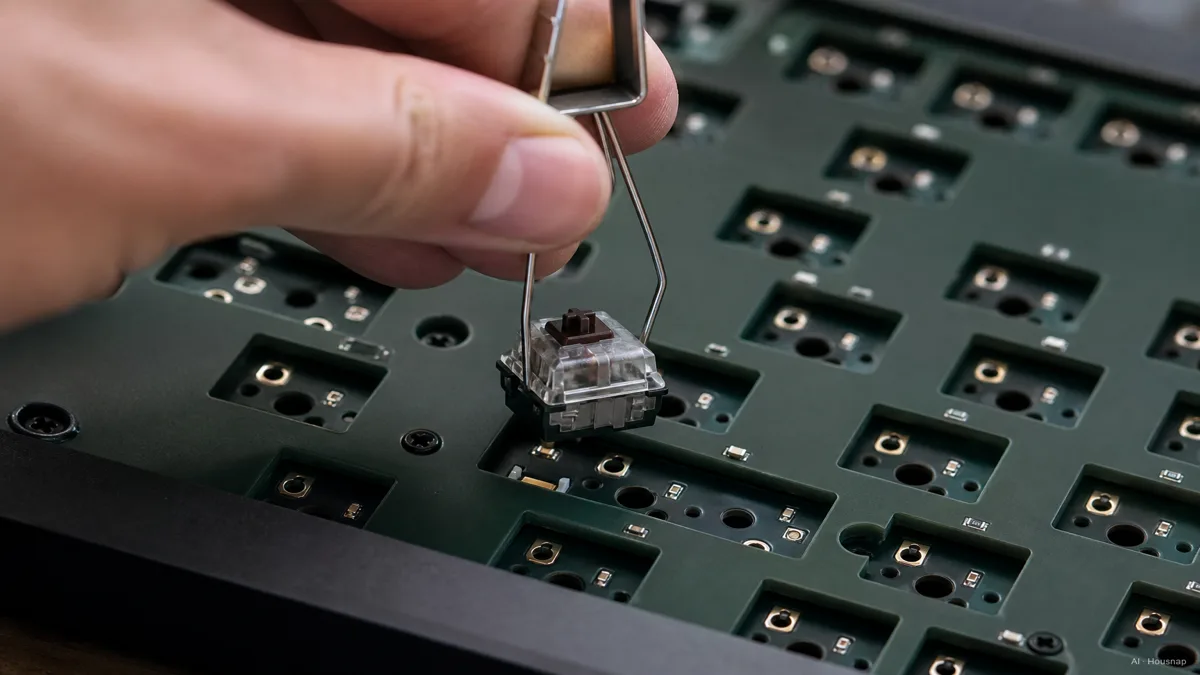
On a traditional mechanical keyboard, each switch is soldered to the circuit board. If you pick wrong, you are stuck, or you are learning to desolder. A hot-swappable keyboard replaces the solder joints with little sockets, so switches pull out and push in by hand. No iron, no melted joints, no commitment.
For someone buying their first board, that one feature changes the whole risk calculation. You cannot fully know how a switch feels from a spec sheet or a YouTube sound test. You have to type on it. A hot-swap board lets you start with, say, tactile browns, then try a linear or a heavier switch later for the cost of a switch pack instead of a whole new keyboard.
It also opens up the budget tier, which is genuinely good in 2026. Linear alternatives like Gateron Yellow and the Gateron Milky Yellow Pro V2 are widely regarded as smoother than Cherry MX Red per dollar, and because every MX-footprint switch fits the same hot-swap socket, a cheap board can host excellent switches. The single best first-buy move is choosing a hot-swap keyboard, almost regardless of which switch you start with.
Beyond Mechanical: Hall Effect and Optical Switches (Worth It in 2026?)
If you have read the words "Hall Effect" or "Rapid Trigger" and wondered whether to skip mechanical entirely, here is the honest version.
Hall Effect switches use magnets instead of physical metal contacts, which lets the keyboard read exactly how far down a key is at every moment. That unlocks an adjustable actuation point, sometimes as shallow as 0.1mm, and a feature called Rapid Trigger that re-activates a key the instant it starts moving down again after any release. Traditional mechanical switches physically cannot do that, and for competitive FPS gaming the difference is real, as MKB Guide's Hall Effect versus mechanical breakdown explains. Magnetic switches also rate for 100M-plus actuations, since nothing physically touches to wear out.
The catch is price and need. Hall Effect boards like the Wooting 60HE or Keychron Lemokey P1 HE start around 150 dollars, versus roughly 50 for a solid entry mechanical. For a first keyboard used mostly for typing, mixed work, or casual gaming, that premium buys features you may never lean on.
So the honest answer for most first buyers is to start mechanical, ideally hot-swap, and treat Hall Effect as a later upgrade if and when competitive gaming becomes the point. From here, the useful next step is to filter mechanical keyboards by switch type, see which boards are hot-swappable, and compare what each one costs across stores so the feel you picked lines up with a board you can actually live with. You'll find options from the names that show up most in keyboards, so the comparison is concrete rather than hypothetical.
Sources
- Key Switch Types 101 — Corsair; the linear, tactile, and clicky framework and what each feel is built for
- Types of Keyboard Switches — Keychron; switch families, why clicky suits typists working alone, and why browns work in shared spaces
- A Guide to Mechanical Keyboard Switches — Tom's Guide; matching switch type to gaming, typing, and office use
- A Guide to Cherry MX Switches — Das Keyboard; actuation force, pre-travel, and total travel specs per MX color
- Cherry MX Switches at a Glance — Cherry; official spec overview of the MX range and its industry-standard footprint
- Hall Effect vs Mechanical Switches — MKB Guide; adjustable actuation, Rapid Trigger, durability, and the price gap versus mechanical