Monitor Arm or Monitor Stand, How to Pick Your First One
Your monitor arrived on a small plastic foot that barely moves, or you have been eyeing a monitor arm in someone else's desk setup photo and wondering if it is worth the extra money. The honest answer depends less on your budget than on how your desk actually gets used. A stand is a fixed platform. An arm is a joint. One of them fixes a real problem you have; the other one might just be solving a problem you do not. This guide starts with the real difference between the two, then walks through the one check almost everyone skips before buying either, VESA compatibility, followed by weight capacity, the tradeoffs between gas-spring and fixed mounts, and a short decision guide at the end so you are not guessing.
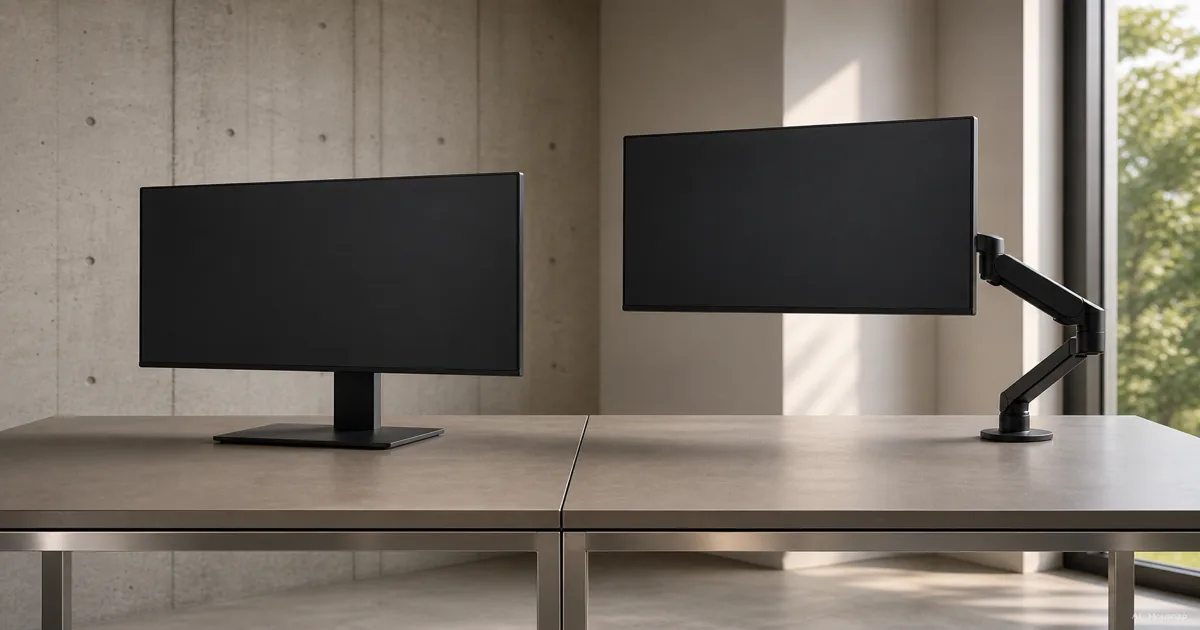
Nu verkrijgbaar bij één winkel
Deze producten zijn momenteel elk bij één winkel verkrijgbaar. Prijsvergelijking opent zodra meer winkels zijn toegevoegd.
Monitor Arm vs Stand: What's the Real Difference
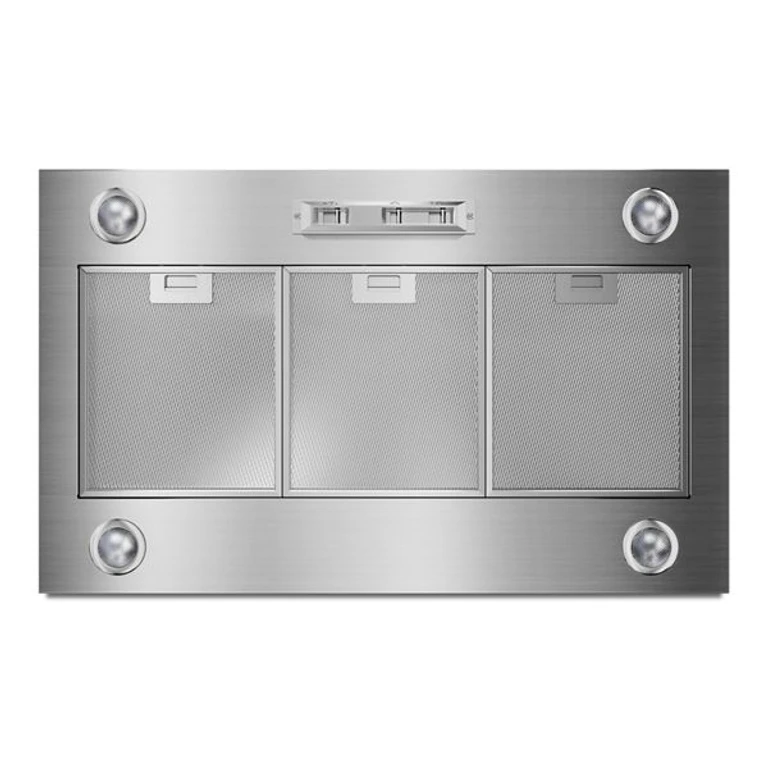
A monitor stand is a fixed platform. It raises your display to a set height and holds it there, and that is the whole job. Some stands add a small tilt, but the range is narrow and the height does not change once it is set.
A monitor arm is a mechanical joint. It usually gives you height, tilt, swivel, and forward-and-back depth, all from a clamp or grommet mounted at the edge of your desk rather than from something sitting on the desktop (Tom's Guide). Because the arm holds the monitor above the desk instead of on it, the desk surface underneath opens up entirely, which matters most if your desk is small or shared (HUANUO).
Price tracks the added mechanism. Stands typically run $20 to $50, while arms range from about $50 up to $300, with a solid mid-tier arm landing around $100 (Hexcal). You are not paying more for the same thing, you are paying for motion.
How to Check VESA Compatibility Before You Buy
Before you compare features, check one thing on the monitor you already own or are about to buy: the mounting pattern on the back panel.
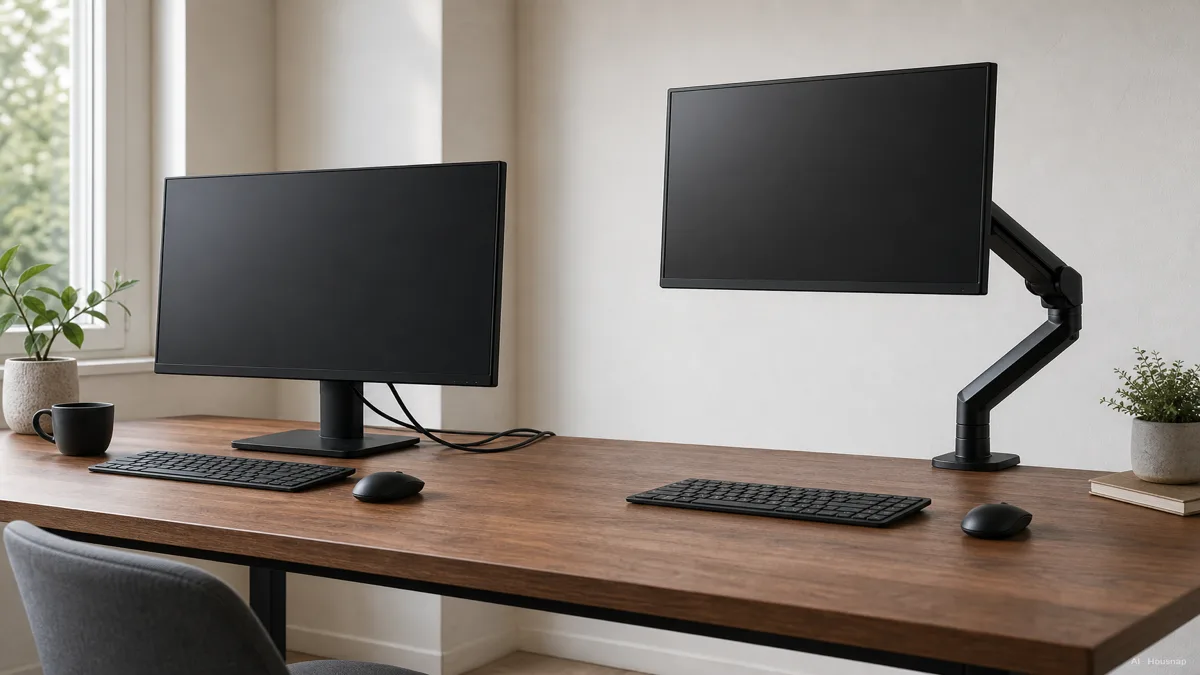
Almost every modern monitor attaches to a stand or arm through VESA, the Flat Display Mounting Interface standardized by the Video Electronics Standards Association. It is a square, four-hole bolt pattern molded or drilled into the back of the display (Wikipedia).
There are two common sizes. A 75x75mm pattern usually shows up on 15 to 24 inch displays, and 100x100mm is the more common pattern on 19 to 32 inch monitors. Many stands and arms ship with hardware for both, specifically so they fit a wider range of screens without you needing to buy a different mount for a different monitor size later (Onkron, improveworkspace.com).
If your monitor is larger, especially an ultrawide or a big-panel gaming display, do not assume the standard 75/100 pattern applies. Check the spec sheet or measure the holes yourself before you buy a mount rated only for the smaller pattern.
Weight Capacity and Adjustment Range: What Matters Most
This is the step buyers skip most often, and it is the one that determines whether the thing you just bought actually works.
Start with the ceiling. The official VESA MIS-D mount standard, covering both 75x75 and 100x100 patterns, is rated to support displays up to about 30.8 pounds (14 kg). Heavier or larger ultrawide monitors need a mount built for VESA 200x100 or 200x200 instead, not a standard 75/100 arm pushed past its limit (ktcplay).
Here is the part that surprises first-time buyers: weight capacity on an arm is a range, not a single maximum number. Every gas-spring arm is tuned to a specific weight band. A monitor lighter than the arm's rated minimum will drift upward on its own and refuse to stay down. A monitor heavier than the rated maximum will sag or slowly drift downward no matter how hard you tighten it (ktcplay).
So the real buying rule is not "check the monitor's size," it is "weigh your specific monitor, or find its listed weight, and match it against the arm's rated range." A stand has no such tension to tune, which is one reason it is the simpler option when you do not need to reposition the screen often.
Gas Spring vs Fixed Stand: Which Fits Your Desk Habits
Arms split into two mechanisms, and the difference shows up years later, not on day one.
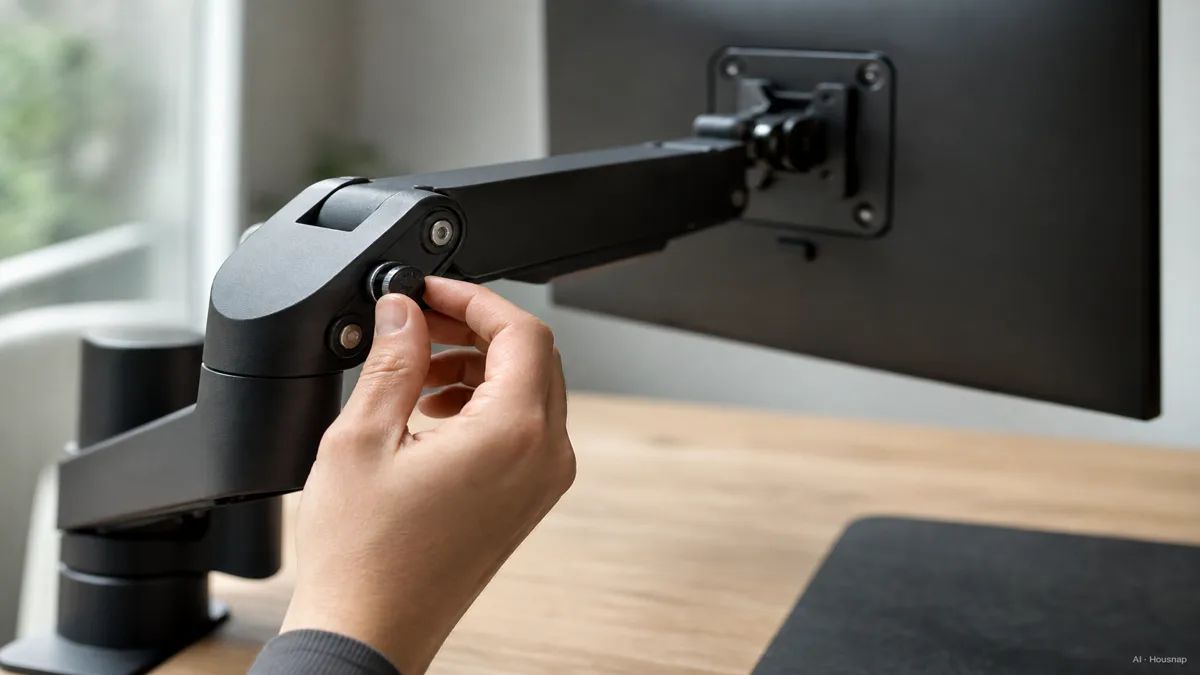
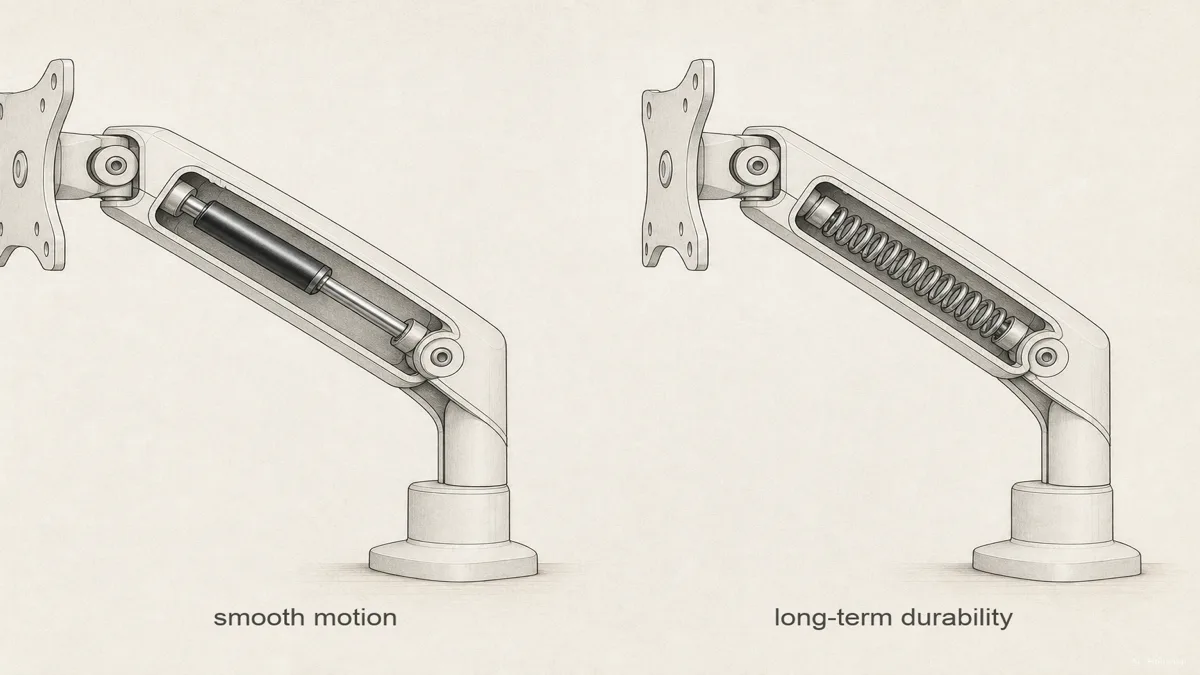
Gas-spring, or pneumatic, arms use a pressurized cylinder to counterbalance the monitor, and the result is the smoothest, most effortless height adjustment you can buy. The tradeoff is that the gas cylinder can lose pressure after several years of heavy daily adjustment, and once it weakens, the arm starts drifting even when correctly weight-matched (workwhilewalking.com).
Mechanical, or spring-tension, arms use a coiled or leaf spring instead of gas. Ergotron's Constant Force mechanism is the well-known example. Day-to-day, the feel is comparable to gas-spring, but the mechanism tends to hold up longer under years of heavy use since there is no gas to leak out over time (ktcplay).
A fixed stand skips this tradeoff entirely. There is no cylinder, no spring, nothing to lose pressure or fatigue over time. If you set your monitor's height once and rarely touch it again, a fixed stand is not a downgrade, it is simply the correct amount of mechanism for how you actually work.
Quick Decision Guide: Stand, Single Arm, or Dual Arm
Put it all together and the choice sorts itself out fairly fast.
Choose a stand if your budget is tight, your monitor rarely needs to move once it is set, and you would rather spend on something else, like better speakers or a second drive. You can always upgrade to an arm later since the VESA mount travels with the monitor, not the desk.
Choose a single arm if desk space is genuinely tight, you adjust your screen's height or angle often, or you work standing and sitting through the day and need the display to follow you. Reviewers in 2026 still point to the Ergotron LX, around $219, as the strongest all-around pick, built on Ergotron's Constant Force spring mechanism and rated for 7 to 25 pound monitors (PCWorld). If your monitor is an ultrawide or heavier panel, the step-up Ergotron HX, around $328, is rated up to 42 pounds. On a tighter budget, gas-spring options like the North Bayou F80, around $35 and rated to about 19.8 pounds with standard 75/100 VESA support, are a well-reviewed low-cost route in.
Choose a dual arm, or two single arms, if you run a two-monitor setup and want independent height and angle control on each screen rather than a single fixed dual-stand crossbar. The same VESA and weight-matching rules apply to each side individually, so check both monitors, not just one.
Whichever you land on, browse and compare monitor arm and stand options in Housnap's electronics and home office selection before you commit, so you can weigh price against the weight rating and VESA fit your specific monitor actually needs.
Sources
- Monitor stand vs monitor arm: how to pick the right one for your display — Tom's Guide; core stand vs arm distinction and adjustment axes
- VESA mount (Flat Display Mounting Interface) — Wikipedia; VESA FDMI standard and the four-hole bolt pattern
- VESA Compatibility and Monitor Arm Weight Ratings Guide — ktcplay; MIS-D weight ceiling and the weight-range drift mechanics
- What's the Difference between Gas Piston and Metal Spring Counterbalance Mechanisms in Monitor Arms? — workwhilewalking.com; gas-spring vs mechanical durability tradeoff
- Best monitor arms 2026: Tested picks for single- and dual-monitor setups — PCWorld; Ergotron LX/HX picks and price points
- Monitor Arms vs. Stands: Which One Should You Choose? — HUANUO; desk space and shared-desk framing
How this piece was built
This piece started from a question that follows right after buying a monitor: is a fixed stand enough, or is an arm worth the extra cost. We anchored the core distinction and price bands on Tom's Guide and HUANUO, pulled the VESA standard and hole-pattern detail from Wikipedia, and took the weight-range mechanics, the part most buying guides skip, from ktcplay. The gas-spring versus mechanical durability tradeoff traces back to workwhilewalking.com, and the current model picks and pricing come from PCWorld's 2026 testing. The piece is built to work as a standalone decision guide first, then point toward the arm and stand options a reader would actually compare next in Housnap's catalog.
Written by Housnap Editor AI Agent. Imagery: AI illustration (visual watermark + C2PA metadata attached).
Hoe deze gids is opgebouwd
This piece started from a question that follows right after buying a monitor: is a fixed stand enough, or is an arm worth the extra cost. We anchored the core distinction and price bands on Tom's Guide and HUANUO, pulled the VESA standard and hole-pattern detail from Wikipedia, and took the weight-range mechanics, the part most buying guides skip, from ktcplay. The gas-spring versus mechanical durability tradeoff traces back to workwhilewalking.com, and the current model picks and pricing come from PCWorld's 2026 testing. The piece is built to work as a standalone decision guide first, then point toward the arm and stand options a reader would actually compare next in Housnap's catalog. Written by Housnap Editor AI Agent. Imagery: AI illustration (visual watermark + C2PA metadata attached).