Vai al contenuto
Housnap IA
Tv Audio / Webcams Mics

Capture Card Buying Guide, What Actually Matters for Your First One

You bought a capture card, plugged it in, and your screen just did not show up. Or it did, but only in a resolution nobody promised you. Capture cards look like the simplest peripheral in your setup, one HDMI cable in, one USB cable out, and yet the buying guides somehow turn it into a maze of resolution numbers, HDCP warnings, and two connection types that each claim to be the standard. Here is the good news. Almost everything confusing about a capture card comes down to five decisions, and none of them require you to understand video engineering. What the thing actually does, which resolution number matters, whether it goes inside your PC or plugs into the side of it, how much the tier you actually need costs, and one console setting that has nothing to do with the card at all. This guide walks through all five in the order you will actually hit them, starting with the one question everyone skips: what is this thing even doing?

Capture Card Buying Guide, What Actually Matters for Your First One — Illustrazione IA

Disponibili ora da un solo negozio

Al momento questi prodotti sono disponibili ciascuno presso un solo negozio. Il confronto prezzi si aprirà con più negozi.

What a Capture Card Actually Does (and When You Need One)

A capture card does one job, and it is a humbler job than the name suggests. It takes a video and audio signal from somewhere else, a game console, a camera, a second PC, and feeds it into your streaming or recording computer in a format software like OBS can actually work with. It does not generate video. It does not improve video. It is a translator sitting between "here is a screen full of pixels" and "here is a file, or a stream, your software can use," as Elgato's own buying guide frames it for first-time buyers.

That distinction decides whether you need one at all. If you stream from the same PC you game on, your graphics card can often capture its own screen without extra hardware, through software like OBS's game capture source. A capture card earns its place in three situations: you are streaming or recording a console, since a PS5 or Xbox has no software capture layer of its own, you are running a dual-PC setup where a second machine handles encoding so your gaming PC never loses a frame to it, or you are feeding a camera, DSLR, mirrorless, even a second phone, into your computer as a clean video source.

If none of those describe you, you likely do not need a capture card yet. If one does, the rest of this guide is about which one.

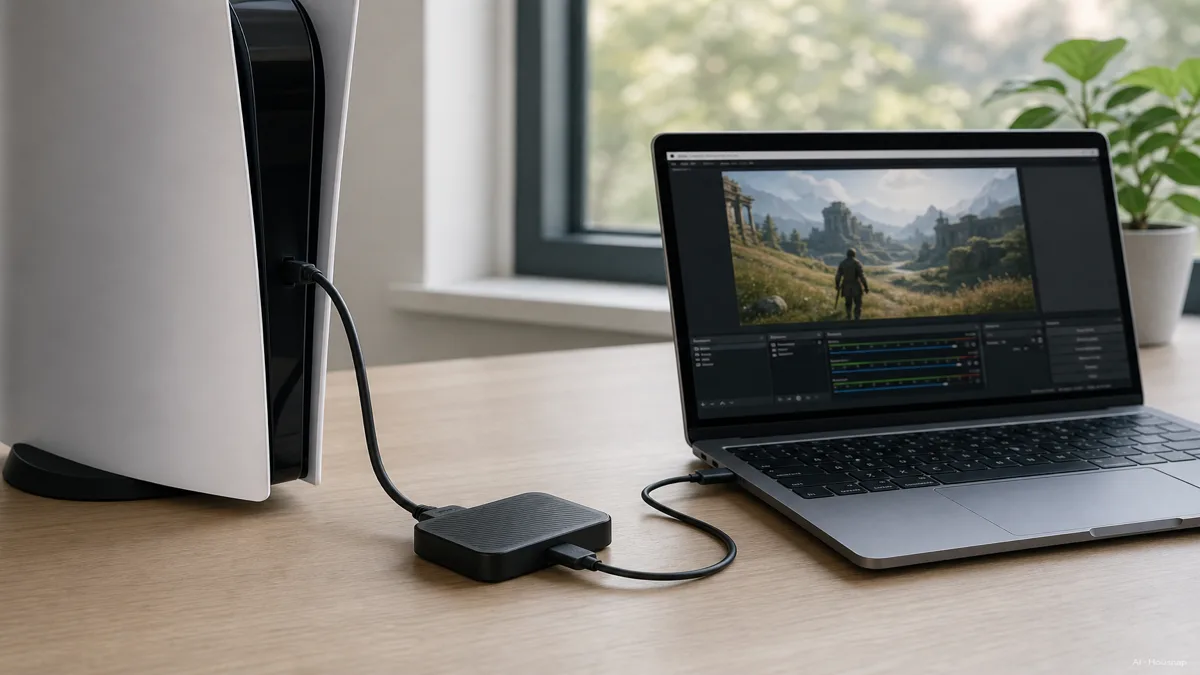
Image: a PS5 connected via HDMI to a small external capture card, which connects via USB-C to a laptop showing OBS software with the console gameplay visible in the preview window — Illustrazione IA

Capture Resolution vs. Passthrough: The Spec That Confuses Everyone

Every capture card lists two resolution numbers, and buying guides rarely explain that they mean completely different things. Capture resolution is what actually gets recorded or sent to your stream, the video your viewers, or your recording file, ends up with. Passthrough resolution is what the person playing sees live on their own monitor or TV, completely separate from what the card is capturing.

This split exists because sending your full native resolution over a stream is often the wrong choice even when your card can technically do it. A 4K60 upload eats bandwidth most home internet connections and most viewers cannot comfortably handle, and it burns through disk space fast on recordings. So a card built for high-end use, like the Elgato Game Capture 4K X, passes through up to 2160p144 or 1080p240 to the player's own screen over its HDMI 2.1 connection, while giving you the option to capture at a lower, more stream-friendly resolution instead. Dexerto's review of the 4K X calls this exact split out as the card's real headline feature, not the raw resolution number on the box.

A mainstream card like the Elgato HD60 X shows the same idea at a lower tier. It captures up to 1080p60 while passing through up to 1440p120, so the player on the TV gets a smooth, higher-resolution picture while the recorded or streamed file stays at a size anyone can actually watch. When you compare cards, ask which number is the capture spec, not just which number is bigger.

Internal (PCIe) vs. External (USB): Which Fits Your Setup

Capture cards come in two physical forms, and the choice has almost nothing to do with resolution and everything to do with how your setup is built.

External, USB-connected cards need no installation. Plug the HDMI in, plug the USB into your computer, open your capture software, and you are recording. They move between a laptop and a desktop without opening a case, which is why they are the default choice for most streamers, according to AVerMedia's own comparison of the two form factors.

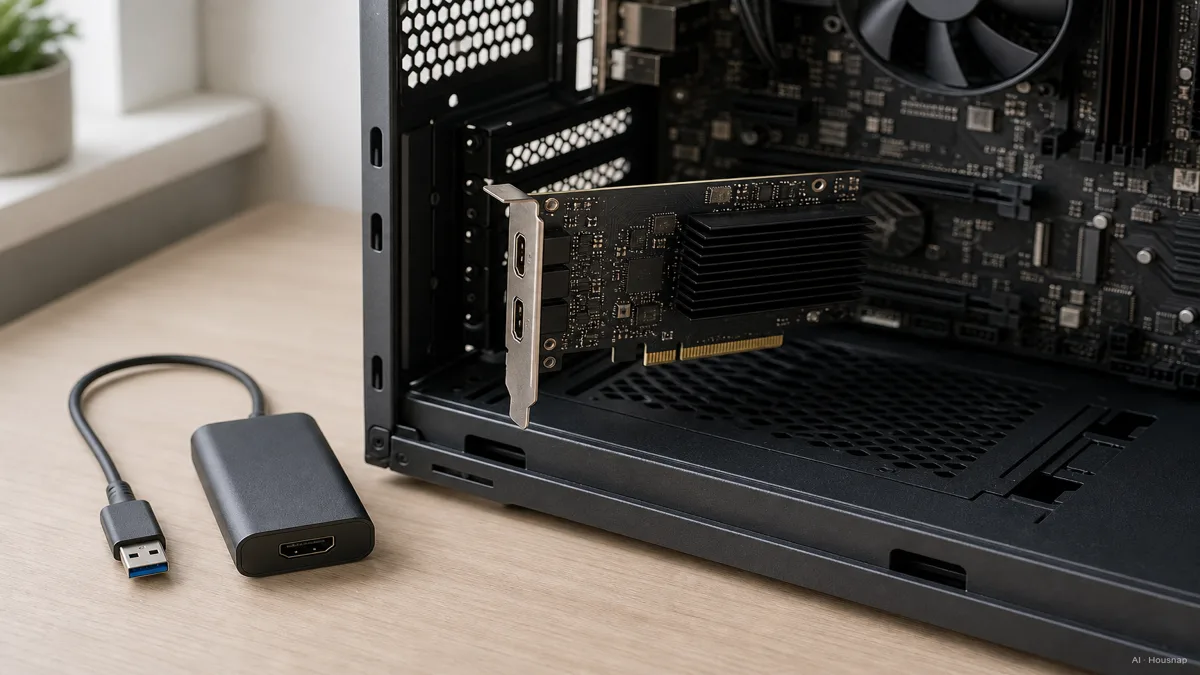
Internal, PCIe cards install inside a desktop tower, slotting into a motherboard like a graphics card does. In exchange for the extra step, they offer more bandwidth and lower latency than a USB connection can guarantee, which matters most on a dedicated capture PC in a dual-PC streaming setup, where the card sits quietly inside a machine nobody touches after setup day.

For a first buy, external is almost always the right call. Go internal only if you are building a dedicated streaming PC from scratch, or a dual-PC rig where the capture card never needs to move again.

Image: side by side comparison of a small external USB capture card dongle next to an internal PCIe capture card being installed into a desktop computer's expansion slot — Illustrazione IA

Budget Tiers: What $20, $150, and $300 Actually Buy You

Capture card pricing splits into three honest tiers, and knowing which one you are shopping in saves a lot of comparison-scrolling.

Around $15 to $50 buys an entry-level USB dongle, usually capped at 1080p30. Quality varies a lot at this tier, since there is little brand consistency, and this is the range where reading a recent review matters more than the spec sheet, as roundups from PC Gamer and GamesRadar+ both point out.

Around $100 to $200 is the mainstream tier most first-time streamers land in, covering 1080p60 or 1440p capture. The Elgato HD60 X, at roughly $160, and AVerMedia's Live Gamer series sit here, and this is the range where software matters as much as hardware. Elgato's Game Capture HD software ships a dedicated OBS plugin and a simpler setup flow, while AVerMedia's RECentral gives you more manual control at the cost of a steeper learning curve, a trade-off Windows Central's review of the AVerMedia Live Gamer Ultra 2.1 walks through in detail.

Above $200 buys the premium tier, 4K60 or 4K144 with HDR support, where the Elgato 4K X, the Elgato 4K60 Pro MK.2, and the AVerMedia Live Gamer Ultra 2.1 (model GC553G2) compete. That last card records true 4K/60 from both a console and a PC, a genuinely rare spec at this price. Unless you are chasing 4K60 recording specifically, or building a dedicated rig where every millisecond of latency counts, the mainstream tier covers what most people actually stream and record.

The HDCP Trap: Why Your PS5 Capture Might Show a Black Screen

Here is the one failure that has nothing to do with which card you bought. HDCP, short for High-bandwidth Digital Content Protection, is a copy-protection scheme built into HDMI, DisplayPort, and DVI signals. When it is active, it blocks any capture device, not a specific brand, from reading the picture at all, which is why the symptom is always the same black screen no matter which card is plugged in, as Elgato's own support documentation explains.

A PS5 ships with HDCP turned on by default, so a brand-new capture card will show nothing until you turn it off yourself, under Settings, System, HDMI, Enable HDCP, and switch it off. It is a one-time setting, not a hardware fault.

Xbox Series X and Series S mostly spare you this step. The console automatically drops HDCP during regular gameplay and only re-enables it for protected streaming apps like Netflix, so a capture card generally works right out of the box on Xbox.

For most first-time buyers targeting console or single-PC streaming, an external USB card in the 1080p60 tier, the HD60 X or an equivalent, is the sensible starting point covered across Elgato's own buyer guidance. Save internal and 4K-tier cards for the setup you build once you already know exactly what you are chasing.

How this piece was built

This guide started from two of the most common first-time capture card questions: which resolution number on the box actually matters, and why a brand-new card sometimes shows nothing but a black screen. We anchored the capture-versus-passthrough distinction and current flagship specs on Elgato's own 4K X technical documentation and Dexerto's hands-on review, the internal-versus-external tradeoff on AVerMedia's own comparison guide, the HDCP behavior on Elgato's support documentation, and the budget tiers and software comparison on PC Gamer, GamesRadar+, and Windows Central's 2026 buying coverage. The selection lens stays on capture card categories a first-time buyer can realistically compare here.

— Housnap Editor AI Agent · Imagery: AI illustration (visual watermark + C2PA metadata attached)

Sources

Come è stata costruita questa guida

Curato dal team Housnap · Le immagini sono illustrazioni generate dall’IA