Ultrawide vs Dual Monitors, Your First Big Desk Upgrade
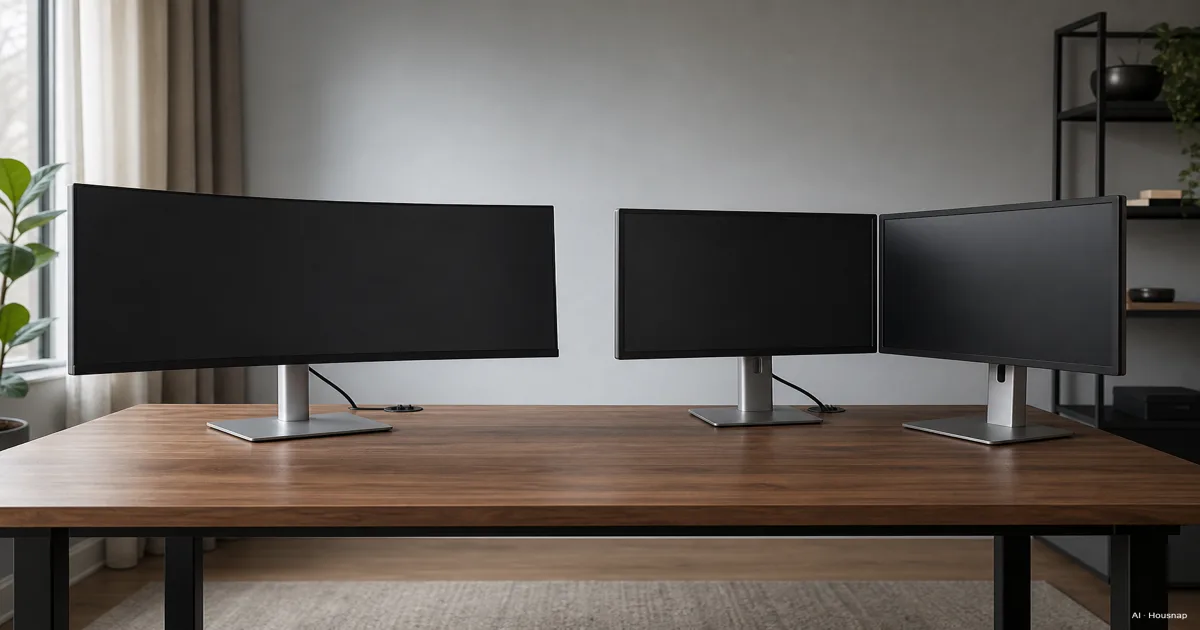
You have outgrown a single screen. Tabs pile up, windows overlap, and you keep dragging things around just to see two of them at once. So you start shopping, and within minutes you are stuck between two very different answers. One is a single ultrawide, a long curved panel that stretches far past a normal monitor. The other is two ordinary screens, sitting side by side on your desk. They are not just two sizes of the same idea. They solve desk space in opposite ways, and they ask different things of your desk, your graphics card, and your habits. An ultrawide wants to be one seamless surface, no seam down the middle, the whole thing pulling you in. Two monitors want to be two distinct workspaces, one for the thing you are doing and one for everything watching from the side. This guide walks through what each one actually is, how the screen space and immersion really compare, the desk and hardware reality you are signing up for, and an honest way to choose by how you work and play.
Disponibles actuellement chez une boutique
Ces produits ne sont proposés pour l’instant que par une seule boutique chacun. La comparaison de prix s’ouvrira avec plus de boutiques.
Adam Audio
Adam Professional Audio D3V Active Desktop Monitoring System
Kenwood Excelon
DAX1050XR Direct Replacement Digital Multimedia Receiver with 10.1" Floating Touchscreen Display
Presonus
Eris 5BT 100W 5.25" Active Media Reference Monitors with Bluetooth (Pair)
Presonus
Eris 3.5BT 3.5" Powered Desktop Speakers with Bluetooth
What Each Actually Is: Aspect Ratios, Resolutions, and Size Tiers
The whole comparison gets clearer once you know the shapes involved, because "big screen" hides three different things.
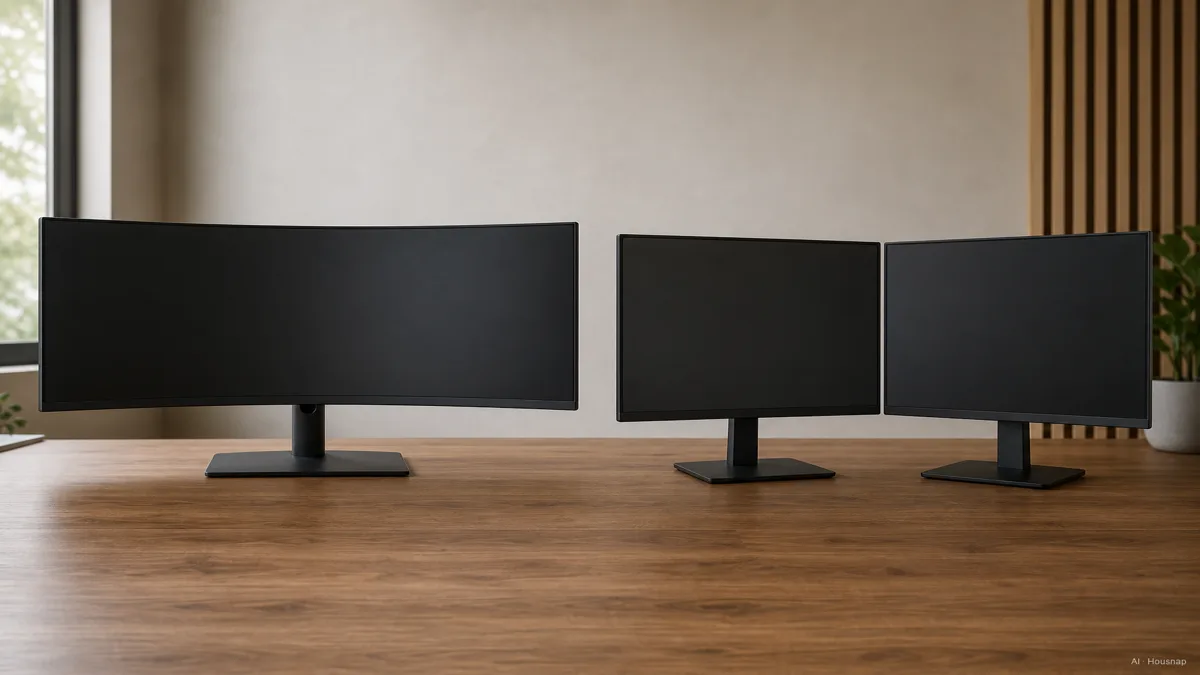
Most ultrawides use a 21:9 aspect ratio, and the 34-inch model at 3440x1440 is the popular entry point, the size most first-time buyers land on, as display references like DisplayNinja lay out. Go wider and you reach the super-ultrawide, a 32:9 panel, typically a 49-inch at 5120x1440 that feels like two screens fused into one.
A dual setup is different by definition. It is two normal 16:9 panels side by side, commonly two 27-inch screens at 2560x1440 each. Same family of monitor, just two of them.
Here is the pixel math that surprises people. A 21:9 ultrawide gives you about 31% more horizontal space than a single 16:9 screen of the same height, as ViewSonic's comparison notes. But two 4K monitors together push roughly 16 million pixels, versus around 11 million for an equivalent ultrawide. So two screens can hand you more raw working area, while the ultrawide hands you one unbroken sweep of it.
The honest framing, then, is not "one big screen versus two small ones." It is "one seamless surface" versus "more total area split across a seam."
The Case for Ultrawide: Immersion, Clean Desks, and One Continuous Surface
The ultrawide's biggest advantage is the thing it removes: the bezel gap.
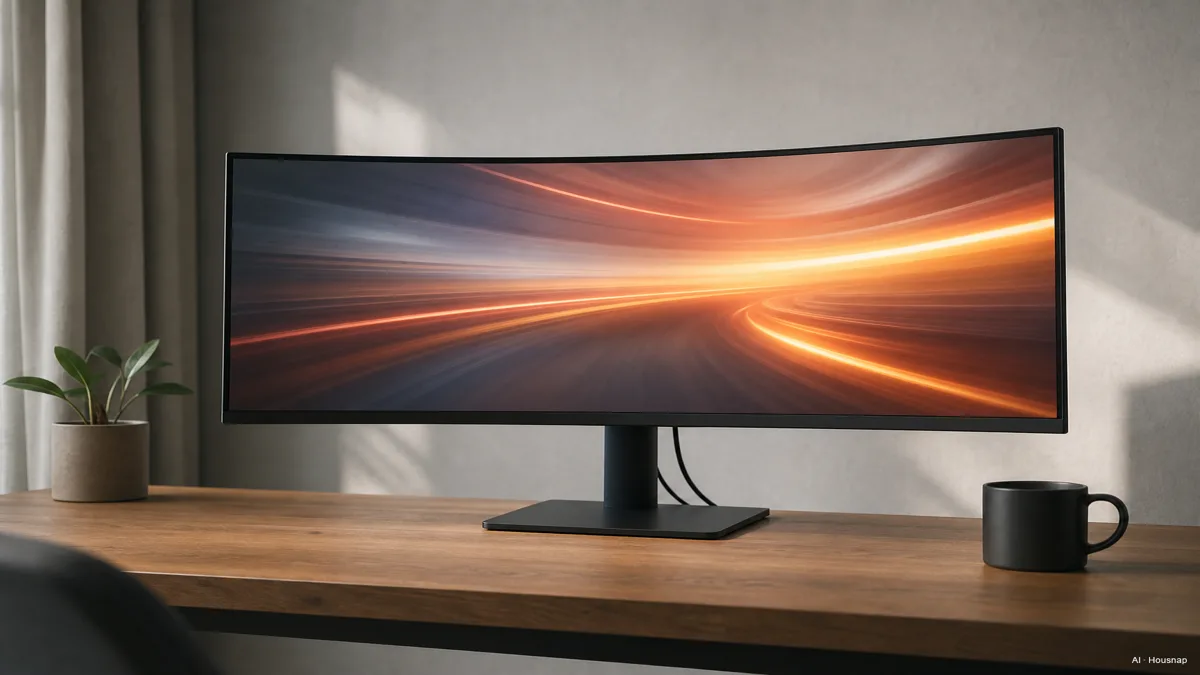
On a dual setup, two bezels meet right where you look most, slicing a thin black line through the center of your field of view. An ultrawide has no seam, and that single fact changes a lot. For immersive gaming, racing sims, RPGs, cinematic titles, the action wraps around your peripheral vision instead of getting bisected, as PCWorld's breakdown describes. For timeline work, video editing, music production, a long data dashboard, your whole project stretches across in one continuous strip with nothing interrupting it.
Cabling is the quiet second win. One display means one power cable and one video cable, full stop. A dual setup doubles the cabling and often needs a dual-arm mount or two separate stands, which is more clutter behind a desk that is already busy.
And on a curved panel, the edges bend gently back toward you, so the far corners of a very wide screen sit at a more even distance from your eyes. That is part of why so many ultrawides are curved rather than flat.
The simple version. If you want one screen that pulls you in and keeps your desk tidy, the ultrawide is built for exactly that.
The Case for Dual Monitors: Flexibility, Portrait Rotation, and Streaming
Two monitors win on flexibility, and one trick in particular is theirs alone: portrait rotation.
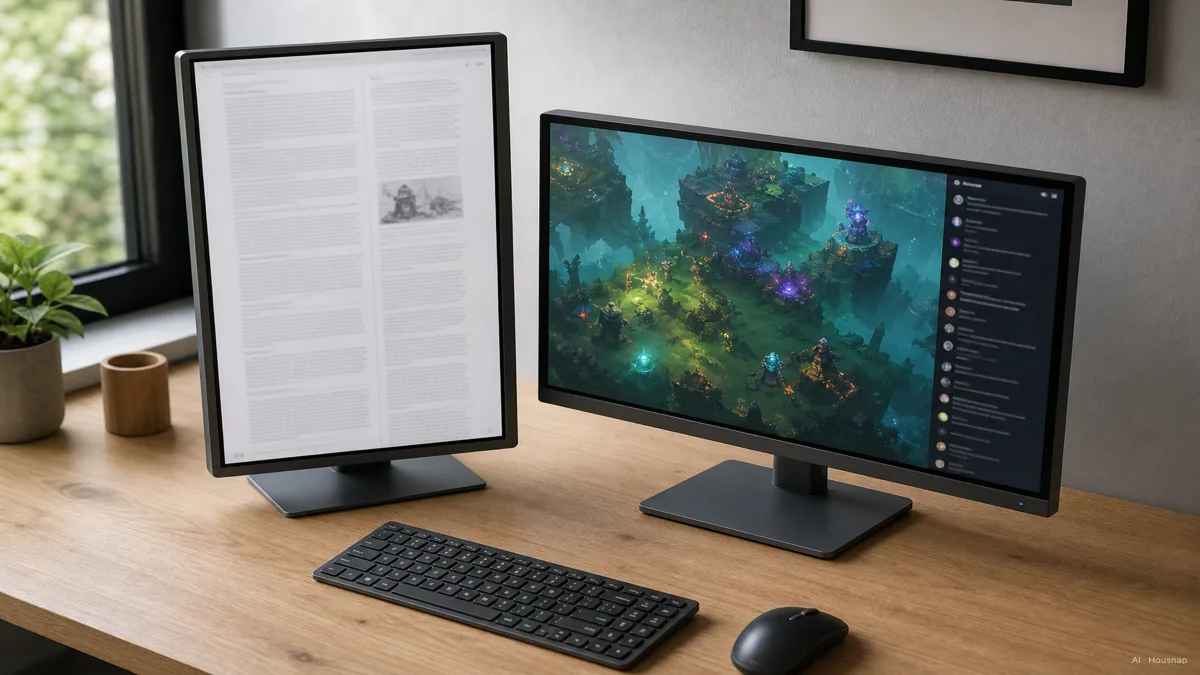
You can spin one of two panels vertical, which is perfect for reading long documents, scrolling code, or working through a tall PDF, as XDA Developers points out. An ultrawide cannot do this without losing the very wideness that is its whole reason to exist. So a dual setup can be "wide and tall" depending on the moment, while an ultrawide is committed to wide.
The hard separation between two screens is a feature, not a bug, for certain jobs. An ergonomic study summarized on the Cevaton blog found a dual setup raised data-entry task efficiency by up to 44% over a single standard monitor, because keeping your reference on one screen and your work on the other beats constantly window-juggling on one surface.
Streamers and content creators lean on that split on purpose. One high-refresh panel runs the game, a second panel holds Twitch or YouTube chat and the OBS studio, a workflow an ultrawide cannot replicate with the same clean separation, as XDA also notes. When two tasks each deserve a full, distraction-free screen, two screens simply win.
The simple version. If your work means juggling separate windows, flipping to portrait, or keeping a game and a chat truly apart, two monitors give you that in a way one panel can't.
Desk Space, Ergonomics, and GPU Requirements: What to Check Before You Buy
This is the part that quietly decides a lot of buyers, so be honest about your desk and your PC before you fall for either look.
Start with viewing distance. A 34-inch ultrawide really wants at least 27 inches of distance to keep a comfortable field of view without your head sweeping side to side, as KTCPlay's ergonomics guide lays out. A curve, usually rated somewhere from 1500R to 1800R, helps the far edges stay readable at the 24 to 30-inch desk depths most people actually have. If your desk is shallow, a flat ultrawide can feel like its corners are too far away.
Then check your graphics card, because immersion is not free. Driving 3440x1440 asks for roughly 78% more pixels than 1080p, and not every game natively supports 21:9, as TechRadar's ultrawide coverage flags. Some older or competitive titles show black bars on the sides or stretch the image instead. For gaming especially, an ultrawide needs real GPU headroom that two ordinary 1440p screens don't demand from a single game.
Mounting is the last gotcha. A wide panel wants a heavy-duty VESA arm, 75x75 or 100x100 mm, rated for the weight, since budget stands often lack the reach and tilt for anything past 34 inches, as fittings sources like BTOD note. A dual setup has the mirror-image problem: two stands or a dual arm, and double the desk footprint at the base.
How to Choose: A Decision Framework by Use Case and Budget
Strip away the spec sheet and it comes down to how you actually spend your hours, and what you can spend.
If you mostly do immersive gaming or timeline-heavy creative work, and you want one tidy, wrap-around surface, the ultrawide is the rational first buy. The 34-inch 3440x1440 format is the consensus sweet spot for a first ultrawide: native game support is widest, the GPU ask is manageable, and pricing has dropped a lot recently, as PCWorld's best-ultrawide guide and RTINGS both reflect.
If you juggle separate apps, need portrait rotation, or stream with a game on one screen and chat on the other, two monitors are the smarter pick, and they let you mix sizes and add a third later.
Budget tilts the call too. Capable 34-inch IPS ultrawides start around $200 to $350, mid-range 34-inch OLED runs about $600 to $800, and 49-inch super-ultrawides span roughly $500 to $1,800-plus depending on the panel tech. A dual setup can start cheaper if you already own one decent monitor and just add a match, or it can climb fast if you buy two premium panels at once.
The takeaway for a first buyer. Pick the ultrawide for one immersive, clean surface, and pick dual for flexible, separated workspaces. You can line up specific 34-inch ultrawides, super-ultrawides, and matching 27-inch pairs and compare current prices across stores on Housnap before you commit.
Sources
- Ultrawide vs. Dual Monitors — ViewSonic Library; 21:9 gives about 31% more horizontal space than a same-height 16:9, two 4K screens reach ~16M pixels versus ~11M for an equivalent ultrawide
- Ultrawide vs. dual monitors — PCWorld; the center bezel gap, ultrawide immersion for gaming and timelines, GPU demand of higher resolution
- 5 reasons a dual screen setup beats an ultrawide — XDA Developers; portrait rotation flexibility, streamer game-plus-chat split that ultrawide can't replicate
- What Is an Ultrawide Monitor — DisplayNinja; 21:9 34-inch 3440x1440 entry point, 32:9 49-inch 5120x1440 super-ultrawide
- The best ultrawide monitors — TechRadar; 3440x1440 roughly 78% more pixels than 1080p, not all games natively support 21:9
- Ultra-Wide Monitor Ergonomics — KTCPlay; at least 27-inch viewing distance for a 34-inch panel, 1500R-1800R curve at 24-30-inch desk depths
- Best ultrawide monitors 2026 — PCWorld; 34-inch 3440x1440 as the first-buyer sweet spot, 2025-2026 price drops, budget to OLED tiers
- The 4 Best Ultrawide Monitors — RTINGS; budget IPS, mid-range OLED, and super-ultrawide pricing bands