First, separate cursor skipping from physical drag
Does the pointer jump while the mouse moves freely, or does the mouse itself catch against the pad? Note which happens before changing anything. The sensor window is the opening underneath the mouse; the feet are the pads that slide across your work surface.
Dell’s troubleshooting guide identifies contamination around the optical sensor as a possible cause of tracking problems and recommends a textured or patterned mouse pad. Start by checking the surface you already use for loose debris. If you have another clean, dry surface suitable for your mouse, compare the same movements there without changing sensitivity.
Treat that comparison as a clue, not a diagnosis. A problem that changes with the surface does not by itself prove that the sensor or feet need replacement.
Disconnect the mouse, then inspect and wipe the feet
Unplug a wired mouse. Switch off a wireless mouse and remove batteries only if they are designed for user replacement; do not open the housing to reach an internal battery. Logitech’s care instructions distinguish user-replaceable batteries and warn against moisture entering the device.
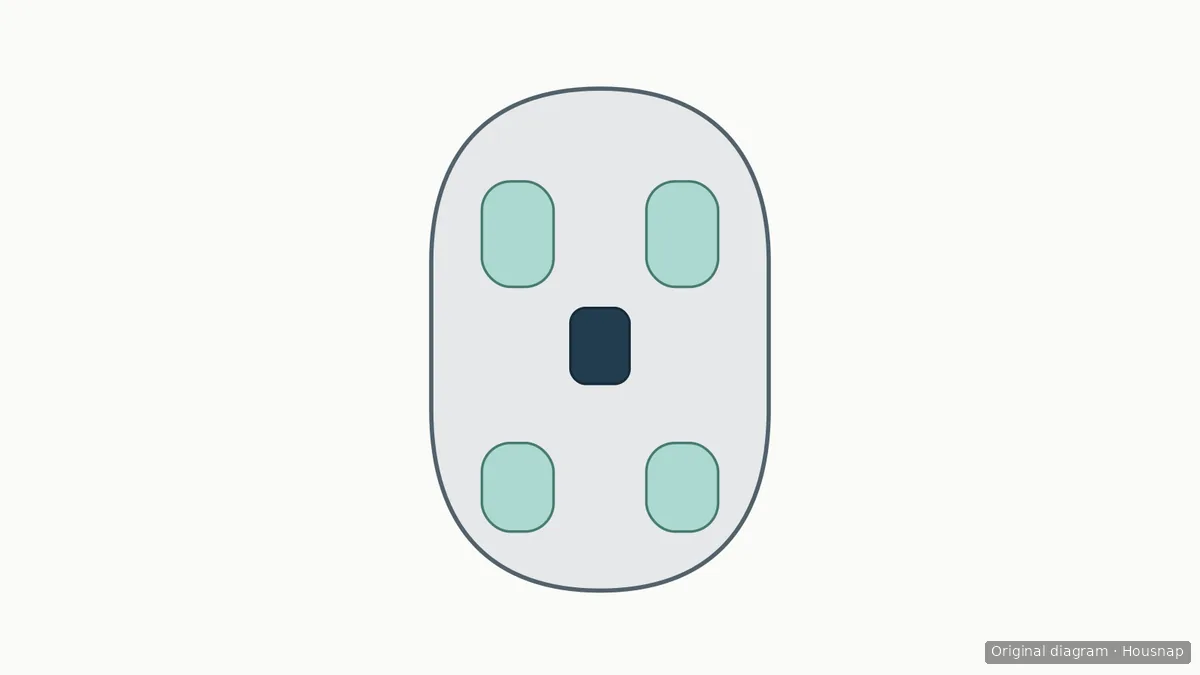
Look at each foot before wiping. Is there dirt on its exposed face, or is an edge lifted, torn or visibly worn? The diagram separates the areas to inspect; your mouse may have differently shaped feet.
For this external check, start with a clean, soft, lint-free cloth and light pressure on the exposed faces of intact feet. Use a suitable cloth you already own. If dirt remains, check the exact mouse’s care instructions before adding moisture. Logitech describes a lightly water-moistened cloth for its mice, but that does not establish permission for every foot material or adhesive.
Do not turn this into an adhesive-removal job. Our stopping rule is to leave lifted or damaged feet in place and ask the manufacturer about model-specific replacement. Do not sand, peel or stack feet as part of cleaning. Logitech also warns against strong solvents and abrasives.
Choose a sensor method from the mouse’s instructions
Inspect the sensor window without pushing a tool into the opening. If it looks clear, move on to the dry-and-retest step rather than repeatedly wiping it.
There is no universal alcohol recipe. Microsoft’s instructions allow IPA at 70% or less on a soft, lint-free cloth for its mice and keyboards. The same page describes gently wiping the optical sensor with a cloth or cotton swab dampened with mild soap and water. By contrast, Razer’s cleaning notice says to avoid IPA and other alcohol-based cleaning solutions.
Use the instructions that apply to your mouse and the specific area being cleaned. Permission to wipe the shell is not automatically permission to wet the sensor window. If the instructions expressly call for a cotton swab, use one gently as directed; there is no need to buy a cleaning kit just to inspect the opening. Never apply liquid directly to the mouse. If the sensor method is unclear or residue will not lift with the permitted method, ask support before trying something stronger.
Let it dry, retest, and know when to stop
Dell requires the sensor lens to dry completely before reconnection. After any permitted damp cleaning, wait until the cleaned areas are fully dry before restoring power.
Repeat your usual small movements and longer sweeps on the same clean surface, keeping the settings unchanged. Check physical drag and pointer movement separately.
- Movement is normal again. Stop cleaning; repeated passes are not the goal.
- A foot is lifted, torn or visibly worn and the mouse still catches. Ask about the correct replacement part and procedure for that model instead of scraping harder.
- The pointer still skips despite a clear window and a suitable surface. Move to the manufacturer’s connection and troubleshooting guidance. Dell also identifies USB-device conflicts as a possible cause of erratic movement, so dirt is not the only explanation.
If the remaining decision is whether to change the working surface, use the mouse-pad material guide to compare glide, dimensions and mouse compatibility. Cleaning alone is not a reason to buy a new mouse or pad.
Cómo se elaboró esta guía
This article was written by AI for Housnap using official Microsoft, Logitech, Razer and Dell support guidance. It separates manufacturer-specific cleaning permissions from an editorial sequence for inspection and stopping; it does not report hands-on testing or establish compatibility for replacement feet.