Mechanical vs Membrane Keyboard, What a First-Time Buyer Should Know
You're standing in front of a keyboard aisle, or scrolling a product page, and one keyboard costs 15 dollars while the one next to it costs 90. They both type letters onto a screen. It's fair to wonder what you're actually paying for. The honest answer sits inside the keys themselves. A membrane keyboard is built from a single rubber sheet with domes molded into it, one dome collapsing under each key to complete a circuit. A mechanical keyboard replaces that sheet with an individual spring-loaded switch under every single key. That's the whole difference, and it explains almost everything else, the sound, the feel, how long it lasts, and the price. This guide breaks down what a switch actually is versus what a dome is, the three ways a mechanical switch can feel, how long each type genuinely lasts, and who should buy which, before you get anywhere near comparing specific switch colors or keyboard sizes.
Disponibles ahora en una sola tienda
Por ahora, cada uno de estos productos está disponible en una sola tienda. La comparación de precios se abrirá con más tiendas.
Casio
Casiotone CT-S200, Beginner 61-Key Portable Keyboard (Red)
Kawai
SC-1 Bag Keyboard Gig Bag
Casio
Casiotone CT-S300 Portable Keyboard (Black)
Casio
CT-S1-76 76-Key Touch-Sensitive Portable Keyboard (White)
What Actually Separates Mechanical from Membrane
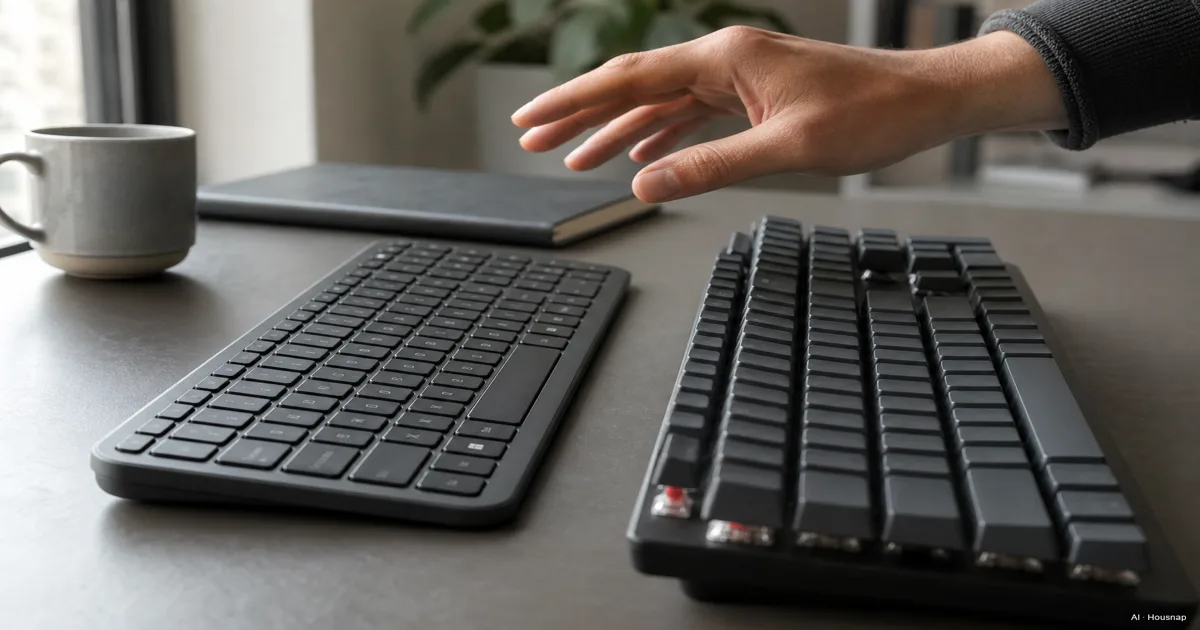
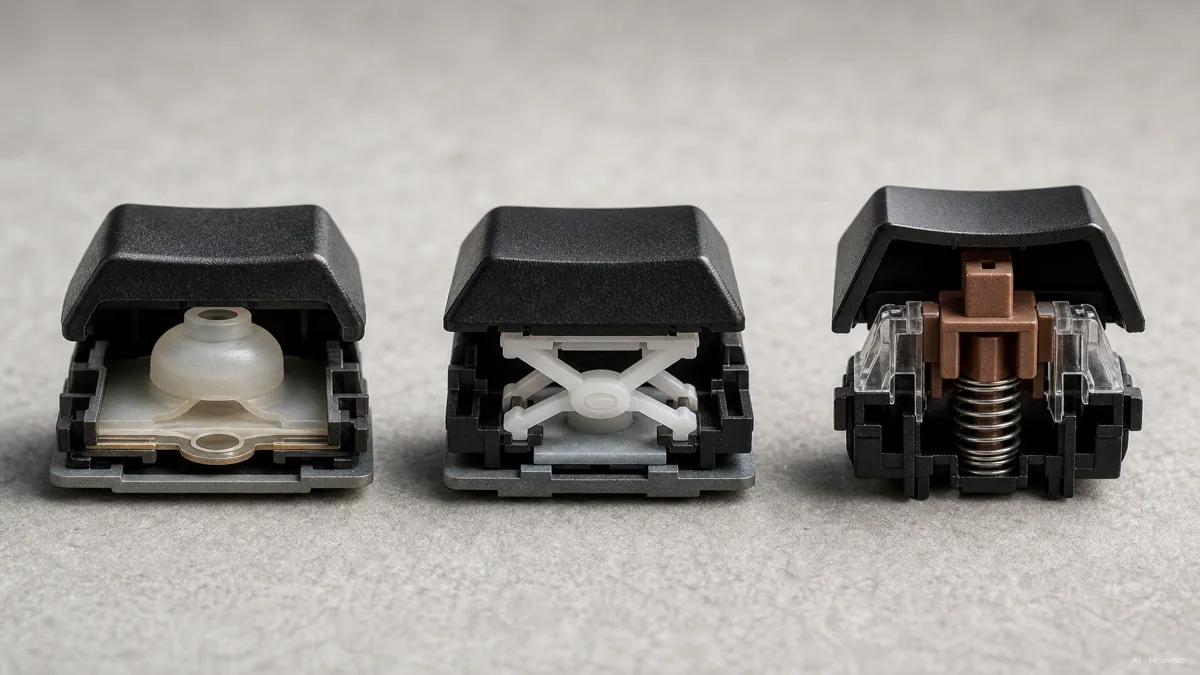
Flip a membrane keyboard over, and underneath the keycaps you'd find one continuous rubber or silicone sheet with a printed circuit layer beneath it. Every key sits on its own molded dome in that sheet. Press the key, the dome collapses, the circuit underneath completes, and the keystroke registers, per the mechanism Kensington's comparison of the two keyboard types lays out. That single shared sheet is also why membrane keyboards are cheap to build. Fewer parts, less assembly, and rubber sheets and printed membranes are simple to manufacture at scale, according to Ergopedia's breakdown of the three keyboard types.
A mechanical keyboard throws that shared sheet out entirely. Every single key gets its own individually housed switch, a small spring-loaded mechanism that completes the circuit through moving metal contacts rather than a squishing rubber dome. Nothing is shared between keys, which is exactly why a mechanical keyboard can register two nearby keys at once cleanly, while a membrane board sometimes can't.
There's a middle category worth knowing about too. Scissor-switch keyboards, the kind built into most laptops, are technically still membrane keyboards underneath. A small plastic scissor mechanism links the keycap to a plunger that presses the same rubber dome, just over a much shorter distance. That shorter, more controlled travel is why laptop-style scissor keys feel crisper than a thick desktop membrane board, even though the core mechanism is the same rubber dome, per Ergopedia's scissor-switch section.
Feel and Sound, Linear, Tactile, and Clicky Switches Explained
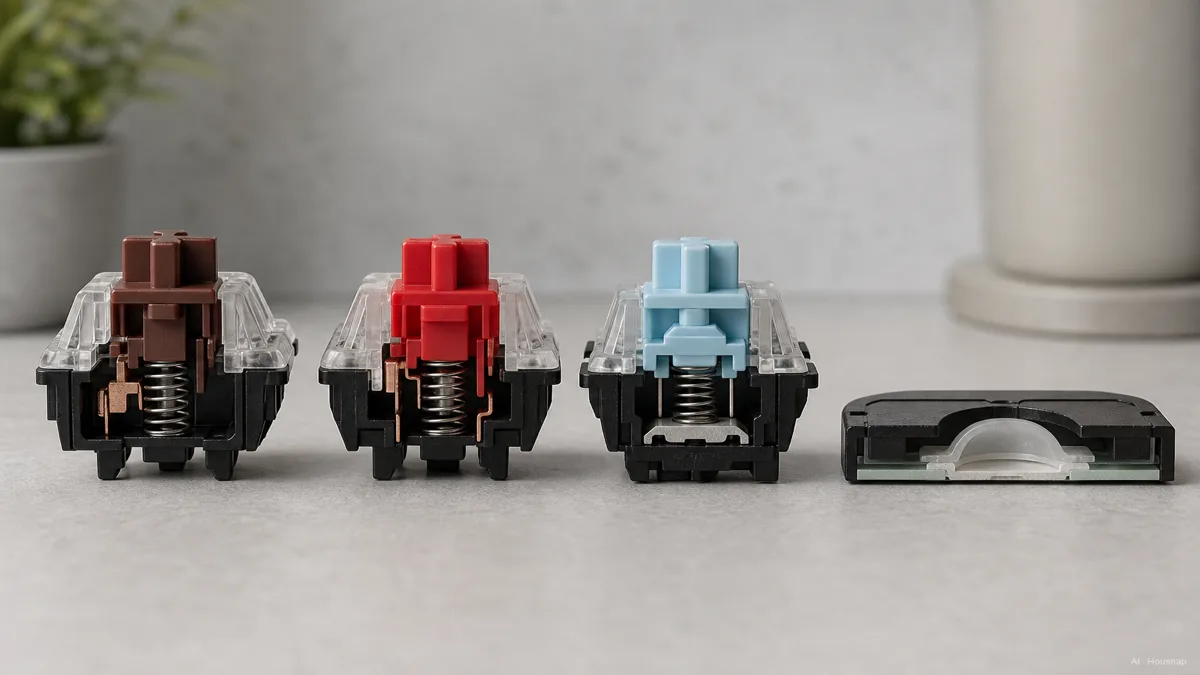
Once you're looking at mechanical switches, they split into three feel families, and almost every model name you'll see, red, brown, blue, is really just a label pointing back to one of these three.
Linear. The key glides straight down with nothing interrupting it, no bump, no signal partway through the press. You feel the keystroke land and that's it. Cherry MX Red and Gateron Yellow are the reference linear switches.
Tactile. Partway down, you feel a small bump. It's a physical cue that the key has actuated, so you learn to stop pressing the moment you feel it instead of slamming every key to the floor. There's no click, just the feel. Cherry MX Brown and Boba U4T are the common examples, per MKB Guide's rundown of the three switch families.
Clicky. Same tactile bump, plus a loud, distinct click every time the key registers. Cherry MX Blue is the archetype. Satisfying to type on, and genuinely disruptive to anyone sharing your desk or your video calls.
None of this exists on a membrane keyboard. A rubber dome just squishes and springs back, so what you get is closer to a single, mushy feel across the whole board, quieter than clicky mechanical switches but with none of the crisp definition tactile or linear switches give you. That mushiness isn't a flaw exactly, it's the whole point for anyone who finds mechanical keys loud or wants the cheapest possible option.
Durability and Cost Over Time
Here's the number that actually justifies the price gap. Mechanical switches are commonly rated for 30 to 100 million keypresses per key, Cherry MX Red and Brown around 100 million, MX Blue and Black around 50 million, and Gateron or Kailh switches typically landing somewhere in the 50 to 70 million range, according to Ergopedia's keyswitch comparison and RTINGS's mechanical-versus-membrane guide. A typical consumer membrane keyboard, by comparison, is rated for roughly 5 to 10 million keystrokes per key, per the same sources.
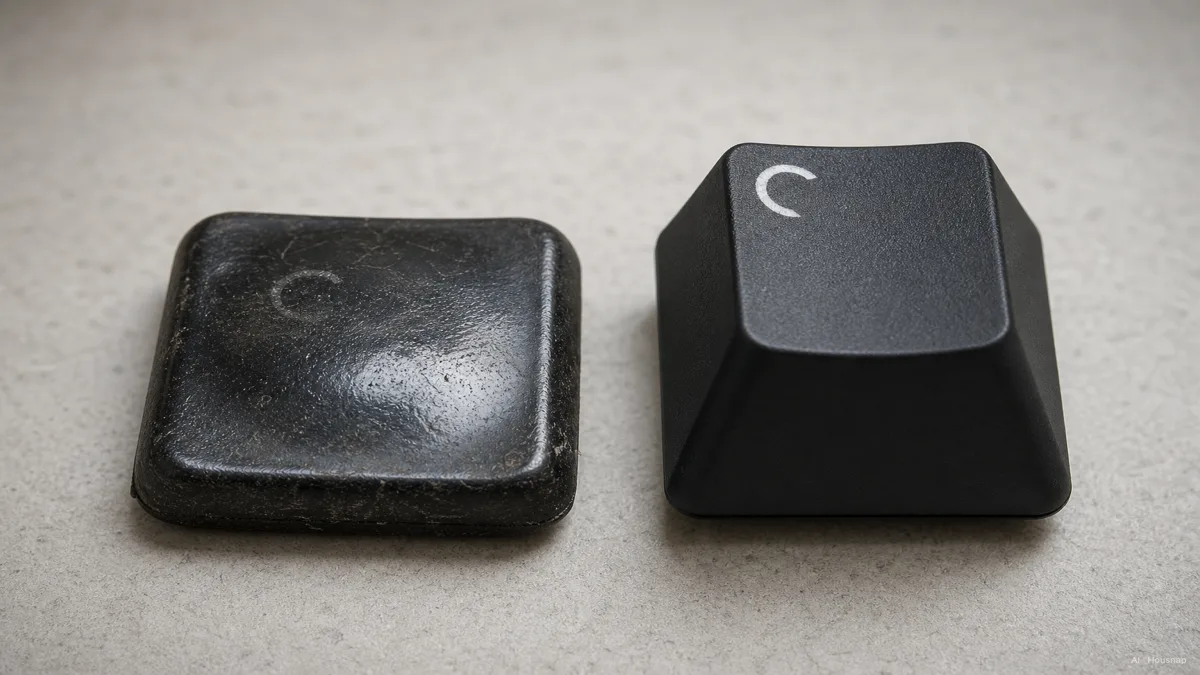
Do the math on a keyboard you actually type on daily, and that gap stops being an abstract spec. A membrane board that sees heavy daily use can start feeling spongy or unresponsive on its most-used keys within a couple of years, since the rubber domes themselves fatigue and lose their snap. A mechanical switch under the same daily load is barely scratching the surface of its rated life at that point. Spread the higher upfront cost of a mechanical board across the years it actually lasts, and the price-per-year gap narrows a lot more than the sticker price suggests.
Total travel matters here too. Most mechanical switches move about 4mm from rest to fully pressed, with the keystroke usually registering around the 2mm mark, per KeebsForAll's actuation guide. Membrane and scissor-switch keys generally travel a shorter, less clearly defined distance, which is part of why a membrane key can feel like it "bottoms out" with less warning.
Who Should Buy Which, Gaming, Typing Volume, Shared Spaces, and Budget
Buy mechanical if you type or game for hours most days, if you want a keyboard built to survive years rather than one or two, or if you've never felt a tactile or clicky switch and want to know what the fuss is about. Actuation force matters here too, light switches around 35 to 50 grams-force suit fast typists and gamers, Cherry MX Red actuates around 45 grams-force at that 2mm mark, while heavier switches at 60 grams-force and up cut down on accidental presses for anyone who types with a heavy hand, per thegamingsetup's actuation force breakdown.
Stick with membrane if your budget is genuinely tight, if you need near-silent typing for a shared room or a late-night call, or if the keyboard sits somewhere it might get knocked around, spilled on, or lost, an office hot desk, a kid's computer, a shared family PC. RTINGS's guidance and general ergonomic advice from Lenovo's mechanical-versus-membrane explainer both land in roughly the same place: membrane for low budget, quiet needs, or higher loss risk, mechanical for frequent typing, serious gaming, or a keyboard meant to last.
A useful signal for 2026 buyers is Hall Effect, or magnetic, switches, a newer category that uses magnets instead of physical metal contacts, so nothing wears out from contact degradation and the actuation point becomes adjustable, sometimes down to 0.5mm, unlocking features like Rapid Trigger that competitive gamers care about, per Newegg Insider's 2026 buying guide. If competitive gaming is genuinely the point, that's worth knowing exists, though it's a later upgrade question, not a first-keyboard one.
Buying Your First Mechanical Keyboard, Size, Hot-Swap, and What to Avoid
If you've landed on mechanical, three practical decisions matter more than the switch color you pick.
Size. A TKL (tenkeyless) board drops the numpad and keeps everything else, so there's zero relearning if you're used to a full-size keyboard. A 65% board goes further, dropping the function row onto a secondary layer, which takes some getting used to but saves real desk space, per MKB Guide's 2026 first-buyer breakdown.
Hot-swap sockets. This is the one feature that changes the whole risk calculation for a first buyer. A hot-swappable board lets you pull switches out and push new ones in by hand, no soldering iron required, so you can try a different switch type for the cost of a switch set, roughly 15 to 30 dollars, instead of buying an entirely new keyboard. Switch preference is genuinely hard to judge before weeks of daily typing, so this one feature buys you the room to be wrong.
What to avoid. Don't chase the biggest DPI-style spec-sheet number, in this case durability figures far beyond what you'll ever reach, or an ultra-premium build if you're not sure mechanical is even for you yet. A well-regarded starting band sits roughly in the 80 to 150 dollar range for a hot-swappable board with PBT keycaps and QMK or VIA firmware support, per Newegg Insider's guide, which cites the Keychron V5 Max as a representative pick in that band. From there, the practical next step is filtering keyboards by size and hot-swap support, and comparing what the same models cost across different stores, since the spec sheet narrows the category and the price comparison decides the actual keyboard.
Sources
- Mechanical vs Membrane Keyboards, Which Should You Choose? — RTINGS.com; overall durability, feel, and use-case guidance
- Comparing Mechanical, Membrane and Scissor-Switch Membrane Keyboards — Ergopedia.ca; keypress durability ratings and the scissor-switch middle category
- Differences Between Mechanical, Membrane, and Scissor Frame Keyboards — Kensington; how a membrane dome completes a circuit
- Mechanical vs Membrane Keyboards, Key Differences, Benefits, and Which is Best for You — Lenovo; buyer fit guidance
- What Is Switch Actuation Force? — KeebsForAll; actuation force ranges and total travel distance
- How to Choose a Mechanical Keyboard in 2026 — Newegg Insider; Hall Effect switches, price band, and the Keychron V5 Max reference pick
- How to Choose Your First Mechanical Keyboard, 2026 Beginner's Guide — MKB Guide; switch feel families, size, and hot-swap advice for first buyers